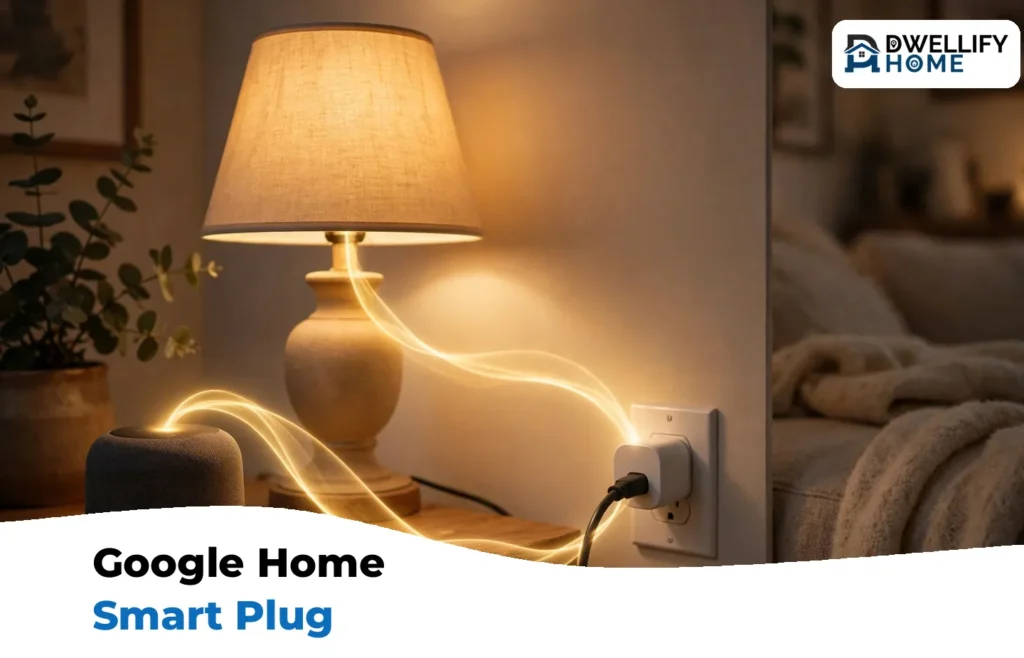
A smart plug that works with Google Home lets you turn a lamp, fan, or coffee maker on and off from the Google Home app, with your voice, and on automatic schedules. Plugs with the “Works with Google Home” label link to Google through the maker’s cloud account. Plugs with the newer Matter label connect through a Google hub on your home network instead. Both kinds work well, and this guide shows how to choose one, set it up, name it, and schedule it.
One limit matters before you buy anything. A smart plug only cuts and restores power. The device plugged into it must start on its own when power returns, like a lamp with its switch left on, a basic fan, or a simple drip coffee maker. Devices with touch buttons and electronic controls often stay off, and no plug can fix that.
What “Works With Google Home” Actually Means
The label on the box describes how the plug reaches Google, and that path decides how fast the plug answers, whether it needs the internet, and how long it may keep working. There are two paths, and plenty of plugs offer both.
The Badge Kind: Linked Through the Maker’s Cloud
A plug with only the “Works with Google Home” badge is set up first in the maker’s own app, such as Kasa, Tapo, or Cync. Then you link that account inside the Google Home app. When you say “Hey Google, turn on the lamp,” your command travels to Google’s servers, across to the maker’s servers, and back down to your plug. It works fine, but it needs a live internet connection the whole way, and answers can lag a second or two.
The bigger catch is dependence on the maker. If the company ever shuts its cloud service down, Google control can die with it. Google’s own support page notes that Belkin ended Wemo cloud service on January 31, 2026, and Wemo devices began appearing offline in Google Home after that date. A cloud-linked plug is simple and cheap, but its smart features live on someone else’s server.
The Matter Kind: Connected Through Google’s Hub
Matter is a shared smart home language created by the Connectivity Standards Alliance, an industry group that includes Google, Amazon, Apple, and Samsung. A Matter plug skips the maker’s cloud for everyday control. Instead, it joins your Google Home through a Google device that acts as a Matter hub, such as a Nest Hub (2nd generation) or a Nest Mini. Google’s own Matter guide gives the simple shopping rule: look for either the Works with Google Home or Matter badge on the box.
Because commands run on your local network, a Matter plug usually answers faster. TP-Link points out that Matter devices on the same home network keep working together even when the home internet connection goes down. Matter plugs can also live in more than one system at once, a feature called Multi-Admin, so the same plug can appear in Google Home and in Apple Home or Alexa if you ever switch or mix platforms.
The trade-off is that you need that Google hub in the house. Many homes already have a Nest speaker or display doing the job without knowing it. Most Matter plugs connect over Wi-Fi; a smaller number use Thread, a low-power radio that needs a border router, which some Nest devices also provide.
Cloud-linked plugs and Matter plugs, side by side:
| Question | Works with Google Home (cloud) | Matter |
|---|---|---|
| How it connects | Through the maker’s app and cloud account | Through a Google Matter hub on your home network |
| Maker app needed? | Yes, for setup and linking | Not for basic Google Home control; useful for extras |
| Works if the internet drops? | No, voice and app control stop | Local control can keep working on the home network |
| Usable in other systems? | Only the systems the maker supports | Yes, with Multi-Admin across Matter apps |
| Main risk | Maker can end cloud support | Needs a compatible Google hub in the home |
What You Need Before You Start
Gather these first and setup usually takes about five minutes:
- A phone or tablet with the Google Home app, signed in to the Google account you use for the home.
- A 2.4 GHz Wi-Fi network. Almost every smart plug, Matter or not, is 2.4 GHz only, so check that your router offers that band.
- For a Matter plug, a Google device that acts as a Matter hub, such as a Nest Hub (2nd generation), Nest Hub Max, or Nest Mini, plugged in and added to the same home.
- Your home address saved in the Google Home app, if you later want time, sunrise, sunset, or arrival-based routines. Google requires the address for those starters.
- The plug’s setup code. Matter plugs carry a QR code and an 11-digit code on the device or in the box. Keep that card; you need the code again after a reset.
- A lamp or appliance that turns itself on when power returns, with its own switch left in the on position.
How to Choose a Plug That Works With Google Home
Five checks separate a plug you will love from one you will return:
- Connection type. Choose Matter if you have a Google hub and want faster, local control that is not tied to one maker’s cloud. Choose a badge-only plug if it is cheaper and you accept the cloud link.
- Wi-Fi band. Confirm the box says 2.4 GHz Wi-Fi. Plugs do not use 5 GHz, and this one fact explains most failed setups.
- Load rating. Most indoor plugs are rated 15 amps, about 1,800 watts on a US outlet. Never plug in a device that draws more than the rating printed on the plug.
- Energy monitoring. Some plugs measure how much power the connected device uses and show daily and monthly totals in the maker’s app. It is the easiest way to spot a power-hungry appliance. Other plugs skip it and cost less.
- Size. A mini or compact plug covers one socket and leaves the second outlet free, so you can stack two plugs in one duplex outlet. Bulky plugs block the second socket.
- Safety listing. Look for a UL or ETL mark, which means the plug passed independent safety testing.
Two Plugs That Show the Difference
The Tapo P125M from TP-Link is a Matter over Wi-Fi mini plug. It is rated 15 A / 1,800 W max, is UL certified, and is small enough to leave the second outlet free. It has no energy monitoring. TP-Link’s list price is $19.99 for a single plug, checked on October 20, 2026. It is the shape of a modern first plug: quick setup by QR code, no dependence on the Tapo cloud for Google control, and it can also join Alexa, Apple Home, or SmartThings later.
The Kasa EP25 is a badge-style plug with a bonus. It links to Google Home through the Kasa cloud, and it adds energy monitoring, so you can watch what a device really costs to run in the Kasa app. It is also rated 15 A max. TP-Link’s list price is $49.99 for a 4-pack, checked on October 20, 2026. Pick this style when tracking power use matters more to you than local control.
Caution before the next step in your shopping: a space heater typically draws about 1,500 watts, close to a plug’s limit. TP-Link’s own guidance is to check the plug’s power rating before connecting high-wattage devices such as space heaters or air conditioners. Many people skip heaters on smart plugs entirely, and no plug or routine should ever be the only control for a heater.
How to Set Up a Smart Plug in the Google Home App
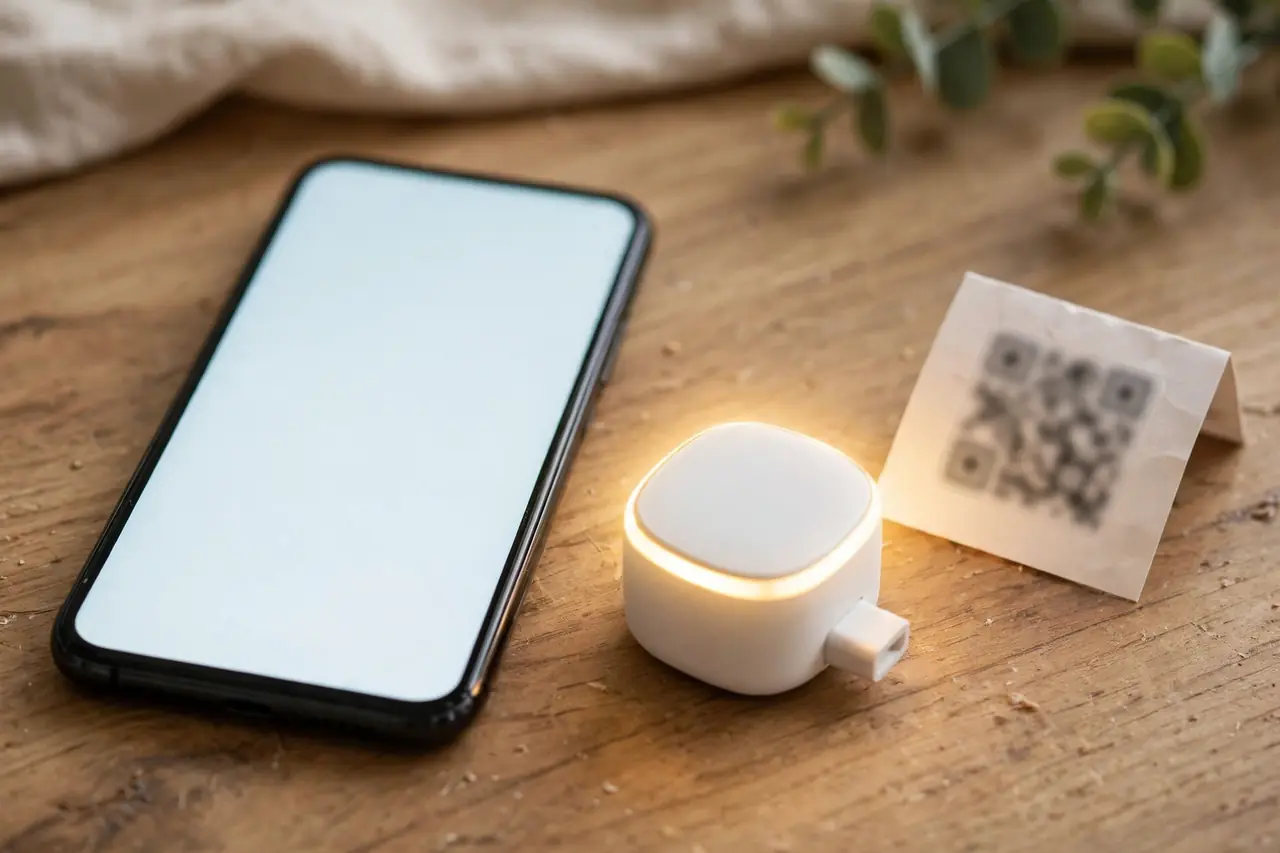
The two plug kinds share most steps. The difference sits at step 3. These steps follow Google’s own instructions for connecting smart home devices.
- Plug the smart plug into the outlet. Plug your lamp or appliance into the smart plug, and switch the lamp or appliance itself on. Press the plug’s side button once; the device should turn on. That proves the chain works before any app is involved.
- If your plug is not a Matter model, set it up in the maker’s app first, following the maker’s instructions. Google requires this for cloud-linked devices. Matter plugs can skip this step.
- Open the Google Home app and tap the + (Add) button. For a Matter plug, scan the QR code on the plug or its card, or choose the option to use the setup or pairing code and type the 11-digit code.
- For a badge plug, choose “Add a different way,” search for the brand, select the maker’s service, and tap “Link app.” Sign in with the maker’s account so Google can reach the plug you set up in step 2.
- Give the plug a short, clear name and assign it to a room. Naming rules are in the next section, and they decide whether voice control feels magic or broken.
- Follow the remaining in-app prompts, then test twice: tap the plug’s tile in the Google Home app, and then say “Hey Google, turn on [your plug’s name].” Both should work before you move the plug to its real spot.
Success check: if the plug works from its new location for a full day, setup is done. If it drops offline only in that spot, the Wi-Fi signal there is weak; the troubleshooting section below covers that case.
Give It a Name Voice Commands Can Find
Google hears names, not intentions. Name the plug after the thing it runs: “Coffee Maker,” “Desk Fan,” “Porch Lights.” Three rules keep voice control reliable:
- Use one short name per plug, and never reuse the same name for two plugs.
- Skip names that sound alike, such as “Fan” and “Lamp” in the same breath is fine, but “Night Light” and “Light” in one room will confuse commands.
- Put the room in the room field, not only in the name. Room assignment is what makes “turn off the living room lights” style commands work.
If you rename a plug later inside the maker’s app, Google does not learn the new name by itself. Say “Hey Google, sync my devices,” which is Google’s documented command for pulling in changes, or rename the plug directly in the Google Home app.
Voice Commands That Work With a Smart Plug

Once the plug is named and placed in a room, these are the commands that carry a normal day. You can speak them to a Nest speaker or display, or to Google Assistant on your phone.
- “Hey Google, turn on the coffee maker.”
- “Hey Google, turn off the desk fan.”
- “Hey Google, turn off the living room lights” — this targets the devices assigned to that room.
- “Hey Google, good night” — with a Routine behind it, one phrase can switch off every plug in the house.
- “Hey Google, sync my devices” — the fix-it command after you add or rename a plug in the maker’s app.
Notice what is missing: a plug has no brightness or speed. Commands like “dim” or “set to 50 percent” belong to smart bulbs and fan controllers, not to an on-off plug. If Google answers that it cannot do something, the plug usually still works; the command just asked for a feature a plug does not have.
Schedules and Routines: Your Smart Plug as a Timer
A smart plug is also the easiest timer you will ever set, because you change the times from your phone instead of crouching at an outlet. You have two places to build schedules. The maker’s app offers simple on and off times, countdown timers, and in Tapo’s case an auto-off timer that kills power after a set period. Google Home Routines do the same job for plugs from every brand in one place, and they add smarter starters than a clock.
A Routine is a starter plus actions. Starters include a voice phrase, a set time, sunrise or sunset, or presence, meaning the routine runs when everyone leaves or someone comes home. Here is the sunset routine most people build first, using the steps in Google’s Routine guide:
A Sunset Routine, Step by Step
- Open the Google Home app and tap Automations, then Add, then Household.
- Name the routine, for example “Porch light at sunset.”
- Add a starter and choose Sunrise or sunset, then Sunset, and pick the days. Your home address must be set, or this starter stays unavailable.
- Add an action, choose Adjust Home Devices, select your plug, and set it to turn on.
- Tap Save. The porch light now follows the real sunset all year, with no seasonal reprogramming.
- Build the matching off routine with a plain time starter, such as 11:00 PM, so the light is not burning at breakfast.
Everyday timer jobs a plug handles well: a coffee maker that starts at 6:30 AM on weekdays, holiday lights that follow sunset, a fan that stops an hour after bedtime, and a charger that cuts off overnight. If your only job is one lamp on one fixed daily cycle and you do not want an app or account at all, a plain timer outlet does that job with a dial instead of Wi-Fi.
Presence: Plugs That React When You Leave or Arrive
Presence-based automations are a separate kind of Household Routine. They start when everyone is away or when someone comes home, using the household members’ phone locations and supported home devices, when members have opted in. A classic use: the Away routine turns off the iron’s plug, the fan, and the entertainment center the moment the last person leaves, and the Home routine brings a lamp on when the first person returns. Set them up from the same Automations area, and know that Google treats them as their own setup flow, not a starter you bolt onto a normal routine.
One honest limit from Google itself: automations are for convenience, not for safety or security-critical jobs, and they depend on working internet, Wi-Fi, and each maker’s service. Keep that in mind before a routine guards anything that truly matters.
When a Simpler Timer Beats a Smart Plug
A smart plug is one member of a timer family, and for some jobs its relatives are better. If the thing you want to time is wired into the wall, like porch lights on a switch, an in-wall mechanical timer switch needs no Wi-Fi, no hub, and no account, and it keeps working for decades. For ceiling lights, a light switch with a timer built in keeps the wall switch normal for guests while the schedule runs itself. Our full timer switch guide compares every kind of timer, smart and simple, so you can match the tool to the job before spending anything.
Troubleshooting a Smart Plug That Shows Offline
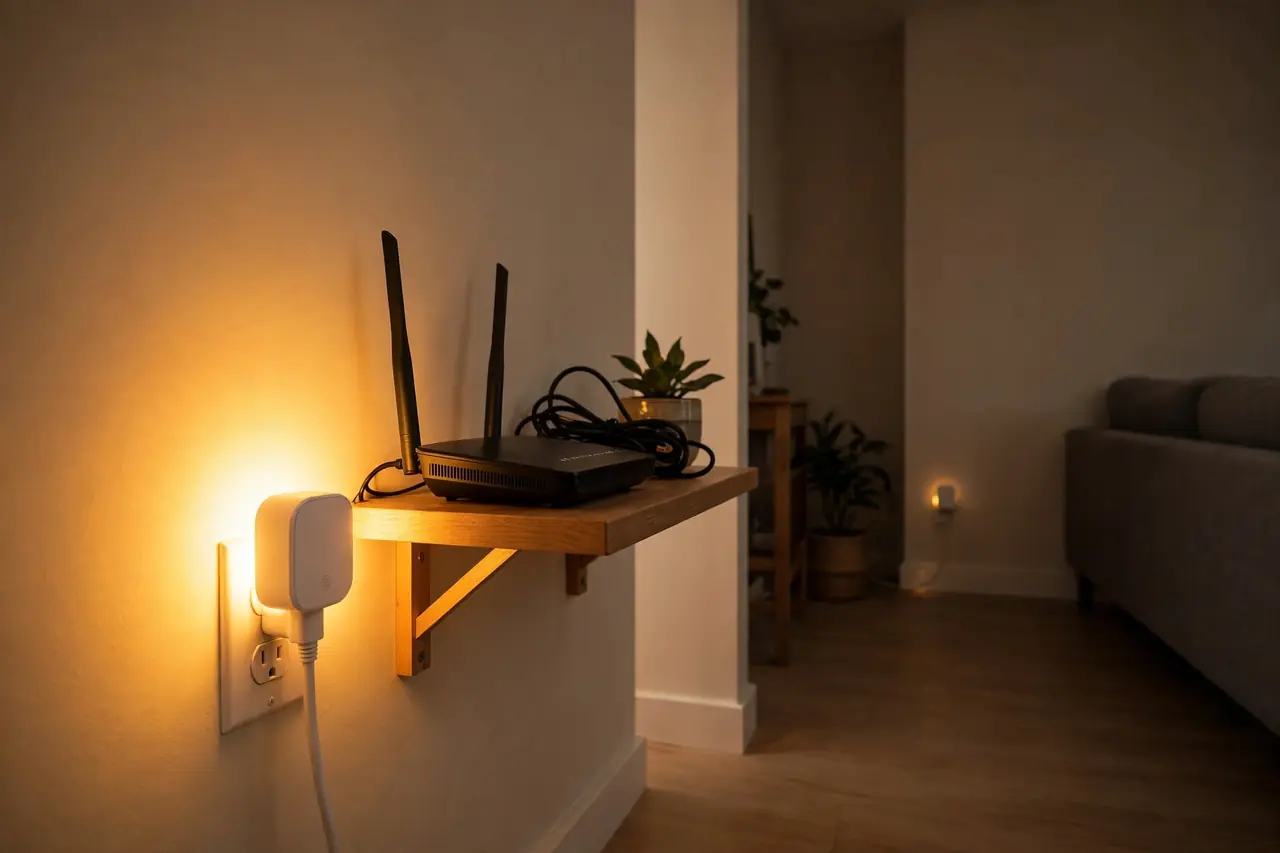
Work from the cheapest fix upward. Most “dead” plugs are one of the first three.
- Press the plug’s own button. If the lamp does not light, the problem is power or the lamp, not the app. Check the lamp’s own switch is on, and try the plug in a different outlet.
- Check the 2.4 GHz band. Plugs are 2.4 GHz only. If setup failed or the plug vanished after a router change, confirm the 2.4 GHz network is on and that your phone was on it during setup. A merged single-name network usually works; a disabled 2.4 GHz band never does.
- Sync after changes. Added or renamed the plug in the maker’s app? Say “Hey Google, sync my devices,” then try the command again with the plug’s current name.
- Fix name conflicts. Two plugs with the same or similar names make Google pick the wrong one or refuse. Rename one of them to something clearly different in the Google Home app.
- Re-link a dropped account. If every plug from one brand shows offline at once, the cloud link likely broke. In the Google Home app, use Add, then “Link app or service,” and reconnect that brand. Note that unlinking a service removes all of that brand’s devices, so re-linking is a brand-level fix.
- Test closer to the router. If the plug works near the router but not in its real spot, that corner of the house has weak Wi-Fi. A plug cannot fix coverage; move the router, add a mesh point, or pick a nearer job for the plug.
- Reset as a last resort. Factory-reset the plug using the maker’s instructions and set it up again from the setup section. For a Matter plug, keep the QR or 11-digit code card handy, because you will need it again.
A Short Safety Note
Smart plugs switch household power, so treat the rating on the plug as a hard limit, not a suggestion: never exceed its amp rating, keep plugs indoors unless they are outdoor-rated, and never rely on a plug or a routine as the only control for a space heater or anything safety-critical. Homes and devices vary, and if you are unsure about a load or an outlet, a licensed electrician is the right next step.
Related Guides
- DIY smart home automation guide — Go further with whole-home routines and schedules.
- smart home design ideas — See how plugs and switches fit a whole-home plan.
Frequently Asked Questions
Do smart plugs require a hub?
No for most Wi-Fi plugs. A “Works with Google Home” plug needs only its maker’s app and your Wi-Fi, and it links to Google through the cloud. A Matter plug is the exception: it needs a Google device that acts as a Matter hub, such as a Nest Hub or Nest Mini, to join Google Home.
Can smart plugs be used to schedule appliances to turn on and off automatically?
Yes. Set on and off times in the maker’s app, or build a Google Home Routine that starts at a set time, at sunrise or sunset, or when everyone leaves. Schedules suit lamps, fans, coffee makers, and holiday lights, as long as the appliance starts by itself when power returns.
Are smart plugs compatible with Alexa and Google Assistant?
Many are, but not all. Check the box before you buy: you want the “Works with Google Home” badge or the Matter logo for Google control. Some plugs serve one assistant only; Amazon’s own smart plug, for example, works with Alexa and not Google Home. Matter plugs are the safest bet because they work across all the major systems.
Are smart plugs safe to use with high-power appliances?
Only within the plug’s rating. Most indoor smart plugs are rated 15 amps, about 1,800 watts, and TP-Link advises checking the rating before connecting high-wattage devices such as space heaters or air conditioners. A typical space heater draws about 1,500 watts, near the limit, so many people avoid heaters on plugs completely.
Can I use smart plugs to save energy?
They help in two ways. Schedules stop devices from running when nobody needs them, like fans and entertainment gear overnight. Models with energy monitoring go further and show each device’s power use in the maker’s app, so you can find the appliance that quietly costs the most and decide what to do about it.
Your next step is small on purpose: put one plug on the lamp you touch most, name it plainly, and set a single sunset routine. Live with it for a week. If it earns its place, add plugs where timing and voice help most, and you now know exactly how to choose, set up, and fix every one of them.