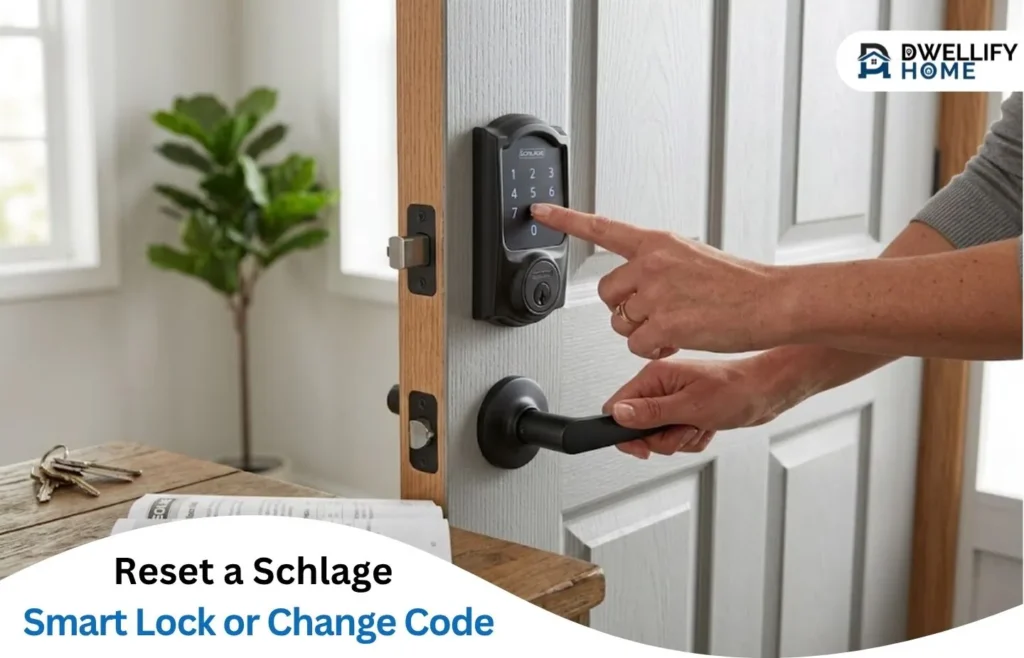
To reset a Schlage smart lock or change its code, first identify the model. If you still have working app access or the correct programming code, you can often update access without a factory reset.
A factory reset clears custom codes and restores factory settings, but the steps differ by model. Find the lock’s default codes before starting, and keep the door open while programming and testing. Encode, Connect, Sense, and Schlage’s basic keypad locks do not all use the same reset sequence.
Short Definition
Use the supported app or current programming code to change a Schlage PIN. A factory reset erases custom codes; match the model, find default codes first, and keep the door open during setup and testing.
Practical Home Tip
Adding a separate PIN does not remove older codes. If you’re replacing a code manually, test the new PIN with the door open before deleting the old one, then confirm the old code no longer works. An app may let you edit an existing PIN directly, depending on your model and setup.
Mission Statement
DwellifyHome helps homeowners and renters make informed, practical choices for stylish, comfortable spaces that fit everyday life.
Do You Need to Change a Code or Factory Reset the Lock?
Choose the action that solves your actual access problem.
| Your situation | Suitable first action |
| You want a different everyday PIN | Edit it in the supported app, or add and test a replacement before deleting the old code |
| A guest no longer needs entry | Delete their code and review any separate app access |
| You forgot the programming code, but app management still works | Use the app’s code-management controls |
| You have no working management access, but have the default codes | Follow your model’s factory-reset instructions |
| The keypad or bolt is not working properly | Check power, code entry, and door operation before resetting |
For example, suppose a house sitter no longer needs access. Removing that person’s assigned code may solve the problem. Resetting the lock also disrupts other custom codes you still want to use.
Changing the programming code is another separate task. It changes the code used to manage settings on supported locks. It does not replace every entry PIN.
Identify Your Schlage Model and Find the Default Codes
Look for the model number on the product label or original paperwork. Match that number to the official Schlage programming guides.
Do not identify the lock only by its decorative trim or the Schlage name.
| Lock family | Common model numbers | Route covered here |
| Encode and Encode Plus | BE489, BE499 | App code management and interior-button reset |
| Connect | BE469ZP and supported BE468/BE469 variants | Manual programming, compatible hub guidance, and reset |
| Legacy Sense | BE479 | App management, unpaired manual programming, and reset |
| Keypad | BE365, FE575, FE595 | Four-digit user-code programming and battery-sequence reset |
| Touch | BE375, FE695 | Four-digit user-code programming and battery-sequence reset |
Sense Pro is different from the older Sense BE479. For Sense Pro, Arrive, Encode Lever, or another model not matched above, use its dedicated guide.
A user code, also called an access code or PIN, opens the lock. A programming code changes settings on models that support manual programming. On the traditional Keypad models, the programming code has six digits and does not unlock the door.
The default codes are the original factory codes. If someone changed the programming code, the sticker does not show that newer code.
Use the paperwork that came with this particular lock when looking for its codes. A general downloaded guide explains the procedure, but it cannot replace a missing label containing your lock’s unique factory codes.
Sticker locations vary. Keypad and Touch models have a copy on the back of the outside keypad or touchscreen assembly, which may require removing that assembly to view it. Check the original paperwork first. Follow the model’s instructions if hardware removal is necessary.
Keep the door open, with the bolt—the sliding metal part that locks the door—clear of the frame. Record default codes privately before a reset.
Change a Code in the Schlage Home App
Use an account with code-management permission. A Guest virtual key cannot add, edit, or delete access codes; an Admin virtual key can manage them, as explained in Schlage’s virtual-key permission guide.
To change an existing PIN:
- Open the Schlage Home app.
- Select the relevant Home, or find the lock under Unassociated Locks.
- Tap the three dots beside the lock’s name.
- Choose Manage Access.
- Select the named code you want to change.
- In Code Info, edit the access code itself.
- Tap Save.
Changing only the access code’s name changes its label. Check the number field when you want a different PIN. These steps follow Schlage’s app code-editing instructions.
To add a separate code, use the plus icon in Manage Access. Give it a recognizable name, enter the PIN, choose an available schedule, and save. To remove an individual code, open its details and choose Delete Access Code.
The app’s schedule options include Always, Recurring, and Temporary. Always keeps access available until you remove it. Recurring sets particular days and times; Temporary sets a limited period. Before testing a scheduled code, check that its allowed time has started. A correct PIN tested outside its schedule may appear to be faulty.
Separate named codes make later changes easier. For example, a code assigned only to a dog walker can be removed without changing the family’s PIN. If several people share one code, removing it affects everyone using that number.
For Encode paired with Schlage Home, code management must take place through the app. Pairing removes the programming code used for manual changes. A failed keypad-programming attempt does not automatically mean you need a reset.
If you manage Encode Plus access through Apple Home, follow its access-code controls. Apple documents the route through the lock’s Accessory Settings and Manage Access. Menu wording can differ from Schlage Home.
Change Codes Manually on Supported Schlage Locks
Use the current programming code for these procedures. A default sticker code may no longer be current.
Keypad and Touch Locks
For BE365, FE575, FE595, BE375, and FE695, select the action below:
| Action | Number to press | Code to enter and repeat |
| Add a user code | 1 | New four-digit user code |
| Delete a user code | 2 | Existing four-digit user code |
| Change the programming code | 3 | New six-digit programming code |
Follow this shared sequence:
- Enter the current six-digit programming code. Wait for three orange lights and three beeps.
- Press the Schlage button.
- Press the action number from the table. Wait for the orange-light and beep confirmation.
- Enter the required code. Wait for the next confirmation.
- Enter that same code again.
One green light and a long beep confirm success. Schlage’s Keypad and Touch instructions document the add-code procedure; deletion and programming-code changes use their corresponding actions.
A user code must differ from the first four digits of the programming code. When changing the programming code, its first four digits must differ from existing user codes.
Keep the programming code private. A visitor who only needs to enter should receive a user code, not the code that allows changes to lock settings.
To replace an entry PIN, add the replacement, test it with the door open, then delete the old PIN. Simply adding another code leaves the earlier code available.
Connect and Unpaired Legacy Sense
Connect and unpaired Sense BE479 use a different starting order:
- Press the outside Schlage icon.
- Enter the six-digit programming code.
- Press 1 to add a user code, 2 to delete one, or 3 to change the programming code.
- Enter the appropriate code, then enter it again.
- Look for the documented green confirmations and two beeps. Press the Schlage icon to exit programming.
Their supported access-code range is four to eight digits. Use the length configured on your lock; follow its guide before changing that setting.
On legacy Sense, changing the access-code length deletes all existing access codes. Keep the current length when you only want a replacement PIN. Check the model guide before changing this setting on another lock.
Schlage provides Connect manual programming instructions. For hub-managed access, check the relevant hub’s instructions too.
Paired legacy Sense should be managed through its app. For an unpaired Encode, use its exact official manual-programming guide; do not substitute either sequence above.
What If You Have No Programming Code, Key, or Reset Button?
These are different situations, so start with the access you still have.
No current programming code: Check whether you can manage codes in the app. If that route works, use it. If neither app management nor the current programming code is available, a supported reset can restore factory codes—but locate those codes first.
No default codes: Do not reset and hope a universal code will work afterward. Schlage says it cannot recover missing factory codes. If you still have working app management or a current programming code, preserve that access while assessing your options.
No physical key: The reset procedures below require access to the inside of the lock, rather than inserting a key. If you are outside a locked door, you cannot reach those interior controls. Use an available authorized entry method, or contact the property manager or a locksmith.
No separate reset button: Check the model. Encode uses an interior reset button. Other covered models use the outside Schlage control and a battery sequence. Do not press random openings or assume a missing button means the hardware is faulty.
Factory Reset Your Schlage Lock by Model
Before starting, have the default programming and user codes ready. A factory reset removes custom codes; do not expect to retrieve them from the lock afterward. Connected models may also need app setup or settings restored, according to their guides.
Keep the door open throughout the procedure and testing. Keep fingers clear of the bolt when a motorized lock runs its setup routine.
Encode and Encode Plus
Follow the official Encode factory-reset instructions for the applicable Encode model.
- Remove the interior battery cover and locate the black reset button near the thumb-turn.
- Press and hold the button. The indicator flashes red.
- Keep holding until the red flashing stops, then release.
- Wait for a solid blue indicator, which confirms completion. Schlage notes that this may take up to 10 seconds.
- With the door open, press the outside House icon and enter default User Code A or B.
This procedure uses the interior reset button; do not add another model’s battery-disconnect sequence.
If the default user code is rejected, check that it belongs to this lock and that you followed the correct procedure. Schlage advises retrying the reset or contacting support if the default codes remain unsuccessful.
Connect and Legacy Sense
The documented physical reset for Connect and legacy Sense BE479 uses the outside Schlage control while reconnecting power:
- Remove the interior battery cover and disconnect the batteries.
- Press and hold the outside Schlage logo.
- While holding it, reconnect the batteries.
- After the documented confirmation flashes, release the control.
- With the door still open, activate the keypad and enter a default user code.
The official pages describe three green-check flashes and three flashes of the inside Schlage button. A successful default-code test lets the bolt extend and retract during setup. Wait until movement finishes.
Check the applicable Connect reset guide or legacy Sense reset guide.
For Z-Wave Connect, a factory reset does not remove the lock from its hub. Removing that connection requires a separate Z-Wave exclusion process through the hub. This matters when transferring ownership or removing old system access. Follow the official exclusion guidance, rather than assuming a PIN reset handles the network connection.
Keypad and Touch Locks
For the covered Keypad and Touch models, use Schlage’s battery-sequence reset instructions:
- Disconnect the battery.
- Press and release the outside Schlage button two or three times.
- Within 10 seconds of pressing that button, reconnect the battery. The indicator lights green for one second.
- Immediately press and hold the Schlage button until the light turns green and the lock beeps.
- Test one of the lock’s default user codes.
Timing matters here. This is different from holding the Schlage control while reconnecting a Connect or Sense lock.
Operate the outside thumb-turn or lever as your model requires after the code is accepted. A green confirmation should not be mistaken for proof that every model has a motorized bolt.
Test the New Code and Remove Unwanted Access
Keep the door open for your first test.
Enter the new user code and operate the lock normally. Check actual bolt or latch operation, not just a light or an app message. Next, test a code you intended to remove. It should no longer grant entry.
Use the model’s normal lock-and-unlock procedure for each test. An already unlocked lever or bolt can give a false impression that a code worked. If the final programming confirmation did not appear, check whether the change was saved before depending on it.
Schlage specifically recommends keypad testing after deleting app-managed codes. Allow the change to complete before testing.
After a reset, complete the required setup and restore your own access. Review unwanted default codes, guest PINs, and separate app permissions through the applicable management method.
For example, deleting a visitor’s keypad PIN addresses that PIN. If they also have a virtual key, review that separate permission too.
Finally, check operation with the door closed only after open-door testing succeeds and you have a confirmed way back inside.
Troubleshoot Problems Before Resetting Again
A failed attempt does not always mean the lock needs another reset.
No keypad response: On the covered Keypad and Touch models, too many incorrect entries can cause a temporary pause. Schlage advises waiting 30 seconds and trying again, then replacing the battery if the keypad still does not respond. Follow your model’s battery instructions.
New code rejected: Check its required length, whether both entries matched, and whether it conflicts with the programming code. Check stored-code capacity in the model guide. App users should also confirm that their account can manage codes
Code accepted but bolt sticks: Test with the door open. If it works open but binds closed, check door alignment and the strike plate—the metal plate in the frame that receives the bolt. Another reset will not correct poor alignment.
Schlage’s motorized-lock troubleshooting uses open-door and physical-key checks to separate door-preparation problems from possible motor problems. Stop forcing a resistant mechanism and seek support or repair help.
A broken physical key needs separate attention. If that is your problem, use this guide to getting a broken key out of a lock safely before continuing electronic troubleshooting.
Frequently Asked Questions
Does changing a code stop an old physical key from working?
No. An electronic code change does not rekey the cylinder, which is the part the physical key fits into. If old key copies concern you, discuss rekeying with a locksmith. Schlage recommends a certified locksmith for residential-cylinder rekeying.
Can a renter reset a landlord-installed Schlage lock?
Coordinate with the landlord or property manager first. Ask who manages the lock, which access must remain available, and whether your lease sets conditions for changes. Removing one personal code may be a different decision from resetting a shared, managed lock.
Where can I get the official Schlage reset PDF?
Choose your model through Schlage’s programming resources. Official PDF options include the Keypad Locks User Guide and legacy Sense User Guide. Match the model numbers before using any downloaded instructions.
What information should I have ready when contacting Schlage support?
Have the exact model number, symptoms, indicator colors or beeps, and steps already attempted. Explain whether testing fails with the door open, closed, or both. Say whether default codes are available, and avoid posting code labels or PINs in public troubleshooting discussions.
Your Next Step
Before closing the door, store your updated access information somewhere private and confirm a working way to get back inside. If any test fails, keep the door open and resolve that issue before relying on the lock for everyday entry.
Disclaimer
This guide is general information; homes, budgets, lock conditions, and access needs vary. Follow your exact Schlage model’s instructions. Contact Schlage support or a qualified locksmith for a jammed lock, a lockout, or a fault that continues.