
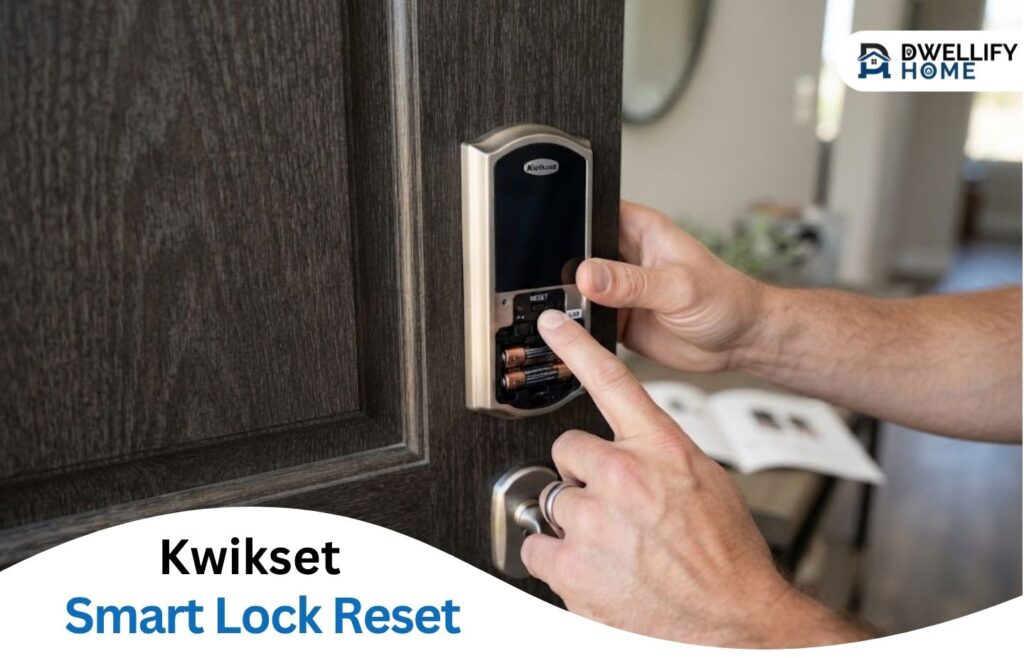
A forgotten code and a keypad that won’t respond can look like the same problem. They may need different fixes. A Kwikset smart lock reset must match your exact model; there isn’t one button sequence for every lock.
Identify your model, keep the door open, and follow its instructions below. Factory resetting clears access codes and can change other settings or connections. You’ll need access to the inside controls. If you’re locked outside, use an authorized backup entry or contact your property manager or a locksmith.
The guide covers original Halo and Aura locks, SmartCode 888, Home Connect 620, SmartCode 270, Powerbolt 240, and SmartCode 917. Newer variants and other models need their own manuals.
Direct Answer
A factory reset clears a Kwikset lock’s access codes using its model-specific procedure. Keep the door open, follow any controller requirements, then restore access and test operation. The covered procedures require interior access.
Practical Home Tip
Test the new code while the door stays open, then check that a known old code no longer works. A reset confirmation alone doesn’t prove the bolt moves correctly, so check handing and smooth movement on deadbolt models.
Mission Statement
DwellifyHome helps homeowners and renters make practical, stylish, and informed choices for comfortable living spaces.
Quick decision guide: Where should you start?
| Your situation | Start with |
| One person’s access code needs removal | Your model’s individual-code deletion instructions |
| The keypad stopped responding after wrong entries | The manual’s temporary-lockout instructions |
| An original Halo or Aura lock has connection trouble | Connection checks and the applicable network-reset guidance |
| You need to clear stored access | Your exact model’s factory-reset instructions, after checking what will be erased and any controller requirements |
| The deadbolt binds or moves the wrong way | Handing and door-alignment checks |
Do You Need a Factory Reset or a Simpler Fix?
Start with what you’re trying to change. Removing one person’s access is different from clearing the lock for a new owner.
For example, if a guest’s code still works, look for your model’s individual-code deletion instructions. That can preserve the household’s other codes and settings. If you know only that a code was forgotten, an authorized owner or administrator may be able to replace it through the supported app or controller.
A full reset becomes useful when you need to clear stored access or cannot recover the lock’s programming through its normal controls. It also means rebuilding the settings you need afterward.
For original Halo or Aura connection problems, check Kwikset’s network-reset guidance. Network reset and factory reset have different purposes and erase different information. Don’t choose a full reset just because the app cannot connect.
If the bolt catches or the inside turnpiece feels stiff, check the door first. Clearing codes won’t remove a physical obstruction.
If the keypad stopped responding after several wrong entries, check the manual’s temporary-lockout instructions. Waiting for that period is a smaller first step than erasing the lock.
Identify Your Kwikset Lock First
Look for the product name in your packaging, purchase records, or original manual. Compare it with Kwikset’s electronic-lock support directory. Use the exterior and interior pictures together; a familiar-looking keypad alone isn’t enough.
Use this table to find the relevant section:
| Model | Reset distinction to notice |
| Original Halo or Aura | Battery removal and a 30-second Program-button hold |
| SmartCode 888 | Battery removal and a 30-second Program-button hold |
| Home Connect 620 | Check the controller condition before the local reset |
| SmartCode 270 | A 15-second Program-button hold with batteries installed |
| Powerbolt 240 | A 15-second Program-button hold with batteries installed |
| SmartCode 917 | A lever lock; about a 30-second hold with its battery installed |
The “240” model is Powerbolt 240, not SmartCode 240. SmartCode 917 is an electronic lever, so deadbolt calibration instructions don’t automatically apply.
Also check the full name. Original Aura is a Bluetooth lock; Aura Reach is a different product. Halo Select likewise has separate reset instructions from original Halo.
If you still cannot identify the lock, ask Kwikset support with clear exterior and interior photos. Avoid experimenting with several models’ sequences.
Before You Reset: Access, Batteries, and Lost Settings
Open the door fully and keep it from swinging closed. Start unlocked for the SmartCode 270, Powerbolt 240, and SmartCode 917 procedures. Keep fingers away from the bolt when it moves.
Remove the interior cover as your manual directs. Some covers have screws or a secured access window. Use the correct screwdriver rather than prying the cover. Leave the interior assembly mounted unless the manual directs otherwise.
The interior reset sequences below don’t ask for the old user code or use a key. That helps only when you already have inside access. Keep a working key or another authorized entry available until setup and testing are complete.
Check the specified battery type, direction, and contacts. The SmartCode 917 uses a 9V battery, unlike the AA battery packs in several deadbolt models. Weak power can interrupt programming or calibration.
Before clearing settings, note the model, any connected hub, and the access arrangements you’ll need to rebuild. Make sure you have a working backup way inside. Renters should coordinate changes to a provided or managed lock with their property manager.
For original Halo and Aura, Kwikset’s factory-reset instructions say to delete the lock from the home in the Kwikset app and forget its pairing in your phone’s Bluetooth settings first. The reset clears associations, codes, history, and settings from the lock; app records can remain visible until the lock is deleted there.
If you cannot access the old app home, ask Kwikset support about account cleanup and setup. Don’t assume the physical reset alone completed the app cleanup.
An electronic reset does not rekey the physical cylinder. If a previous occupant still has a working key, clearing keypad codes doesn’t remove that key’s access.
If your backup key is broken in the cylinder, treat that as a separate problem. See how to handle a broken key safely before forcing tools into the keyway.
Reset Instructions for Your Kwikset Model
Follow only the section matching your lock. The hold time, confirmation signal, and next action can differ even when two models look similar.
Original Halo and Aura Locks
Complete the app and Bluetooth cleanup described above. Keep the door open while the bolt calibrates.
- Remove the battery pack.
- Press and hold the interior Program button while reinserting the pack.
- Keep holding for 30 seconds, until the lock beeps and the status light flashes red.
- Release the button, then press Program once more.
- Wait while the light flashes green and red and the bolt moves to learn its direction.
A green light indicates successful handing; red indicates unsuccessful handing. “Door handing” means teaching the lock which direction to move the bolt for this installation. Keep your hands clear and let the movement finish.
These steps follow Kwikset’s original Halo/Aura reset instructions. Use the model’s troubleshooting guidance if calibration fails. Then set up the lock again in the app.
SmartCode 888
This reset deletes the lock’s codes and removes its smart-home connection. Plan to enroll it again if you use a controller.
- Remove the battery pack.
- Hold Program while reinserting the pack.
- Continue holding for 30 seconds, until the lock beeps and the status light flashes red.
- Release Program, then press it once more. A green flash and two beeps confirm the reset.
- Leave the door open while the automatic handing process extends and retracts the bolt.
Don’t treat the reset confirmation as proof that calibration succeeded. Check the handing result and the bolt’s direction before relying on the lock.
The SmartCode 888 installation guide has separate factory-reset and manual-handing diagrams on page 4. Use the latter if handing needs another attempt.
Home Connect 620
Check your controller first. The Home Connect 620 manual, page 18, says a local reset clears codes and network settings but does not remove the lock from the panel.
It calls for controller exclusion—the process of removing the device from its network—and limits this local procedure to when the primary controller is missing or inoperable. With a working controller, use its supported removal and enrollment instructions first.
When that local-reset condition applies:
- Remove the battery pack.
- Hold Program while reinserting it.
- Keep holding for 30 seconds, until the lock beeps and the status light flashes red.
- Release Program and press it once more.
- Let the red/green light cycle and automatic handing finish.
The manual notes that it hands again after the first keypad or app lock/unlock operation. A remaining panel entry may need attention through the controller’s supported process.
SmartCode 270
Keep the door open and the lock unlocked. Leave the batteries installed.
- Remove the interior cover and find the Program button below the battery holder.
- Hold that button for 15 seconds, until the long beep.
- Release it and press it again within 10 seconds of the long beep.
- Look for one green flash and one beep. Three red flashes and three beeps mean the reset was unsuccessful.
Next, teach the bolt its direction: press Program, press 0, then press the exterior Lock button. Let the bolt extend and retract.
The SmartCode 270 manual shows these operations on pages 18–19. Notice the difference: reset uses a long interior-button hold; rehanding uses the keypad afterward. Add new access before relying on electronic operation.
Powerbolt 240
Open the door, unlock the lock, and leave the batteries installed.
- Remove the interior cover.
- Hold the programming button for 15 seconds, until the long beep.
- Release it, then press it once more within 10 seconds of that beep.
- Check for one green flash and one beep. Three red flashes and three beeps indicate failure.
For rehanding, press the programming button, press the keypad’s 9/0 button, then press Lock. Let the bolt extend and retract.
Use the Powerbolt 240 guide, English page 4. After reset, the guide says operation is by key until new access is set up. It also notes that adding the first user code triggers handing, so further bolt movement can be expected.
SmartCode 917 Lever
This lever uses a different procedure. Keep the door open and the lock unlocked, with its battery installed.
- Remove the interior cover to reach Program.
- Hold Program until one long beep, approximately 30 seconds.
- Release the button.
- Press and release Program again. You should hear one short beep.
- If you know an existing user code, test it while the door remains open. It should no longer unlock the lock.
The SmartCode 917 guide, page 4, shows this sequence. It does not require removing and reinserting the battery during the hold.
Add a new code next. Don’t apply a deadbolt’s extend-and-retract success test to this lever.
Set Up New Access and Test the Lock
A reset clears access; it doesn’t finish the setup. A user code opens the lock. A programming code or mastercode controls programming changes and may have different requirements.
For original Halo and Aura, follow the Kwikset app’s guided setup for that exact model. Stay within Bluetooth range during the relevant pairing steps. Original Aura’s app controls work within Bluetooth range; don’t diagnose it as a Wi-Fi lock.
For the keypad models, these are the basic add-code routes when no programming/master code is enabled:
| Model | Basic keypad route |
| SmartCode 888 | Press Program, enter the new user code, press Lock |
| Home Connect 620 | Press Program, enter the new user code, press Kwikset |
| SmartCode 270 | Press Program, press 1, press the checkmark, enter the code, press the checkmark |
| Powerbolt 240 | Press Program, press 1/2, press Lock, enter the code, press Lock |
| SmartCode 917 | Press Program, press 1, press Kwikset, enter the code, press Kwikset |
Use the linked model manual for code limits, controller restrictions, and enabled programming-code branches. Complete each sequence without long pauses; several models time out during programming.
These keypad guides specify user codes of 4–8 digits, subject to the model or controller’s restrictions. Also follow each model’s uniqueness rules. On the 270, 240, 620, and 917, changing only the last digit may still create a conflict when the first four digits match another code.
Keep the door open and check:
- The new code unlocks the lock.
- A known deleted code no longer works.
- The exterior lock control works, if your model has one; on the 917, check lever operation.
- For deadbolts, the bolt moves fully in the correct direction without binding.
- Any enrolled app or hub operates the lock and reports its state correctly.
Then test with the door closed while you remain inside and have backup access. Set any desired auto-lock options using the model’s instructions. Don’t assume your previous preferences survived.
If a known old code still unlocks the door, the access check hasn’t passed. Recheck the completed reset and code-management steps before restoring routine use. Tell support that the old code remains active if you need help.
For broader access planning, DwellifyHome’s smart-home design guide discusses a practical entry setup and manual backup.
What to Check If the Reset Does Not Work
Match the next check to the symptom rather than repeating every reset method.
No Response or No Reset Confirmation
Check the specified batteries, their direction, and full contact with the holder. Confirm you’re pressing Program rather than a nearby pairing button.
On the 270 and 240, missing the second press within the confirmation window can cause failure. On battery-reinsertion models, releasing early can prevent the full reset. Recheck the correct manual and watch the signal after each action.
Use fresh, model-specified batteries if power is uncertain. If the lock stays silent or a button doesn’t register, contact Kwikset support with the model and what happened. Don’t force the control or pry into the electronics.
Note which light changed—the keypad, lock button, or interior status light—and whether the bolt moved. For example, “three red flashes after the second press” gives support more useful information than “the reset didn’t work.”
The Bolt Moves the Wrong Way or Jams
Check whether handing completed successfully. Use your model’s manual-handing instructions if needed.
Then compare manual movement with the door open and closed. If it moves freely open but catches closed, the bolt may not line up with the strike plate—the metal plate on the frame.
Kwikset’s alignment guidance uses this comparison. Follow applicable adjustment instructions, and get help if smooth operation cannot be restored. Another factory reset won’t correct the bolt hitting the frame.
The Keypad Works but the App or Hub Does Not
A working keypad points you toward the connection or account setup, although it doesn’t prove every part is fault-free. Check the exact lock model, supported connection, and enrollment status.
For a Wi-Fi lock, investigate coverage before buying equipment or clearing codes again. DwellifyHome’s home Wi-Fi guide explains useful room-by-room comparisons.
If the lock is part of Vivint or another managed system, use that provider’s instructions for the actual Kwikset model. The service name is not the lock’s model number. Resolve old controller records through supported removal steps rather than assuming a local reset cleaned up everything.
Frequently Asked Questions
Does Removing the Batteries Count as a Factory Reset?
Removing batteries alone is not the factory-reset procedure for the models covered here. Kwikset specifically says Home Connect 620 retains access codes when batteries are depleted or removed. Use battery replacement for power needs, not as a way to erase access.
Is There a Universal Kwikset Reset Code?
No universal reset code applies to these locks. Their procedures use model-specific controls. Don’t assume 0000 or 1234 is valid for your lock after a reset. Follow its manual’s setup requirements and create your own access codes.
Can I Rekey My Kwikset Lock to Match Another Key?
On compatible SmartKey cylinders, Kwikset’s standard rekeying procedure requires the current working key, a suitable new key, and the SmartKey tool. That tool changes physical-key access, not electronic codes. If the current key is missing or the cylinder isn’t SmartKey, ask a locksmith about the appropriate method.
Can I Follow a YouTube Reset Video for an Older Kwikset Model?
Use a video only when its exact model and controls match your lock. Compare it with the official manual, including battery handling, hold time, and confirmation signals. A video showing rekeying or another similar keypad isn’t a substitute for your reset instructions.
Your Next Step
Choose your exact model’s procedure, then verify new access and smooth operation before closing up the cover and relying on the lock. If a check fails, note the light, beep, and bolt behavior. Those details help Kwikset support or a locksmith narrow down the next action.
Disclaimer
This guide provides general information; homes, budgets, door conditions, and access needs vary. Follow the manufacturer’s instructions for your exact lock model. Contact Kwikset support or a qualified locksmith if you cannot restore reliable operation.
