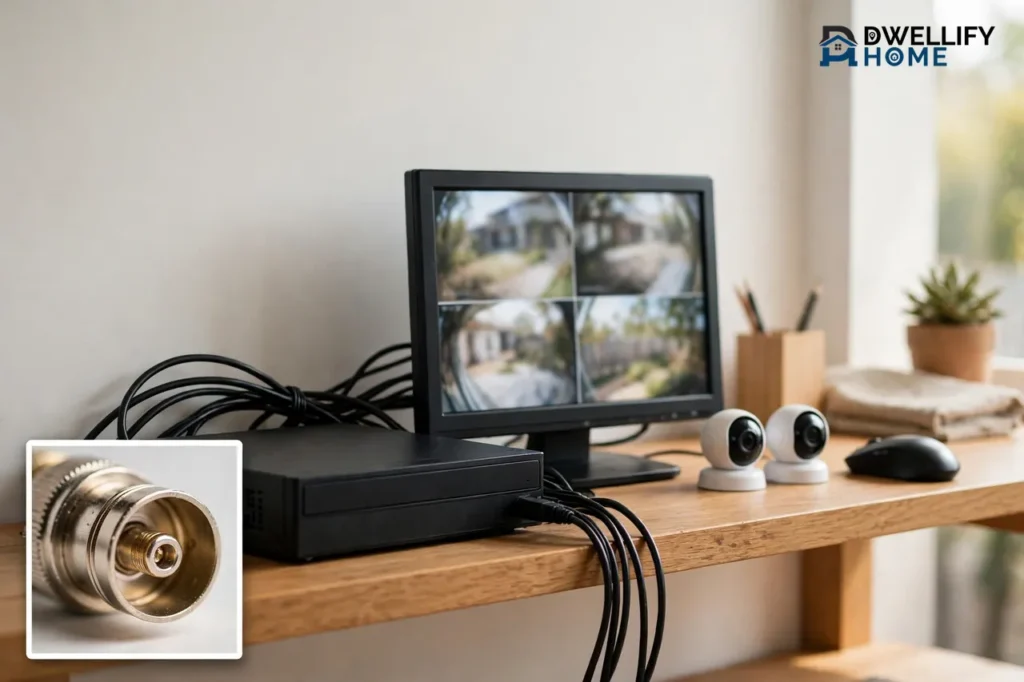
A security camera DVR is a recorder box that saves video from wired analog cameras onto a hard drive inside your home. The cameras send raw video through coaxial cable, and the DVR turns that signal into digital files, stores them, and lets you watch live video or play back old footage on a monitor or phone app. If you want round-the-clock recording with no monthly fee, a DVR system is one of the simplest ways to get it.
In this guide, you will learn how a DVR works, how it differs from an NVR, which cameras it accepts, how many channels and how much storage you need, what a system costs, and how to set one up without common mistakes.
What Is a Security Camera DVR?
A security camera DVR, short for Digital Video Recorder, is the recorder at the heart of a wired analog camera system. Each camera connects to the DVR with coaxial cable and a BNC connector, and the DVR converts the analog signal into digital video, compresses it, and writes it to an internal hard drive. You can watch every camera live, search old recordings by date and time, and save a clip to share with police or an insurer.
People also call these setups DVR security cameras, DVR camera security systems, and security cameras and DVR kits. The names all point to the same idea: wired cameras plus one recorder box that keeps the footage on site. Unlike cloud cameras, a DVR does not send your video to a company server. Your recordings stay on the hard drive in your home, and no subscription is required to keep recording.
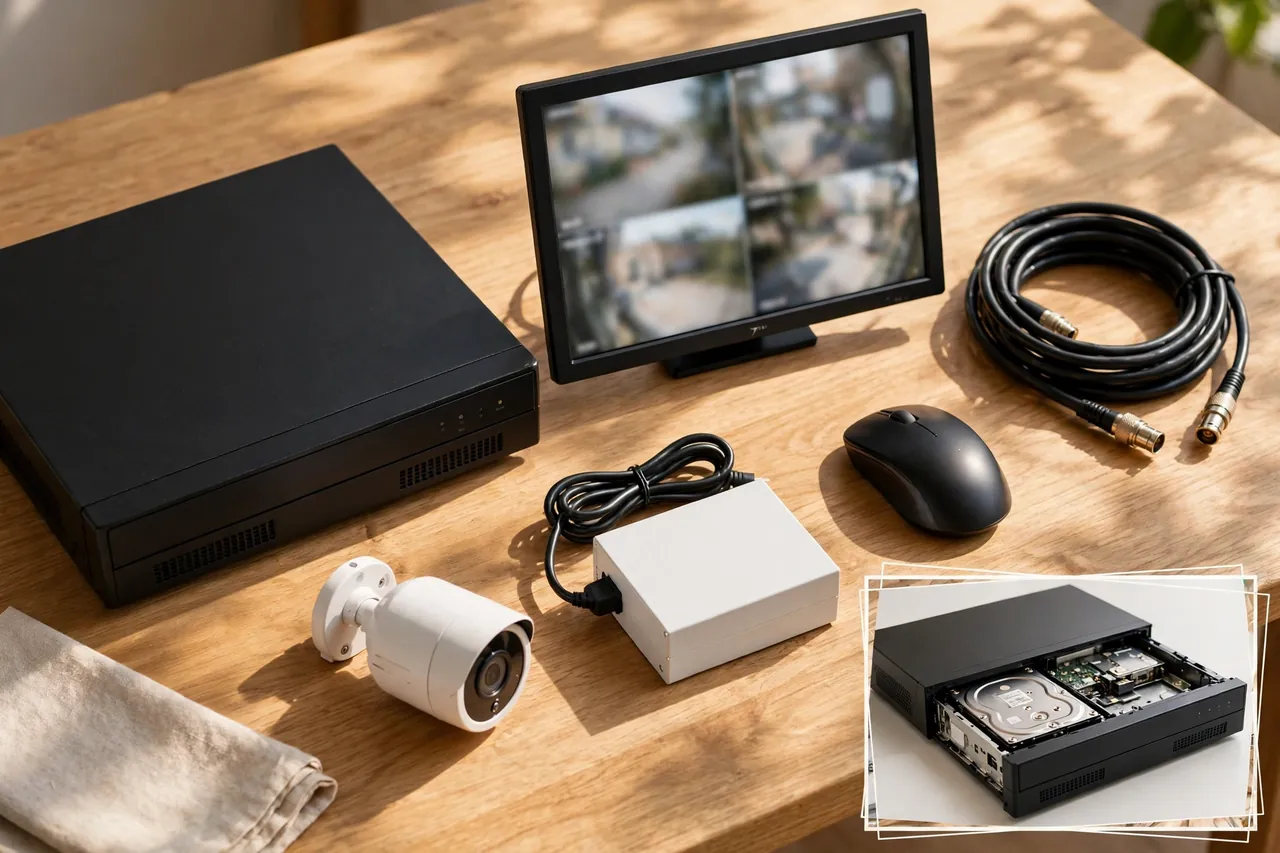
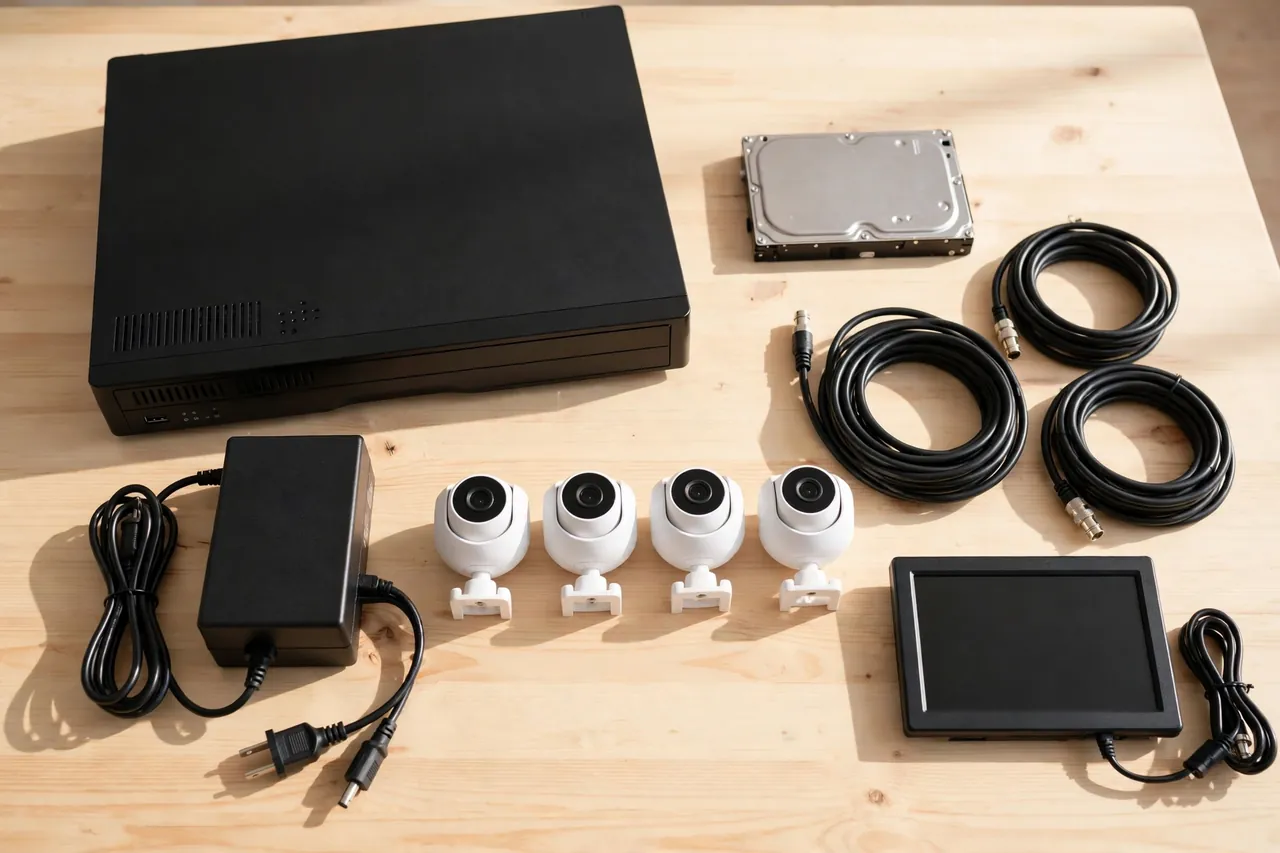
A typical DVR system includes analog cameras, coaxial cables, the DVR recorder, a power supply for the cameras, a monitor or TV for viewing, and a mouse for the on-screen menu. Many kits bundle all of these parts in one box, which makes buying your first system much easier than shopping for each part alone.
How a DVR Security Camera System Works
Each camera watches its spot and sends a raw video signal down its coaxial cable to the DVR. The DVR encodes every signal into a digital file, stamps it with the date and time, and stores it on the hard drive. When the drive fills up, the DVR overwrites the oldest footage first, so recording never stops on its own. This loop recording is why you set the drive size by how many days back you want to keep.
You watch the system in two ways. At home, you plug a monitor or TV into the DVR with an HDMI cable and use the mouse to switch between cameras, rewind, and export clips to a USB stick. Away from home, you connect the DVR to your router with an Ethernet cable and open the maker’s phone app. The app shows live video and playback, and it can send motion alerts to your phone.
Recording runs in three modes. Continuous recording saves everything, 24 hours a day, and gives you the fullest record. Motion recording saves only when a camera sees movement, which stretches your storage much further. A schedule mixes the two, for example continuous recording at night and motion-only during the day. Most homeowners pick motion recording with continuous recording on the front door and driveway cameras.
The Parts of a DVR System
- Analog cameras: capture video and send a raw signal down the cable. Modern HD-over-coax cameras record in 1080p or 4K over the same kind of cable older systems used.
- Coaxial cable: carries video from each camera to the DVR. RG59 siamese cable also carries power in the same run, which cuts down on extra wiring.
- DVR recorder: converts, compresses, stores, and plays back video from every channel.
- Hard drive: a surveillance-rated drive built for writing video all day, every day. Desktop drives wear out fast in this job, so use a drive made for recorders.
- Power supply: a central power box or one adapter per camera, usually 12V DC.
- Monitor and mouse: for setup, live viewing, and playback at home.
DVR vs NVR: The Key Differences
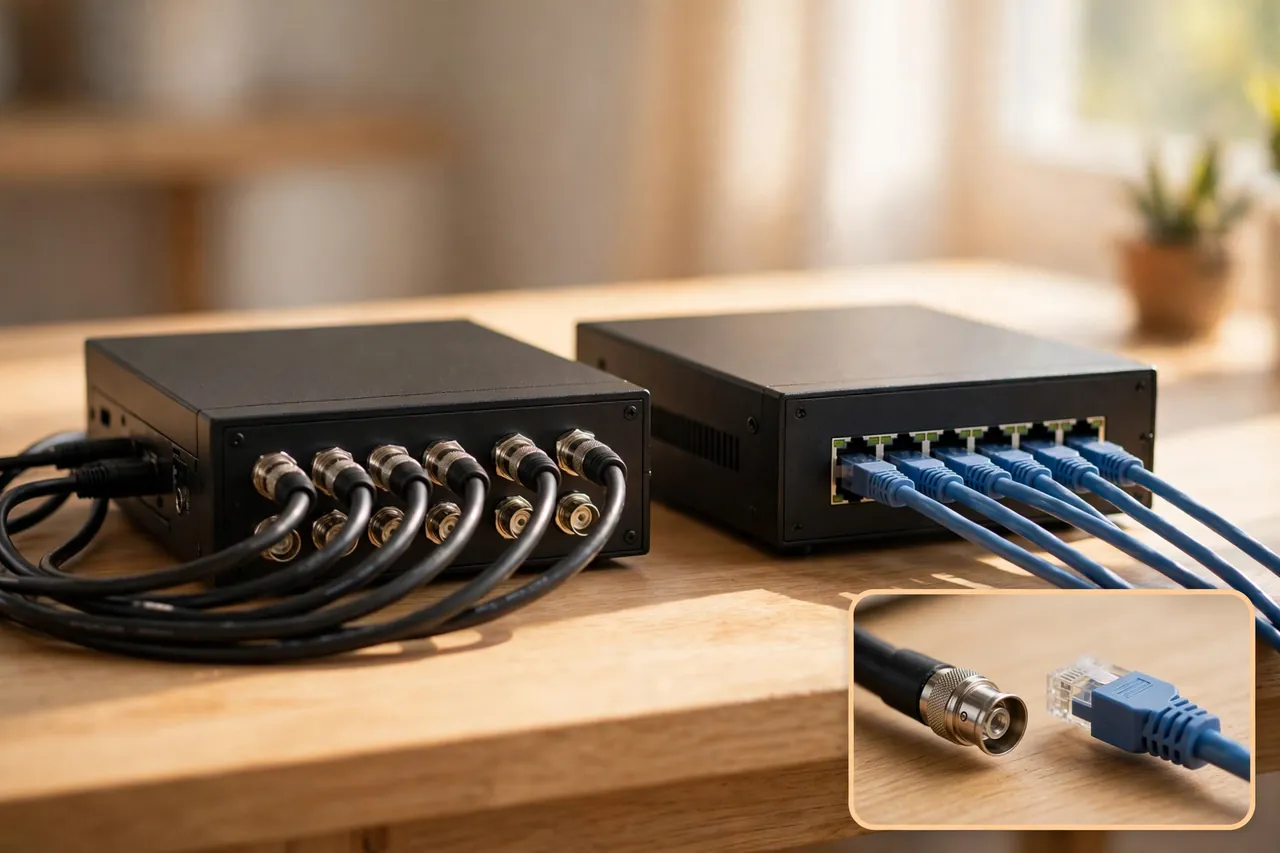
A DVR records analog cameras over coaxial cable and does the video encoding inside the recorder. An NVR, or Network Video Recorder, records IP cameras over Ethernet cable, and each camera encodes its own video before sending it. That one difference shapes the cameras you can use, the cables you run, the resolution you get, and how far the system can grow.
Pelco, a longtime security camera maker, puts it plainly: a DVR encodes the analog signal, stores it, and decodes it for remote viewing, while an NVR works with IP cameras that send digital video over the network. Swann, another major camera brand, gives the same rule in its buying guide: a DVR connects to cameras with BNC coaxial cables, and an NVR connects to IP cameras with Ethernet cables.
Here is the quick reference table. Read it once, and the choice usually makes itself.
Table: DVR vs NVR at a glance
| Feature | DVR | NVR |
|---|---|---|
| Cameras | Analog and HD-over-coax cameras | IP cameras |
| Cable | Coaxial cable plus separate power | One Ethernet cable, often with PoE |
| Where video is encoded | Inside the recorder | Inside each camera |
| Max resolution | Up to 4K on premium HD-over-coax lines | 4K and higher, including 8K on some models |
| Cable distance per camera | About 300 feet before the signal weakens | About 328 feet per Ethernet run, extendable with switches |
| Smart features | Basic motion detection; person and vehicle detection on newer models | Built-in AI detection, analytics, and two-way audio on many models |
| Scaling up | Limited by the number of ports on the recorder | Add cameras anywhere the network reaches |
| Typical upfront cost | Lower | Higher |
Choose a DVR when your home already has coaxial cable in the walls, when your budget is tight, or when you want simple local recording without network gear. Choose an NVR when you are starting fresh, want the sharpest video and smartest alerts, or plan to add cameras over time. If you want the full picture on the IP side, read our guide to PoE security cameras, which explains how one Ethernet cable carries power and video together.
What Is an XVR Hybrid Recorder?
Some modern recorders, called XVRs, accept both analog cameras and IP cameras in one box. An XVR lets you keep working coax cameras and add IP cameras later without buying a second recorder. If your home has a mix of old and new cameras, or you plan to upgrade a few cameras at a time, ask the seller whether the recorder is a hybrid XVR and how many IP channels it supports. The number is often lower than the analog channel count, so check before you buy.
Analog vs IP Cameras: Which Cameras Work With a DVR?
A DVR works with analog cameras only. That includes old standard-definition CCTV cameras and modern HD-over-coax cameras, which use formats called HD-TVI, HD-CVI, and AHD to send high-definition video over the same coaxial cable. A standard IP camera cannot plug into a DVR, and a standard analog camera cannot plug into an NVR. The two camera types speak different languages, and the recorder only understands one of them.
That rule has one practical upside. If your home already has coaxial cable from an older system, new HD-over-coax cameras usually work on that same wiring, so you can upgrade the picture without tearing open walls. Security Camera King notes that analog HD cameras are typically backward compatible with existing coaxial runs, which saves real labor and rewiring cost.
Resolution still matters. Old analog cameras top out near standard definition, and faces and plates blur fast. Modern HD-over-coax cameras record in 1080p, and premium lines reach 4K. If you need to read a face at the front door or a plate in the driveway, buy at least 1080p cameras, and consider 4K for the two or three spots where detail matters most. Our guide to high-resolution security cameras explains what extra pixels actually buy you in real footage.
Audio works differently on a DVR, too. Most analog cameras carry video only, so audio needs a camera with a built-in microphone and a DVR with audio inputs, plus extra wiring in some setups. If two-way talk or clear audio matters to you, confirm the exact camera and recorder pair supports it before you order. IP systems handle audio over the same network cable, which is one reason buyers who want audio often lean toward an NVR.
How Many Channels Do You Need?
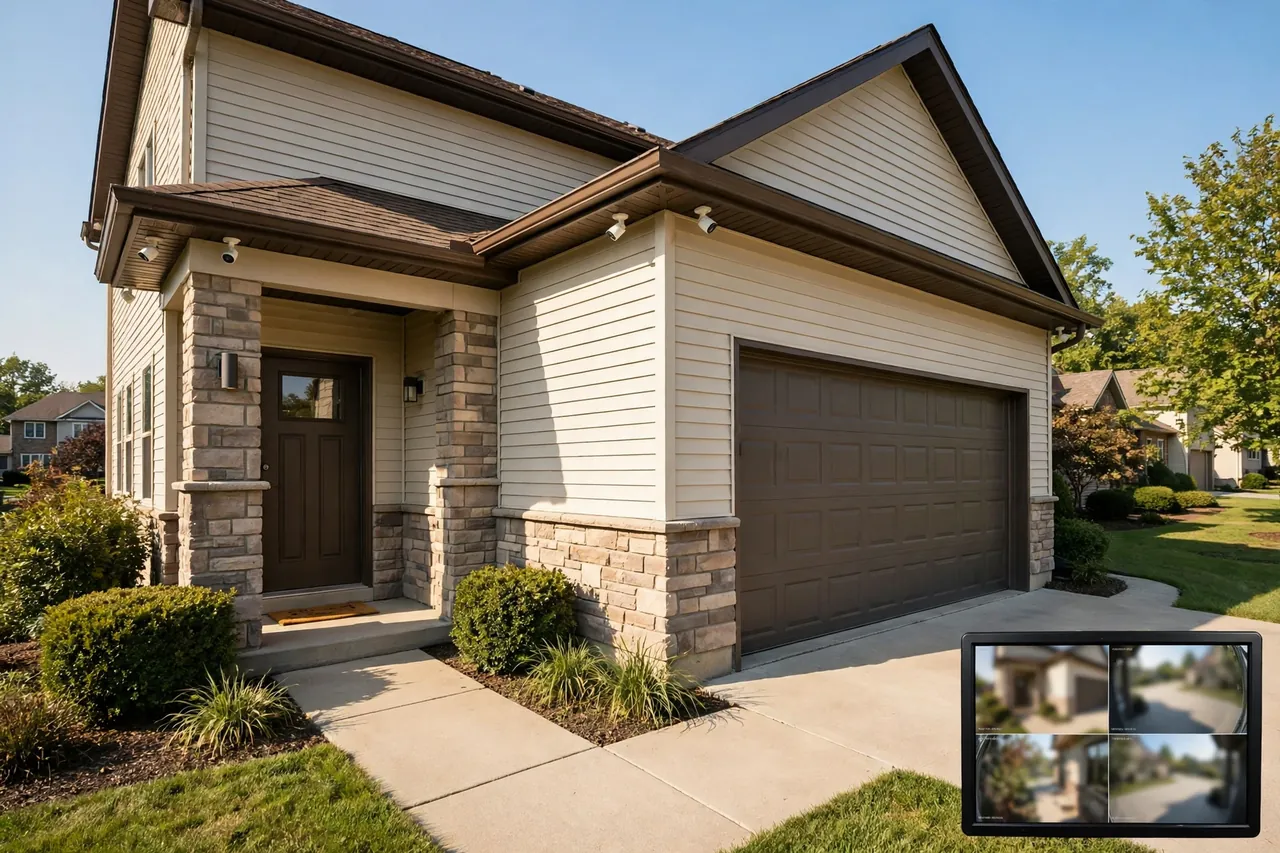
A channel is one camera input on the DVR. A 4-channel DVR handles up to four cameras, an 8-channel DVR handles up to eight, and a 16-channel DVR handles up to sixteen. You cannot plug a fifth camera into a 4-channel recorder, so the channel count sets a hard ceiling on your system.
Count the spots you need to cover, then buy two to four channels more than that number. Most homes cover the front door, back door, driveway, garage, and one or two side yards, which lands at five or six cameras. An 8-channel DVR fits that home with room to add a camera later. A 4-channel DVR suits a small home or apartment with three or four key spots. A 16-channel DVR fits a large home, a shop, or a small business with many entrances.
Think about where each camera goes before you buy. Mount cameras 8 to 10 feet high for the best mix of coverage and tamper resistance, and angle them down about 15 to 30 degrees so faces show clearly at entry points. Walk the property at night, too. A camera that looks fine in daylight can stare straight into a porch light after dark and wash out the picture. A quick night check before you drill saves a second trip up the ladder.
Storage and Playback: Hard Drives, Retention, and Finding Footage
Storage decides how far back you can look. A 1TB hard drive typically stores 7 to 14 days of continuous 1080p footage from four cameras, depending on compression settings, according to Security Camera King. For longer retention or more cameras, 2TB to 4TB drives are the common choice, and motion-only recording stretches every drive much further. As a rough rule, decide how many days you want to keep first, then pick the drive size.
Compression does heavy lifting here. Modern recorders use H.265 compression, which stores roughly twice as much video as the older H.264 format on the same drive. A 1080p camera on continuous recording uses about 10 GB per day with H.264 and about 5 GB per day with H.265. That single setting can double your retention, so turn H.265 on when your cameras and recorder support it.
Use a surveillance-rated hard drive, such as a WD Purple or Seagate SkyHawk, in every DVR. These drives are built for writing video 24 hours a day, while a standard desktop drive wears out fast under that constant load. Check whether the recorder ships with a drive installed, and check the maximum drive size it accepts, because some budget recorders cap out at a size that limits your retention.
Playback is where a good DVR earns its keep. Open the playback screen, pick a camera and a date, and drag the timeline to the hour you need. Most recorders let you search by motion events, so you can jump straight to the moments something moved instead of watching hours of empty driveway. When you find the clip that matters, export it to a USB stick right away. Exported clips are easy to share, and they protect the evidence if the recorder is later damaged or stolen.
How Long Should You Keep Footage?
- 7 days: the minimum for a home system, enough to cover a week away.
- 14 days: a good home default, long enough to catch a late-reported problem like a scratched car or a missing package.
- 30 days: the common choice for small businesses and insurance claims, since most reports surface within a month.
- 60 to 90 days: common for shops and offices with stricter record needs; check your insurer’s requirements before you size the drive.
If your camera records to a memory card instead of a recorder, the math changes completely. Our guide to security cameras with an SD card covers how much a card holds and when a card beats a recorder.
What Does a Security Camera DVR System Cost?
A complete 4-camera DVR system, with recorder, cameras, cables, and hard drive, starts around $500 for a basic setup, according to Security Dynamics, a New Jersey security installer writing in 2026. A 4- to 8-camera DVR system runs $500 to $2,000 in total, while an equivalent NVR system starts around $1,000. The gap has narrowed over the years, but a DVR still wins on upfront price.
Standalone recorders cost less than full kits. A Lorex 4K 16-channel DVR with a 2TB hard drive lists at $299.99 on Lorex’s own store, and it accepts up to an 8TB drive. A full Lorex 4K DVR system with sixteen wired cameras and a 2TB drive lists at $649.99 on Lorex’s professional store, down from a $1,439.99 list price. Prices checked on November 6, 2026; check the current price before you buy, since sale prices change often.
Budget kits can cost far less, and that is where buyers get tripped up. Some kits under $150 ship without a hard drive at all, and adding a surveillance-rated 1TB drive costs another $40 to $60. Always read the box for three things: whether a hard drive is included, how many cameras are included, and the maximum drive size the recorder accepts. A cheap kit with no drive and low-resolution cameras is not a bargain once you add the missing parts.
Installation is the other big cost. A confident DIY homeowner can install a 4-camera DVR system in a day, with cable runs taking most of the time. Professional installation for a home system typically runs $590 to $2,040 for equipment and labor combined, with a national average near $1,300, according to LegalClarity’s 2026 cost guide. Hire a pro when cable runs cross finished walls, attics, or multiple floors, or when the system covers a business where placement mistakes cost more than the labor saves.
One cost a DVR does not have is a monthly fee. Your footage stays on your own hard drive, so there is no cloud subscription to keep recording. Remote viewing apps from the big brands are free, though a few makers charge for extra cloud backup. If you compare a DVR with a monitored alarm system, weigh that difference honestly: our guide to the best home security systems with cameras covers monitored systems, monthly fees, and when professional monitoring is worth paying for.
Do DVR Security Cameras Need Internet?
No. A DVR security camera system records and stores footage locally on its internal hard drive whether or not the internet works. Internet access is only required for remote viewing on your phone or computer. If your internet goes down, local recording keeps going without a pause.
That offline strength is one of the best reasons to pick a DVR. A Wi-Fi outage, a dead router, or a cut broadband line never stops the cameras from recording. The tradeoff is simple: without internet, you lose phone alerts and remote viewing until the connection returns. The footage is still there on the drive when you get home.
To use remote viewing, connect the DVR to your router with an Ethernet cable, then set up the maker’s app with the QR code on the DVR label or the device serial number. Test it over mobile data, not your home Wi-Fi, so you know outside access truly works. And change the default password on day one. The National Institute of Standards and Technology recommends unique, complex passwords and changing default credentials on every networked device, and that advice applies directly to a DVR once it touches your network.
How to Set Up a DVR Security Camera System
Setting up a DVR system is a solid weekend DIY project. Work in order, test as you go, and do not rush the cable runs, since neat cabling is what separates a system that lasts from one that fails in a year.
- Plan camera spots first. Walk the property, mark every entry point, driveway, and blind spot, and sketch the cable path from each camera back to the DVR. Put the DVR in a secure, dry spot, such as a closet or utility room, where a burglar cannot grab it in seconds.
- Mount one camera at a time. Drill the mount holes, run the cable through the wall behind the mount, seal the hole with silicone, and label each cable at both ends. Labels save hours when you connect everything later.
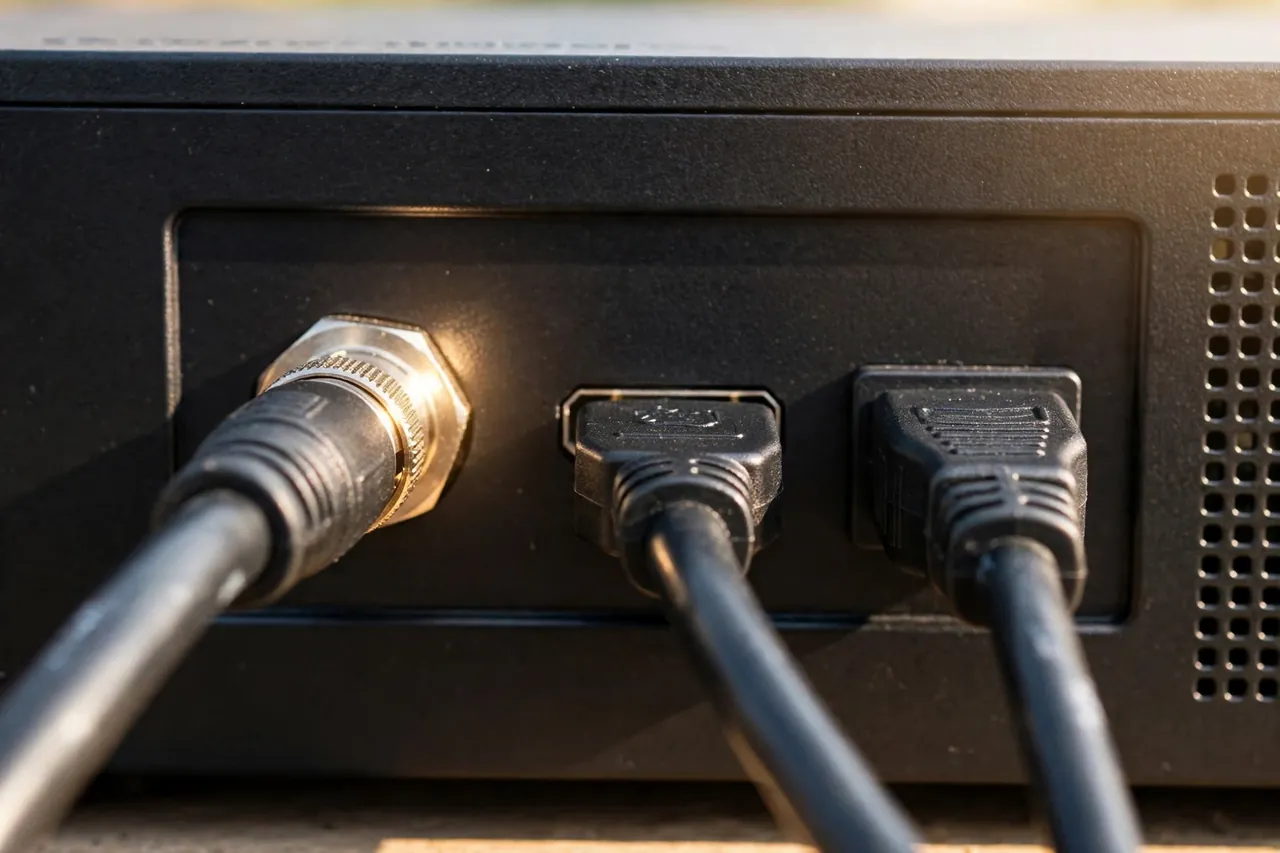
- Connect cameras to the DVR. Plug each coaxial cable into the matching numbered BNC input on the back of the recorder, connect power from the power box or adapters, then plug a monitor into the DVR with an HDMI cable.
- Power up and run the setup wizard. Set the correct date, time, and time zone first, because wrong timestamps make footage useless as evidence. Pick the recording resolution, choose continuous or motion recording per camera, and turn on overwrite mode so old footage clears itself.
- Set strong passwords. Create a new admin password right away and disable any default login. This is the single most important security step in the whole install.
- Connect remote viewing. Plug the DVR into your router with an Ethernet cable, add the device in the maker’s app, and test live viewing over mobile data.
- Test everything. Walk through each camera’s view, trigger motion in front of each one, play back the clip, and check night vision after dark. Fix weak spots now, while the ladder is still out.
Plug the DVR into a surge-protected outlet or a small UPS battery backup. Power cuts are exactly when recording matters most, and a UPS keeps the system running through short outages. If you run into a problem during setup, the quick fixes in the next section solve most of them.
Common DVR Problems and Quick Fixes
Most DVR trouble comes from cables, power, or settings, not from a dead recorder. Work through the cheapest checks first before you buy replacement parts.
Table: DVR problems and quick fixes
| Problem | Most likely cause | Fix to try first |
|---|---|---|
| One camera shows no video | Loose BNC connector or dead power adapter | Reseat the BNC plug, then swap the power adapter with a working camera |
| All cameras go black | Recorder power or hard drive fault | Check the DVR power light, reboot the recorder, then test without the hard drive |
| Footage is grainy or washed out | Low resolution setting or glare at night | Raise the recording resolution and move the camera away from direct lights |
| Recordings stop after a few days | Drive full with overwrite off | Turn on overwrite mode and switch quiet cameras to motion recording |
| Remote viewing fails | DVR offline or wrong app setup | Check the Ethernet cable and router, then re-add the device in the app |
| Wrong date on footage | Time zone or clock not set | Set the time zone and enable automatic time sync in the DVR menu |
One more warning deserves a place here. If a camera keeps dropping out at night, the cause is often power, not the camera. Infrared night vision draws more power than daytime recording, and a weak adapter or a long thin power run can starve the camera just when it needs power most. A proper 12V supply rated for the camera, or a shorter power run, usually ends the problem.
Is a DVR Still Worth It in 2026?
Yes, for the right home. A security camera DVR still makes sense when you already have coaxial cable, when you want local recording with no monthly fee, when your internet is unreliable, or when your budget caps near $500 to $1,000 for a full system. It records around the clock, it keeps working through an internet outage, and it stores weeks of footage on a drive you own.
A DVR is the wrong pick when you are starting from scratch and want the sharpest video, smart person and vehicle alerts, easy expansion, or two-way audio on every camera. In that case, an NVR with IP cameras fits better, and the extra upfront cost buys real capability. The same goes for a growing business: once you pass 16 cameras or need cameras in far-flung spots, a network system scales far more easily.
For most homes, the honest middle path is a modern HD-over-coax DVR with 1080p or 4K cameras and a 2TB drive. You get clear footage, local storage, no subscription, and a system you can install yourself in a weekend. And if you later want IP cameras, a hybrid XVR recorder lets you add them without starting over.
Related Guides
Closed Circuit Camera: What CCTV Really Means and When It Still Makes Sense · High Resolution Security Camera: What Resolution Do You Actually Need? · Security Camera With SD Card: The Complete Local Storage Guide
Frequently Asked Questions
What is a DVR security camera system?
A DVR security camera system is a set of wired analog cameras connected by coaxial cable to a digital video recorder. The recorder converts the analog signal into digital video, stores it on a hard drive, and lets you watch live video or play back recordings on a monitor or phone app. Recording runs without internet, and there is no monthly fee.
How many cameras can a typical DVR handle?
Most home DVR recorders support 4, 8, or 16 channels, and commercial units can support 32 channels or more. One channel equals one camera, so count your camera spots first, then buy a recorder with two to four more channels than you need today, which leaves room to add cameras later.
How much storage do I need for a DVR security system?
A 1TB hard drive typically stores 7 to 14 days of continuous 1080p footage from four cameras, depending on compression. For longer retention or more cameras, 2TB to 4TB drives are common choices. Motion-triggered recording and H.265 compression both stretch storage much further than continuous recording alone.
Can I use my existing coaxial cable with new HD cameras?
In most cases, yes. Modern analog HD cameras, using HD-TVI, HD-CVI, or AHD formats, transmit high-definition video over standard RG59 or RG6 coaxial cable, so they work with wiring left over from older standard-definition systems. Check that your recorder supports the camera’s signal format before you buy.
Do DVR security systems work without internet?
Yes. A DVR security system records and stores footage locally on its internal hard drive no matter what happens to your internet connection. Internet is only needed for remote viewing on your phone or computer, so a broadband outage never stops recording, it only pauses remote access.
Is professional installation necessary for a DVR system?
Many homeowners install a DVR system themselves, especially a 4- or 8-camera kit with straightforward cable runs. Larger jobs, such as multi-building setups or systems with long cable runs through finished walls, often benefit from professional installation for cleaner placement and more reliable wiring.
A security camera DVR is a simple, honest deal: wired cameras, a recorder you own, and footage that stays in your home with no monthly bill. Pick the right channel count, size the drive for the days you want to keep, and set strong passwords on day one. Do that, and the system will quietly watch over your home for years.
Before you drill or run cable through walls, check for hidden wires and pipes, and if the job needs work near your electrical panel or through finished walls you are unsure about, bring in a qualified installer. Homes, wiring, and budgets vary, so treat the prices and storage figures here as checked guides, not guarantees for every home.