A Thread border router is the bridge between your Thread smart home devices and your Wi-Fi network. Without one, Thread devices such as battery sensors, smart locks, and contact sensors cannot talk to your phone, your hub, or the internet. The good news is that you may already own one, because the job is built into many speakers, streaming boxes, and hubs you already have at home.
If you bought a Matter device and your app says it cannot connect, a missing Thread border router is the most likely cause. This guide explains what it does, how Thread differs from Wi-Fi, Zigbee, and Bluetooth, which devices already include one, and what to do when a device will not join.
What Is a Thread Border Router?
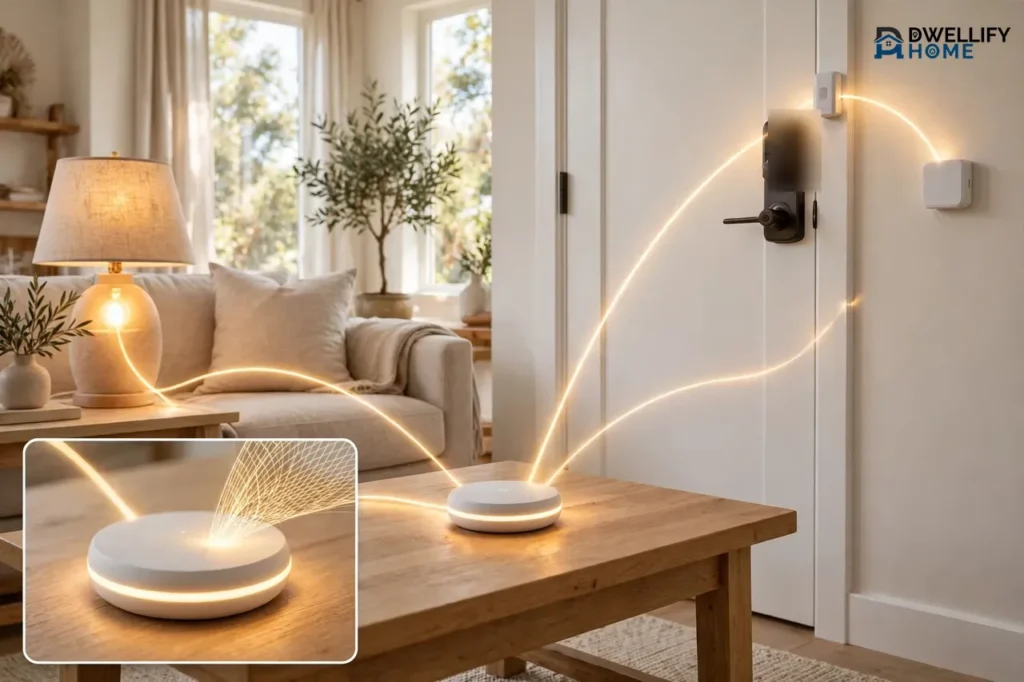
A Thread border router is a device that links a Thread mesh network to your regular home network, such as Wi-Fi or Ethernet. It moves data both ways between the two networks so your phone and smart home hub can reach Thread devices. The Thread Group, the industry group behind the Thread standard, describes it as the link that lets Thread devices and border routers from any maker recognize and trust each other on one shared network.
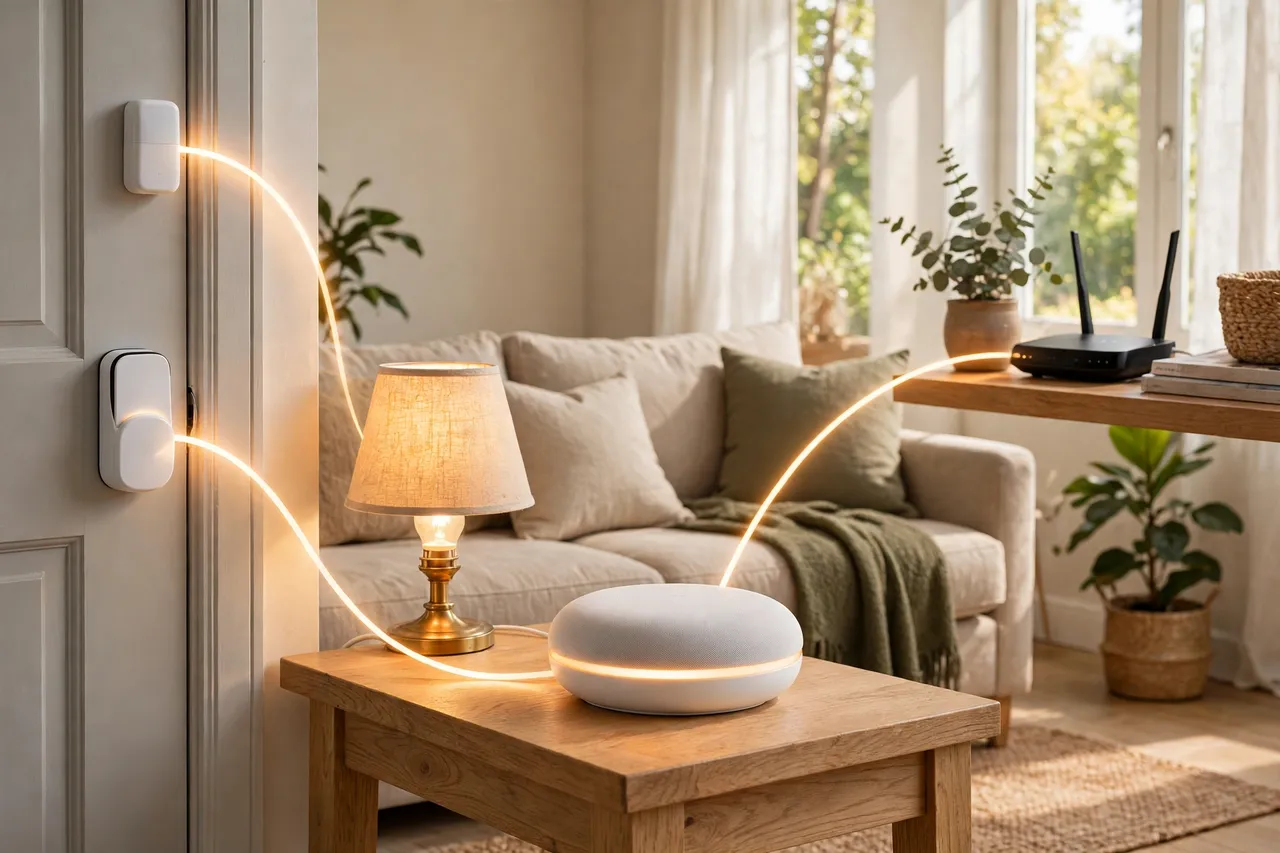
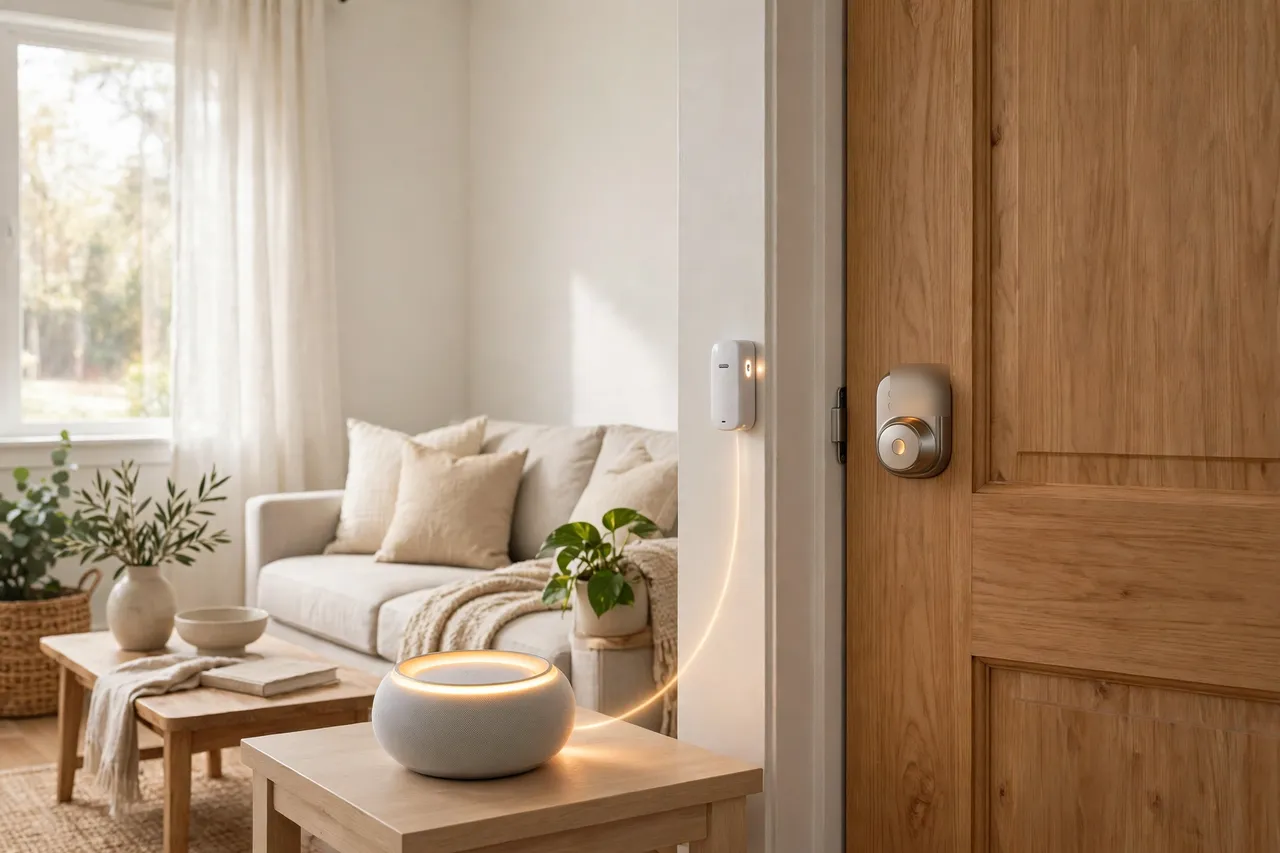
Think of it like a translator at a border crossing. On one side, Thread devices speak a low-power wireless language over a radio signal. On the other side, your phone, laptop, and hub speak Wi-Fi or Ethernet. The border router speaks both languages, so a message from your phone can cross over and reach a small sensor on a door across the house.
Here is the key point most beginners miss: a Thread border router is network plumbing, not a controller. It does not run your automations or decide when a light turns on. Your Matter controller does that job. The controller is the app or hub that adds devices and runs routines, such as Apple Home, Google Home, Alexa, SmartThings, or Home Assistant. Many products do both jobs in one box, which is why the two roles get mixed up.
How a Thread Border Router Works
Thread is a low-power mesh network that runs on the 2.4 GHz radio band, using the same IEEE 802.15.4 radio standard as Zigbee. Every Thread device gets its own IPv6 address, the same addressing system the internet uses. That is what makes Thread different from Zigbee: Thread devices act like ordinary devices on an IP network, while Zigbee devices need a coordinator to translate for them.
Inside the mesh, devices take on different roles. Mains-powered devices such as smart plugs and bulbs act as routers. They pass messages along for other devices and stretch the network across your home. Battery-powered devices such as door sensors act as end devices. They sleep most of the time to save power, wake up to send a short message, and go back to sleep. One router is elected as the leader, and it manages the network. If that leader goes offline, the network picks a new one on its own.
The border router sits at the edge of this mesh and does four jobs:
- Routes traffic. It carries IPv6 data between the Thread mesh and your Wi-Fi or Ethernet network in both directions.
- Helps devices find each other. It shares discovery information so a controller on Wi-Fi can find a Thread device by name.
- Helps you add new devices. It supports secure commissioning, the process that checks a new device and hands it the network credentials it needs to join.
- Keeps the mesh strong. It can link separate parts of a Thread network over your home network, and a second border router can take over if the first one goes offline.
Your phone usually cannot talk to Thread devices directly, because most phones have no Thread radio. A few newer phones are the exception: Apple lists Thread networking in the iPhone 15 Pro specifications. Even so, everyday control still runs through a border router, so plan on having one in your home either way.
Thread vs Wi-Fi vs Zigbee vs Bluetooth
Thread, Wi-Fi, Zigbee, and Bluetooth all move data without wires, but they solve different problems. The table below shows how they compare in a normal home.
Table: How Thread compares with Wi-Fi, Zigbee, and Bluetooth in a smart home.
| Feature | Thread | Wi-Fi | Zigbee | Bluetooth |
|---|---|---|---|---|
| Main job | Mesh for sensors, locks, lights | Phones, TVs, cameras | Mesh for sensors, lights | Setup and nearby devices |
| Power use | Very low | High | Very low | Low |
| Mesh network | Yes, self-healing | No | Yes, self-healing | Mostly no |
| Needs a border router | Yes | No | No, needs a hub | No |
| Works with Matter | Yes | Yes | Only through a bridge | Setup only |
Wi-Fi is fast and strong, but it drains small batteries quickly. That is why a coin-cell door sensor almost never uses Wi-Fi. Thread sips power, so a sensor battery can last months or years. Zigbee also sips power, but it does not speak IPv6, and it needs its own coordinator to translate. Bluetooth plays a smaller role: it does not carry your daily Matter traffic. Your phone uses Bluetooth Low Energy during setup to pass the Thread network credentials to a new device, and then Thread takes over.
Do You Need a Thread Border Router?
You need a Thread border router only if you own, or plan to buy, Thread devices. That one sentence answers the question for most people. Matter runs over three network types: Wi-Fi, Ethernet, and Thread. The type your device uses decides whether you need a border router at all.
- Matter over Wi-Fi or Ethernet: no border router needed. A Matter smart plug on Wi-Fi joins your Wi-Fi directly, just like a laptop does.
- Matter over Thread: a border router is required. Most battery-powered Matter devices fall in this group, including door and window sensors, motion sensors, buttons, smart locks, and many thermostats.
- Zigbee devices: no Thread border router needed, because Zigbee is a different protocol. A Zigbee device needs a Zigbee coordinator or a hub that speaks Zigbee.
Check the box or the product page before you buy. If it says “Matter over Thread,” “Thread,” or shows the Thread logo, you need a border router. If it says “Matter over Wi-Fi,” you do not. Before you spend any money, check what you already own. Many homes already have a border router hiding inside a speaker, a streaming box, or a mesh Wi-Fi system, and the next section lists the most common ones.
Which Devices Already Have a Thread Border Router Built In?
Most people do not buy a box labeled “Thread border router.” They get the job as a bonus inside a device they bought for another reason. Check your exact model, because one wrong letter in a model name can mean the difference between having Thread and not having it.
Table: Common devices with a built-in Thread border router, by platform.
| Platform | Devices with a built-in border router | Watch out for |
|---|---|---|
| Apple Home | HomePod mini, HomePod (2nd generation), Apple TV 4K (2nd generation), Apple TV 4K (3rd generation) Wi-Fi + Ethernet | Wi-Fi-only Apple TV 4K (3rd gen) has no Thread radio |
| Google Home | Nest Hub (2nd generation), Nest Hub Max, Nest Wifi Pro, Nest Wifi, Google TV Streamer (4K) | Older Nest speakers have no Thread radio |
| Amazon Alexa | Echo (4th gen), Echo Hub, Echo Show 8 (3rd gen), Show 10 (3rd gen), Show 15 (2nd gen), Show 21, Echo Studio, eero 6 and newer | Not every Echo has Thread |
| SmartThings | SmartThings Station, Aeotec Smart Home Hub, Samsung TVs (Q60 or above, released after 2022) with a built-in SmartThings hub | Older Samsung TVs lack the hub |
| Home Assistant | Home Assistant Connect ZBT-2, Connect ZBT-1, Home Assistant Yellow, or a radio dongle running the OpenThread Border Router app | One radio runs Zigbee or Thread, not both |
| Other hubs | Homey Pro, Homey Pro mini, Aqara Hub M3 | Each hub needs its own app |
Apple’s own support pages name the HomePod mini and the Apple TV 4K (3rd generation) Wi-Fi + Ethernet as Thread-enabled home hubs for Thread accessories. The cheaper Wi-Fi-only version of the same Apple TV looks identical on a shelf but cannot act as a border router, so check before you buy.
For Home Assistant users, the official path is a USB radio such as the Home Assistant Connect ZBT-2, the team’s reference hardware for the OpenThread Border Router. A USB stick is the most reliable link to a Home Assistant server, because the radio talks to the host over a fast, direct USB connection. Plug it in through a short USB extension cable to keep it away from USB 3.0 interference, which can weaken the 2.4 GHz signal.
Dedicated standalone border routers also exist. The GL-S20 from GL.iNet, for example, is a compact Thread border router with Power over Ethernet, built on Thread 1.3, that can also act as a plain Thread router to extend a mesh. It suits a Home Assistant setup or a small commercial install far more than a living room, so most homeowners will never need one.
How to Choose a Thread Border Router
Choosing a border router is simpler than the shopping pages make it look. Follow these five rules in order, and you will land on the right pick without overthinking it.
1. Start with the ecosystem you already use. If your home runs on Apple Home, pick an Apple border router. If it runs on Google Home, pick a Google one. If it runs on Alexa, pick an Amazon one. A border router works best inside its own platform, and mixing brands is where most setup headaches begin.
2. Pick a device that also controls your home. A border router alone cannot control your devices. You still need a Matter controller. The simplest setup is one device that does both jobs, such as a HomePod mini, a Nest Hub, an Echo Hub, or a Home Assistant server with a radio.
3. Check the exact model, not just the brand. “Echo” is not enough, because some Echo models have Thread and others do not. “Apple TV 4K” is not enough either, because the Wi-Fi-only model has no Thread radio. Read the specs on the maker’s page and look for the words “Thread border router” before you pay.
4. Think about placement. A border router works best near the center of your home, plugged in and always on. A speaker tucked in a far bedroom or a hub buried in a basement closet gives your mesh a weak start. If your home is large or has thick walls, plan for a second border router on another floor.
5. Ask about Thread 1.4. Thread 1.4, released in September 2024, standardizes how border routers share network credentials. Check whether a device you plan to buy supports it, and keep its firmware updated.
One border router is technically enough for most homes. A second one adds backup and range, not room for more devices. A single border router can already serve dozens of Thread devices, so buy a second one only when a far room keeps dropping off, or when a lock must keep working even if one hub goes down.
How to Set Up a Thread Border Router
Setup is short when the border router is already built into a hub you own. You are not building a network from scratch. You are waking up a feature that is already inside your device and then adding your first Thread accessory to it.
Follow these steps in order:
- Plug in your border router and keep it powered. A border router must stay on all the time. A speaker that gets unplugged every night cannot hold your Thread network together.
- Put it on the same Wi-Fi network as your phone. Your phone, your hub, and your border router must share one home network. Guest networks and client isolation settings can block the discovery messages Thread relies on, so use your main network.
- Update the firmware. Open the maker’s app and install every pending update for the hub and the app itself. Outdated border router firmware is a common cause of devices that will not pair.
- Set up the hub in its app. Add the speaker, display, or hub to its own app first, such as Apple Home, Google Home, Alexa, or Home Assistant. This step creates the Thread network and makes the device the border router for it.
- Add your first Thread device. Open the app, tap Add Device, and scan the QR code on the device or its box. Keep your phone close to the device during this step, because your phone passes the network credentials to it over Bluetooth.
- Wait for the device to appear, then test it. Give the app a minute to finish. Then try the device: open a sensor, lock a lock, or turn on a light. If it answers, the border router is doing its job.
- Add mains-powered Thread devices early. Smart plugs and bulbs act as routers that carry messages for battery sensors. Add them first, near the middle of your home, and your mesh will be stronger from day one.
For Home Assistant, plug the radio into your server, install the OpenThread Border Router app, and open Settings, then Connectivity, then Thread, to see the network it formed. Home Assistant finds every border router on your network and groups them by Thread network, so you can see whether your Apple, Google, and Home Assistant networks are one mesh or three separate ones. If your server lives at homeassistant.local, open that address in a browser on the same network to reach its dashboard. On Apple Home, open the Home app, tap More, then Home Settings, then Home Hubs & Bridges. The active hub appears at the top: if it is a HomePod mini, a HomePod (2nd generation), or a Thread-capable Apple TV 4K, you already have a border router.
Troubleshooting: When Your Devices Won’t Join
A Thread device that will not join usually fails for a small, fixable reason. Work through these checks in order, from the easiest to the most disruptive. Do not factory reset anything until you have tried the first four steps.
1. Check that the device actually uses Thread. Read the box or the product page. A Matter-over-Wi-Fi plug will never need a border router, and a Zigbee sensor will never join a Thread network. If the device is not Thread, you are fixing the wrong problem.
2. Confirm your border router is online. Open the hub’s app and check that the speaker, display, or hub shows as connected. A border router that lost Wi-Fi or got unplugged cannot pass traffic, and every Thread device behind it will show as unreachable.
3. Update the border router firmware, then reboot it. This is the fix most people skip. Outdated firmware on a border router can break pairing and cause random “No Response” errors, even when the bulbs and sensors themselves are fine. Update the hub, reboot it, and then try adding the device again.
4. Move closer and shorten the distance. Stand near the border router with your phone and the new device during setup. After setup, check the distance between the device and the nearest mains-powered Thread router. A battery sensor at the far end of the house with no router nearby has no path home. Add a Thread smart plug halfway there and try again.
5. Check for split Thread networks. This is the sneakiest problem in mixed-brand homes. Each brand tends to form its own Thread network with its own credentials when you first set it up. You can end up with an Apple network, a Google network, and a Home Assistant network in one house, and devices cannot roam between them. Open your Thread settings and count the networks. If you see more than one, pick your main ecosystem’s network and let the other border routers join it through credential sharing.
6. Check Bluetooth and the QR code. Setup uses Bluetooth to hand credentials to the new device, so keep Bluetooth on and hold your phone close. If the QR code will not scan, type the setup code by hand instead. A smudged or tiny code is a common reason for a failed first try.
7. Reset and re-add as a last step. If nothing else works, remove the device from the app, factory reset it with the button sequence in its manual, and add it again. If it still will not join, try adding it through a different ecosystem’s app to find out whether the device or the network is at fault.
One more warning: do not move your border router to a new spot every day. A mesh needs time to settle after a move, because routers relearn their paths. Move it once to a central spot, leave it there, and give the network a few hours before you judge the result.
Thread 1.4 and the One-Network Problem
The biggest weakness in Thread homes today is not range or speed. It is the fact that one house can end up with several separate Thread networks that do not talk to each other. Your Apple hub builds one, your Google hub builds another, and your Home Assistant server builds a third. Each network needs its own border routers, and a sensor on one network cannot use a router from another.
Thread 1.4, released in September 2024, is the fix the industry agreed on. It standardizes credential sharing, a defined way for one border router to hand its network credentials to another, so the second router joins the existing network instead of starting a rival one. The Thread Group lists credential sharing first among the features in Thread 1.4. The honest part: sharing does not happen by magic on older hardware. Whether your devices actually merge into one network depends on each platform’s firmware, and some border routers may never get it. Set up your main ecosystem’s border router first, then let any other border routers join that network, and keep every hub’s firmware updated.
Related Guides
Cellular Home Security Systems: How They Work and Whether You Need One · Bluetooth Doorbell: How It Works, Its Range, and Whether It Fits Your Home · Zigbee Thermostats: What They Are, How They Work, and Whether You Need One · HomeKit Alarm System: The Apple-Home Guide to Alarms That Work With HomeKit
Frequently Asked Questions
What are Thread border routers?
Thread border routers are devices that bridge a low-power Thread mesh to your home’s IP network, whether Wi-Fi or Ethernet. They let your phone, hub, and apps reach Thread devices such as sensors, locks, and lights. Most of the time the job is built into a speaker, streaming box, hub, or mesh router you already own.
Is a Thread border router the same as a Wi-Fi router?
No. A Wi-Fi router runs your Wi-Fi network, while a Thread border router connects a separate Thread mesh to that network. Some products do both jobs, such as a mesh Wi-Fi system with a built-in Thread border router. A Thread border router on its own does nothing for your Wi-Fi speed or coverage.
Do I need a Thread border router for Matter over Wi-Fi devices?
No. Matter devices on Wi-Fi or Ethernet join your home network directly and need no border router. Only Matter devices that use Thread need one. Check the box or specs: “Matter over Thread” means you need a border router, while “Matter over Wi-Fi” means you do not.
Is a Thread Border Router the Same as a Matter Hub?
No, they do different jobs. The border router handles networking and moves data between the Thread mesh and your Wi-Fi or Ethernet network. A Matter hub, also called a Matter controller, adds devices, sends commands, and runs automations. Many devices combine both roles, which is why one box often covers both.
Can I run multiple Thread Border Routers at the same time?
Yes. Thread supports more than one border router on the same network, and extras add backup and coverage. If one goes offline, another on the same network can take over. The catch is that they must share the same Thread network and credentials, or they will form separate networks instead of backing each other up.
Can I build my own Thread border router?
Yes. The OpenThread Border Router is open-source software, and you can build one from a Raspberry Pi with a compatible radio dongle, or run it as an app in Home Assistant with a radio such as the Home Assistant Connect ZBT-2. The do-it-yourself route costs less but needs more setup and care than a built-in hub.
Do I need a Thread Border Router for Matter with Home Assistant?
Yes. To use Matter devices over Thread with Home Assistant, you need access to a Thread border router. Apple, Google, or Amazon hubs can provide the Thread connection, but a dedicated OpenThread Border Router gives you full local control and a clear view of your Thread network inside Home Assistant.
A Thread border router is a small piece of the smart home puzzle, but it is the piece that makes everything else work. Check what you already own first, pick one main ecosystem, keep the firmware updated, and add a few mains-powered Thread devices to build a strong mesh. Do that, and your Matter devices will answer the first time you ask.