A ThinQ air conditioner is a regular LG unit with built-in Wi-Fi, so you can run it from your phone instead of hunting for the remote. After installing and connecting plenty of these in real homes, I can tell you the cooling is the easy part. The smart side is where people get tripped up, and where it actually pays off once it’s working. This guide walks you through what an LG ThinQ air conditioner does, how to choose and set one up, the features worth using, and how to fix the handful of problems that come up again and again.
Snippet-Ready Definition
An LG ThinQ air conditioner is a Wi-Fi-connected LG cooling unit controlled through the LG ThinQ app. People choose it for remote control, scheduling, voice commands, and energy tracking, solving the hassle of managing cooling only from a remote.
Our Mission
Dwellify Home helps homeowners, renters, and property enthusiasts make practical, informed decisions about their living spaces. With guides like this one on the LG ThinQ air conditioner, we turn confusing specs and setup steps into clear, honest advice you can act on with confidence.
What Is an LG ThinQ Air Conditioner?
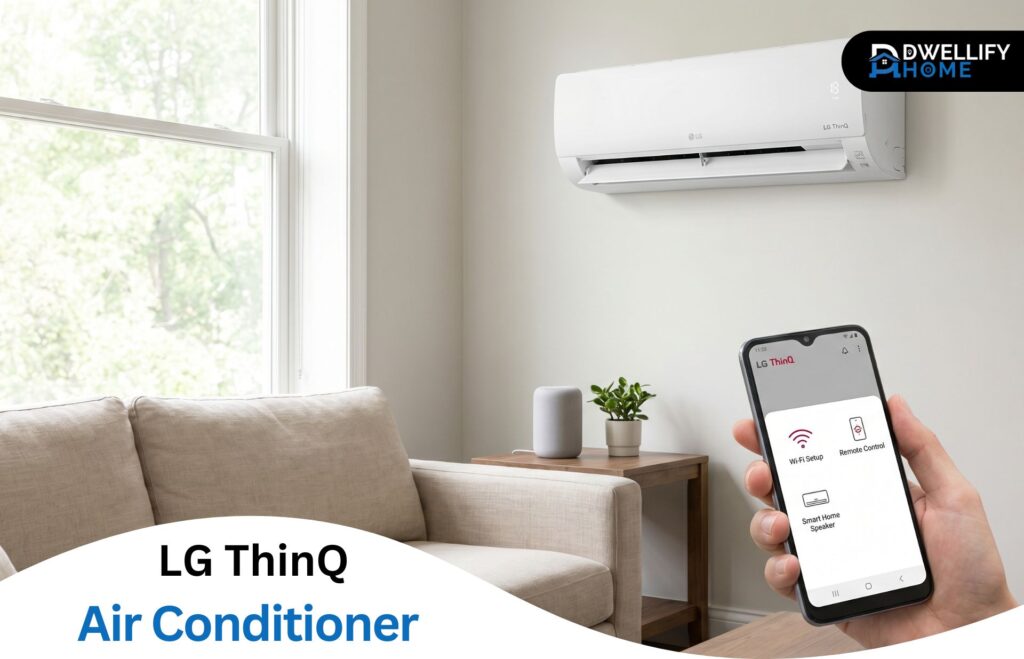
An LG ThinQ air conditioner is a Wi-Fi-connected cooling unit you control through the LG ThinQ app on your phone. You can change the temperature, switch modes, adjust fan speed, and set schedules from anywhere. It also supports voice control, energy tracking, filter reminders, and Smart Diagnosis for troubleshooting. The cooling hardware is otherwise a normal LG AC.
That last point matters more than people expect. The “smart” part rides on top of a perfectly ordinary air conditioner. If the Wi-Fi never gets set up, you still have a fully working unit with a remote. Nothing about ThinQ changes how cold the room gets.
Key things this guide covers:
- Matching BTU rating to your room size, with real LG ThinQ models mapped to coverage
- Dual Inverter vs. standard compressor — which is worth the extra cost
- Step-by-step Wi-Fi setup, including the 2.4 GHz requirement most people miss
- Using the app day to day: modes, presets, schedules, and energy monitoring
- Filter care, voice control, and fixes for the most common connection problems
Quick model-to-room guide:
| Cooling capacity | Approx. room size | Example LG model |
| 8,000 BTU | up to ~340 sq ft | LW8017ERSM, LW8022IVSM |
| 10,000 BTU | up to ~450 sq ft | LW1022IVSM |
| 12,000 BTU | up to ~550 sq ft | LW1222IVSM |
| 14,000 BTU | up to ~800 sq ft | LW1522IVSM |
| 23,500 BTU | up to ~1,450 sq ft | LW2422IVSM |
What the ThinQ App Adds Compared to a Basic AC Remote
A remote only works when you’re standing in the room pointing at the unit. The app removes that limit, and that’s the real value. You can cool the bedroom from the couch, or start the living room AC on your drive home so you walk into a comfortable space instead of a hot one.
Beyond reach, you get a few things a remote simply can’t do. Schedules run the unit on a timetable without you touching anything. The app sends a push notification when the filter needs cleaning. And if you have more than one LG unit, they all sit in a single app instead of you juggling separate remotes.
I’ll be honest about the ceiling here: none of this makes the room colder or the unit more powerful. It’s about convenience and control. If you never use your phone for that sort of thing, a basic remote model will serve you fine and cost less.
SmartThinQ vs. LG ThinQ: Clearing Up the Naming
These are the same ecosystem. LG used the name “SmartThinQ” for years, then rebranded it to “LG ThinQ” back in 2017. That’s why you’ll still see older units, manuals, and store listings labeled SmartThinQ while the current app is just called LG ThinQ. Same company, same system, different name.
More recently LG has been pushing a refreshed ThinQ platform and a smart-home hub called ThinQ ON, along with an opening up of its ThinQ system to work with more third-party devices. For an air conditioner owner, the practical takeaway is simple: download the current LG ThinQ app, and don’t worry if the box or paperwork says SmartThinQ.
Which LG Air Conditioners Are ThinQ-Enabled
Not every LG air conditioner has Wi-Fi, so check the model before you count on smart control. ThinQ support shows up across several form factors: window units, portable units, in-wall units, and ductless mini-split systems. The listing or spec sheet will say “Wi-Fi enabled,” “smart,” or “works with LG ThinQ” when the unit supports it.
If a model number ends in something like “ERSM” or “IVSM,” it almost always has Wi-Fi. When in doubt, the surest tell is whether the box mentions the ThinQ app or Alexa and Google Assistant. A plain rotary unit with no smart badge won’t connect, no matter what you do.
Choosing the Right LG ThinQ Air Conditioner for Your Room
Match the BTU rating to your room size first, then decide on inverter versus standard and the form factor that fits your space. As a rough starting point, an 8,000 BTU unit suits a small bedroom around 300 to 340 square feet, 12,000 BTU handles a large room near 550, and 14,000 BTU or more covers open or multi-room areas. Wi-Fi is a feature layered on top, not a sizing factor.
BTU and Room-Size Guide
Sizing is where I see the most expensive mistakes. People assume bigger is always better, then end up with a clammy room because an oversized unit cools fast, shuts off, and never runs long enough to pull humidity out of the air. Right-sized beats oversized almost every time.
Here’s a practical map of LG’s ThinQ-enabled window units against typical coverage:
| Cooling capacity | Approx. room size | Example LG model |
| 8,000 BTU | up to ~340 sq ft | LW8017ERSM, LW8022IVSM |
| 10,000 BTU | up to ~450 sq ft | LW1022IVSM |
| 12,000 BTU | up to ~550 sq ft | LW1222IVSM |
| 14,000 BTU | up to ~800 sq ft | LW1522IVSM |
| 23,500 BTU | up to ~1,450 sq ft | LW2422IVSM |
Treat those square-foot numbers as a baseline, not gospel. A sun-baked west-facing room, high ceilings, or a busy kitchen all push you toward more capacity. A shaded, well-insulated bedroom lets you stay on the lower end. If you want efficiency on paper, check the CEER rating and look for an Energy Star badge, but don’t let a slightly higher number talk you into oversizing.
Dual Inverter vs. Standard Compressor Models
This is the choice that actually changes how the unit feels to live with. A standard compressor runs flat out or shuts off entirely, so you hear it kick on and off and the temperature drifts a bit. A Dual Inverter compressor varies its speed, holding the room steadier, running quieter, and using less power once it reaches your set temperature.
A quick real-world comparison: the LW8017ERSM is Wi-Fi enabled but uses a standard rotary compressor, while the LW8022IVSM is the Dual Inverter version at the same 8,000 BTU class. Both connect to ThinQ. The inverter model costs more but is noticeably quieter at night and easier on your electric bill over a long season.
LG advertises big efficiency gains for Dual Inverter, and they’re real, but read the claims carefully. Those “up to” percentages compare against specific baseline models under set conditions, so your actual savings depend on how long you run the unit and what you’re comparing to. If you cool a bedroom all summer, the inverter usually earns back its premium. For a few weeks of light use, the standard model is fine.
Window, Portable, or Mini-Split — Picking the Form Factor
Pick based on your space and how much install effort you’ll accept. Window units cool best for the money and are the most common ThinQ models, but you need a suitable window and a bit of muscle to mount them. Portables roll anywhere and only need a window for the exhaust hose, which makes them the answer when a window mount isn’t allowed or practical, though they’re louder and less efficient.
Ductless mini-splits are a different league: quiet, efficient, and permanent, but they need professional installation. They’re worth it if you’re cooling a space year-round or adding climate control to a room with no ductwork. One thing to know going in is that setup and the manual differ by type, so don’t assume the pairing steps from a window unit match your portable or mini-split.
How to Set Up Your LG ThinQ Air Conditioner and Connect It to Wi-Fi
Connecting takes about five minutes when it goes smoothly: install the LG ThinQ app, create or sign in to an LG account, put the AC into Wi-Fi pairing mode, add it in the app, then enter your home Wi-Fi password to finish. The single most important detail is that the unit only joins a 2.4 GHz network. Get that right and most of the headaches disappear.
I’ll say plainly that setup is usually quick but not always smooth. When it stalls, it’s almost always the Wi-Fi band or a mesh router, which I’ll cover at the end of this section.
Before You Start: Wi-Fi Requirements and Mesh-Router Gotchas
Have a few things sorted before you tap anything. The AC connects to 2.4 GHz Wi-Fi only; it will not see a 5 GHz network, so if your router broadcasts both under one name, you may need to separate them temporarily or connect your phone to the 2.4 GHz band during setup. Turn off your phone’s mobile data too, so it doesn’t jump off Wi-Fi mid-pairing.
Mesh systems like Eero, Google Wifi, and Orbi are the number-one reason pairing fails in the homes I visit. They like to steer devices between bands automatically, which confuses the handshake. If you have one, look for a setting to create a dedicated 2.4 GHz network or pause band-steering while you connect. Keep your phone and the AC near the router during setup, and have your Wi-Fi password in hand.
Step 1 — Install the LG ThinQ App and Create Your LG Account
Download the LG ThinQ app from the App Store or Google Play. Open it and either create a free LG account or sign in with Google or another supported login. The account is what lets you reach the unit from outside your home, so it isn’t optional if you want remote control.
Make sure your phone’s operating system is reasonably current. Older versions of the app needed fairly old minimums, but the current app expects an up-to-date iOS or Android version, so update your phone if it’s been sitting on an old release.
Step 2 — Put the Unit in Wi-Fi Pairing Mode
The AC has to be in pairing mode before the app can find it. On most LG units you hold a specific button for about three seconds until the display blinks or you hear a tone. Depending on the model, that’s the dedicated Wi-Fi button, the power button, or both temperature-down buttons pressed together.
Check the sticker on the unit or the manual for your exact model, because LG isn’t perfectly consistent across the lineup. You’ll know it worked when the Wi-Fi indicator starts flashing, which means the unit is broadcasting its temporary setup network.
Step 3 — Add the AC in the App and Join Its Network
In the app, tap the plus sign to add a product, then choose “Air Conditioner.” The app will guide you to connect to the unit’s temporary network, which shows up with a name like LGE_AC followed by a string of characters. On an iPhone, recent versions of the app can switch you to that network from inside the app; on Android it often happens automatically.
If you’re asked for a password on that LGE_AC network, it’s usually a simple default rather than your home password. Once your phone is talking to the unit directly, the app moves to the final step.
Step 4 — Enter Your Wi-Fi Password and Register
Now you hand the unit off to your home network. The app asks you to pick your 2.4 GHz Wi-Fi and type its password. Enter it carefully, since a single wrong character here causes a “failed to connect” message that looks like a bigger problem than it is.
After it connects, give the unit a nickname like “Bedroom AC” so it’s easy to find later, especially if you’ll add more units. That’s it, the air conditioner is registered to your account and ready to control from anywhere.
When Setup Fails: The Fixes That Solve Most Cases
When pairing won’t complete, work through these in order. They clear up the vast majority of failed setups I run into:
- Confirm 2.4 GHz. Make sure your phone and the AC are on the 2.4 GHz band, not 5 GHz. This is the top cause, full stop.
- Turn off mobile data. Stops your phone from dropping Wi-Fi during the handshake.
- Tame a mesh router. Pause band-steering or create a dedicated 2.4 GHz network on Eero, Google Wifi, or Orbi.
- Move closer. Keep the phone and unit within a few feet of the router while pairing.
- Restart and retry. Close the app fully, power-cycle the AC, put it back into pairing mode, and start over.
- Double-check the password. Retype your Wi-Fi password slowly; case matters.
If you’ve done all six and it still won’t take, the unit itself works fine on the remote in the meantime, so you’re not stuck without cooling while you sort it out.
Using the LG ThinQ App Day to Day
Once connected, the app becomes your main control surface, and it’s genuinely handy after the first day or two. You’ll lean on it for quick temperature changes, mode switches, schedules, and the occasional energy check. The trick is knowing which modes and presets actually earn their place so you’re not fiddling for the sake of it.
The App Dashboard, Modes, and Presets
The dashboard shows each registered unit as a tile with its current temperature and a power toggle. Tap a tile and you get the full controls: target temperature, fan speed, and the operating modes. Cool is your everyday setting. Fan circulates air without cooling. Dry pulls humidity without heavily cooling, which is great on muggy days that aren’t truly hot. On units that heat, you also get Heat and an Auto Changeover mode that switches between heating and cooling to hold a target temperature, typically within a few degrees.
The presets are where the app saves you effort. Sleep gently raises the temperature overnight so you’re not freezing at 3 a.m. or wasting power. Away and Vacation keep the unit idling efficiently while you’re out, and Home brings it back to your comfortable setting. I tell people to set Sleep and Away once and let them run; those two do most of the real work.
Schedules, Timers, and Weekly Reservations
Yes, you can schedule the unit, and this is the feature I’d push hardest. A simple on/off timer handles the basics, but the weekly reservation is the one that pays off. Set the AC to start cooling fifteen minutes before you usually get home and to ease off after you’ve fallen asleep, and you stop paying to cool an empty room.
The sleep timer is a smaller version of the same idea, ramping the unit down over a set window at night. Between the two, you can mostly stop thinking about the AC and let it follow your routine.
Energy Monitoring and the Smart A/C Rebate Program
The app shows your unit’s energy usage, which is more useful for spotting habits than chasing exact numbers. Seeing that the living room unit ran all afternoon while nobody was home is usually enough to make you tighten up a schedule.
There’s also a money angle a lot of owners miss. LG runs a Smart A/C program with certain utilities, where providers like Eversource and Con Edison offer enrollment perks and small adjustments to your unit during peak-demand periods in exchange for rebates or bill credits. Availability depends entirely on your utility and region, so check whether your provider participates before counting on it, but it’s worth a look if you qualify.
Smart Features Worth Knowing
A few features here do real work, and a couple are nice extras. I’ll give you an honest read on each so you know what to actually rely on versus what’s just marketing shine. The standouts are Dual Inverter efficiency, Auto Restart, and Smart Diagnosis.
Dual Inverter Technology and Real Energy Savings
Dual Inverter refers to the variable-speed compressor I mentioned earlier. Instead of slamming on and off, it modulates its output to match demand, which keeps the room temperature steadier, cuts noise, and trims power use during long runs. In practice, the biggest day-to-day difference most people notice is the quiet, not the bill.
The savings are real but situational. LG’s headline efficiency claims compare against baseline non-inverter models under controlled conditions, so treat them as best-case rather than a promise. The longer and more consistently you run the unit, the more the inverter’s efficiency adds up. Light, occasional use won’t show the same return.
Energy Saver Mode and Auto Restart
Energy Saver mode cycles the fan and compressor together so the unit isn’t pushing air constantly once the room hits temperature. It saves a bit of power, though it can let the temperature drift slightly, which some people dislike in a bedroom. Try it and keep it on if you don’t notice the swing.
Auto Restart is the quiet hero. If the power blinks or goes out, the unit comes back on with your previous settings instead of staying dark until you notice. For anyone running the AC for pets, a nursery, or a server closet, that one feature is reason enough to value a smart unit.
Smart Diagnosis — Audio-Tone vs. In-App Diagnosis
Smart Diagnosis is LG’s built-in troubleshooting helper, and it works two ways depending on your unit. The older method is audio-based: you hold your phone to the unit while it plays a series of tones that an LG support agent or the app interprets. The newer, Wi-Fi-connected approach runs the check straight through the app over your network.
It’s handy for surfacing what’s wrong, but set expectations. It tells you and LG what the unit is reporting; it doesn’t fix anything on its own. You don’t need a separate Smart Diagnosis app either, since it lives inside the main ThinQ app.
Maintenance and Filter Care
The single best thing you can do for a window or portable unit is keep the filter clean. A clogged filter chokes airflow, drops cooling performance, makes the unit work harder, and shortens its life. None of that requires tools, just a little regularity.
How Often to Clean the Filter (and Why)
LG’s guidance is to clean the filter roughly every two weeks during heavy use, and that’s sound advice. A dirty filter restricts airflow, which means weaker cooling, higher running costs, and a unit straining to do its job. On a ThinQ model, the app sends a filter-wash reminder so you don’t have to track it yourself.
If you run the AC hard through a dusty summer or have pets, lean toward the two-week mark. In a clean room with light use, you can stretch it a little, but don’t let it go a whole season.
Removing, Washing, and Reinstalling the Filter
The filter on most LG window and portable units is washable and easy to reach, usually behind the front grille. Slide it out, rinse it under lukewarm water, and use a little mild soap if it’s greasy or heavily dusted. Skip harsh cleaners and avoid scrubbing it hard enough to tear the mesh.
The step people rush is drying. Let the filter dry completely before it goes back in, because a damp filter breeds mildew and that smell ends up blowing into your room. Reinstall it only when it’s fully dry.
Resetting the Filter Reminder and Seasonal Storage
After cleaning, clear the filter reminder so the count starts fresh, either by tapping the reset in the app or holding the filter or reset button on the unit per your model’s manual. Otherwise the alert keeps nagging you.
When the season ends, give a window unit a proper send-off. Clean the filter, let the interior dry out by running it on fan for a bit, then remove it or cover it to keep dust and drafts out over winter. A unit stored clean and dry starts the next summer without musty odors or surprises.
Voice Control with Alexa, Google Assistant, and Apple Home
Voice control works officially with Amazon Alexa and Google Assistant, so you can change the temperature or turn the unit on and off by speaking. Apple HomeKit and Siri are not officially supported, which catches a lot of Apple-household buyers off guard. If voice is a priority for you, that distinction is worth knowing before you buy.
Setting Up Alexa and Google Assistant
Setup is quick once your AC is already in the ThinQ app. For Alexa, open the Alexa app, add the LG ThinQ skill, and link your LG account; your air conditioner then appears as a controllable device. For Google, open Google Home, add a device, choose “works with Google,” and link LG ThinQ the same way.
Stick to clear, simple commands and they’re reliable: “set the bedroom AC to 72,” “turn off the living room AC,” or “lower the bedroom AC by two degrees.” The naming matters, so use the nicknames you gave each unit, and don’t expect obscure mode changes to work as smoothly as basic temperature and power commands.
The Truth About Apple HomeKit and Siri
There’s no official HomeKit support for LG ThinQ air conditioners, so you can’t add one to the Apple Home app or control it with Siri out of the box. I’d rather tell you that up front than have you discover it after purchase.
There is a community workaround using Homebridge, a third-party bridge that exposes ThinQ to HomeKit. It can work, but it’s unofficial, takes technical setup, and may break when LG updates its system. If you’re comfortable tinkering, it’s an option; if you want something that simply works, stay with Alexa or Google.
Troubleshooting Common LG ThinQ AC Problems
Most issues fall into a few buckets, and nearly all of them trace back to Wi-Fi rather than the cooling hardware. Here’s how to read what’s happening and what to actually do about it.
AC Won’t Connect or Keeps Going Offline
This is the complaint I hear most, and the fix usually starts with the 2.4 GHz band and your router. Confirm the unit is on 2.4 GHz, not 5 GHz, and if you run a mesh system, set up a dedicated 2.4 GHz network or pause band-steering. Position matters too; an AC far from the router on a marginal signal will pair fine, then drop offline later.
Some owners do report units that connect and then disconnect repeatedly, and I won’t pretend that never happens. If yours keeps dropping after you’ve nailed the band and signal, remove the device from the app and re-register it, and make sure your router firmware is current. A solid 2.4 GHz signal at the unit’s location is the real cure.
“No Products Matched” and Device-Not-Found Errors
This one almost always means your phone fell off the unit’s temporary setup network at the wrong moment. The usual culprit is mobile data switching your phone back to cellular, or the phone auto-rejoining your home Wi-Fi mid-pairing.
Turn off mobile data, put the AC back into pairing mode, and start the add-device flow again, staying close to both the unit and the router. Patience through one clean retry clears this far more often than any deep fix.
Remote and Pairing-Mode Issues
If the remote won’t wake the unit, remember the AC works independently of Wi-Fi, so this is a hardware basics problem, not a smart one. Check fresh batteries, aim within line of sight, and make sure nothing’s blocking the receiver on the unit.
When pairing mode won’t activate, you’re likely holding the wrong button or not holding it long enough. Confirm the exact button and duration for your model, then hold it a full three seconds and watch for the Wi-Fi light to blink.
Decoding Error Codes on the Display
LG units show short codes like CH, CO, or numeric codes when something’s off. Some are minor and clear on their own; others point to a real fault. As a rough guide, codes tied to sensors or communication may resolve after a power cycle, while repeated codes signaling the compressor or refrigerant system need a technician.
Don’t ignore a code that keeps coming back, especially with any sign of a refrigerant issue like weak cooling plus odd noises. Note the exact code, since it’s the first thing LG support will ask for.
When to Factory Reset or Contact LG Support
A factory reset is the right move when the unit is stuck on connection problems you can’t shake, or when you’re handing it to a new owner. It clears the network settings so you can pair fresh. Reset steps vary by model, so follow your manual.
Call LG support when you hit a persistent error code, a hardware fault, or anything involving refrigerant, and when the unit is under warranty. There’s no sense risking the warranty on a problem that’s clearly mechanical rather than a setup hiccup.
LG ThinQ Air Conditioner FAQs
Can I use an LG ThinQ AC without Wi-Fi?
Yes. The Wi-Fi only powers the smart features. The air conditioner runs completely normally with its physical remote and on-unit controls, with no internet at all. You’ll lose app control, scheduling, voice commands, and remote access, but the cooling, modes, and timer on the remote all work exactly as they would on any standard unit.
Is SmartThinQ the same as LG ThinQ?
Yes, they’re the same system. LG renamed SmartThinQ to LG ThinQ in 2017, which is why older units and manuals still carry the SmartThinQ name while the current app is just LG ThinQ. Download the current LG ThinQ app regardless of what your unit’s box or paperwork says; it will connect either way.
Does the ThinQ AC work on 5 GHz Wi-Fi?
No. LG ThinQ air conditioners connect only to 2.4 GHz Wi-Fi networks and cannot join a 5 GHz band. This is the most common reason setup fails. If your router broadcasts both bands under one name, separate them or connect to the 2.4 GHz network during pairing, then everything else usually falls into place.
How many air conditioners can one ThinQ account control?
You can register multiple LG units to a single ThinQ account and control them all from the same app, each as its own tile. Give every unit a clear nickname like “Bedroom AC” so you can tell them apart at a glance and direct voice commands to the right one without confusion.
What iOS and Android versions does the app need?
The LG ThinQ app expects a reasonably current iOS or Android version. Older releases supported fairly old minimums, but LG has raised requirements over time, so the safest move is to update your phone to a recent OS version before installing. If the app won’t install or behaves oddly, an outdated operating system is a likely cause.
Will my LG ThinQ AC work with the new ThinQ ON hub?
ThinQ ON is LG’s newer smart-home hub, and compatibility depends on your specific unit and region. Any AC already working in the current LG ThinQ app remains controllable through the app as usual. If you’re interested in hub-based automation, confirm support for your exact model rather than assuming every ThinQ unit is covered.
How do I set up an LG ThinQ air conditioner?
Install the LG ThinQ app, create or sign in to an LG account, then put the unit in Wi-Fi pairing mode by holding the designated button about three seconds. Add the air conditioner in the app, join its temporary network, and enter your home 2.4 GHz Wi-Fi password to finish.
What is the most common problem with an LG ThinQ air conditioner?
The most common issue is Wi-Fi connection trouble rather than cooling faults. Units connect only to 2.4 GHz networks, and mesh routers like Eero or Orbi often disrupt pairing. A strong 2.4 GHz signal at the unit, with mobile data off during setup, resolves most connection and offline problems.
Is an LG ThinQ air conditioner worth it?
It’s worth it if you’ll use the app for scheduling, remote control, and voice commands, and you value Auto Restart after outages. If you never manage appliances by phone, or you’re an Apple-only household wanting Siri control, a basic remote model cools just as well for less money.
Which LG air conditioner is better for allergies?
Look for a unit with a clean, washable filter you’ll maintain often, since filter upkeep matters more than the model for air quality. The ThinQ app’s filter-wash reminders help you clean it on schedule, roughly every two weeks during heavy use, which keeps airflow strong and dust down.
The Bottom Line on LG ThinQ Air Conditioners
An LG ThinQ air conditioner is a smart pick if you’ll actually use the app, value scheduling and remote control, and want Auto Restart watching your back during outages. Size it to the room first, choose Dual Inverter if you’ll run it long and want it quiet, and set up the Wi-Fi on a 2.4 GHz network to avoid the usual headaches. If you’re an Apple-only household set on Siri, or you simply never reach for your phone to manage appliances, a basic remote model saves money without losing any cooling. The one honest caveat is Wi-Fi reliability, which is solid on a strong 2.4 GHz signal but can frustrate on mesh setups, so plan your network and you’ll get the most out of it.
Disclaimer: This content is for general informational purposes only. Product features, model availability, and pricing can change, and individual results, preferences, and home situations vary. Always check your specific model’s manual and current manufacturer information before making a purchase or setup decision.