A security camera shows offline when it cannot talk to your network, your recorder, or the maker’s cloud service. It does not always mean the camera is broken. Most of the time the cause is simple: no power, a weak Wi-Fi signal, a loose cable, or a router that changed something while you were not looking.
This guide fixes an offline camera step by step, in the order that solves the most cases first. Start with the 60-second check below, then work through the fixes for your camera type: Wi-Fi, PoE wired, or battery and solar. Most cameras come back online in under 10 minutes.
The 60-Second Check: One Camera or All of Them?
Before you touch any setting, find out how big the problem is. The answer points straight at the cause. If one camera is offline, the fault sits with that camera. If all cameras are offline, the fault sits with the router, the switch, or the internet.
- Look at the camera. Is there a status light? No light at all means no power, so start with power, not Wi-Fi.
- Open your camera app. Does it show one camera offline or every camera offline?
- Check your phone’s Wi-Fi. Can you open a website with mobile data turned off? If not, your internet is down, not your camera.
- Check whether anything changed recently: a new router, a new Wi-Fi password, a power cut, or a firmware update.
This scope check is the step every good guide starts with, because it saves the most time. The iTechGuides offline-camera guide puts it the same way: an offline status is not a diagnosis, and a dead battery will not be fixed by changing router settings.
Step 1: Check the Power First
Power is the most common cause of an offline camera, and the fastest to rule out. A plug can work loose, an outdoor outlet can trip, or an adapter can die quietly.
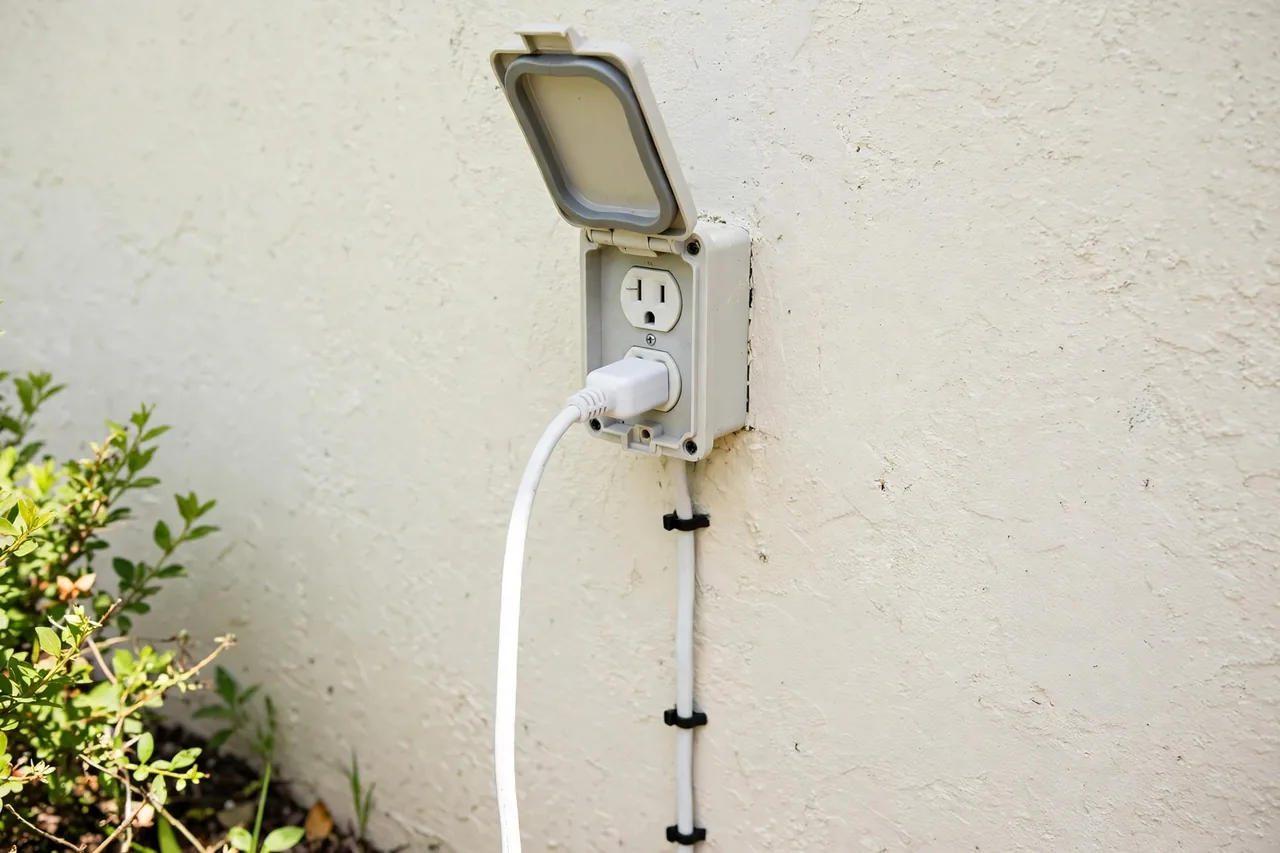
For a plug-in camera, push the adapter firmly into the outlet and into the camera. Try a different outlet, and test the outlet with a phone charger to prove it has power. Check outdoor GFCI outlets, because they trip after heavy rain and cut power to everything downstream. Look at the breaker panel for a tripped breaker, and reset it once if you find one.
For a battery camera, open the app and check the battery level. If it is under 20 percent, charge it now. A solar camera with a dead battery needs sun on its panel, or a USB-C top-up if the weather has been dark for days. For a PoE camera, check the link light on the switch or recorder port. No link light means no power or no cable connection. A link light with no video usually means the recorder has the wrong IP address saved for that camera.
If the camera has no light and no sound at all after these checks, treat it as a power problem first. A reset will not help a camera that gets no power.
Step 2: Restart in the Right Order
A full restart clears the temporary glitches that knock cameras offline after a power cut or a router update. The order matters, because each device needs the one before it to be ready.
- Unplug the camera, or remove its battery if the model allows it.
- Unplug the router and the modem. Wait 30 to 60 seconds.
- Plug the modem back in first. Wait until its lights show a steady connection, usually 2 to 3 minutes.
- Plug the router back in. Wait until its Wi-Fi light is steady.
- Plug the camera back in last. Give it 2 to 3 minutes to reconnect before you open the app.
Do not skip the waiting. A camera that boots before the router is ready will fail to connect and may sit offline until you restart it again. Reolink’s own offline guide gives the same sequence: unplug the camera, wait 10 seconds, plug it back in, then reboot the router and switch and wait 2 to 3 minutes for a full boot. See Reolink’s guide to cameras that keep going offline for its seven fixes in full.
Step 3: Check the Wi-Fi Signal at the Camera
Weak Wi-Fi is the number one reason wireless cameras drop offline. A camera at the far end of a yard or behind thick walls can show two bars on your phone and still lose its connection every evening when the network gets busy.
Stand where the camera sits and check your phone’s Wi-Fi signal. For a harder number, use a Wi-Fi analyzer app and look at the RSSI value: minus 30 dBm is excellent, minus 50 dBm is strong, minus 67 dBm is the minimum for steady HD video, and minus 70 dBm or lower means you should expect dropouts. Those thresholds come from the CameraGoPro offline-camera guide, which lists them as the standard field check.
If the signal is weak, move a mesh Wi-Fi node closer to the camera, or move the router to a more central spot. A camera that reconnects when you bring it indoors has a signal problem, not a camera problem. If you cannot improve the signal, a wired PoE security camera or a camera that connects without Wi-Fi removes the problem entirely.
Step 4: Look for Interference and the Wrong Band
Even a strong signal can drop if something interferes with it. Most security cameras use the 2.4 GHz band, which microwaves, baby monitors, and older Bluetooth devices also use. If your camera drops offline every time the microwave runs, interference is the likely cause. Move the camera at least 6 feet from the interfering device, or move the device.
Check which band the camera uses. Many cameras work on 2.4 GHz only, and they cannot see a 5 GHz-only network at all. If you split your router into two networks with different names, make sure the camera joined the 2.4 GHz one. If your camera supports both bands and keeps dropping, try the 5 GHz band when the camera sits close to the router, because it is less crowded. Our wireless outdoor camera guide explains Wi-Fi range and band choice in detail.
Also check the router itself. A router that is too old, too hot, or overloaded with devices can drop cameras first, because cameras need a steady stream while phones tolerate gaps. Restarting the router helps for a day. If the drops come back every week, the router may need replacing, or the cameras may need their own mesh node.
Step 5: Check Cables and Ports (Wired and PoE Cameras)
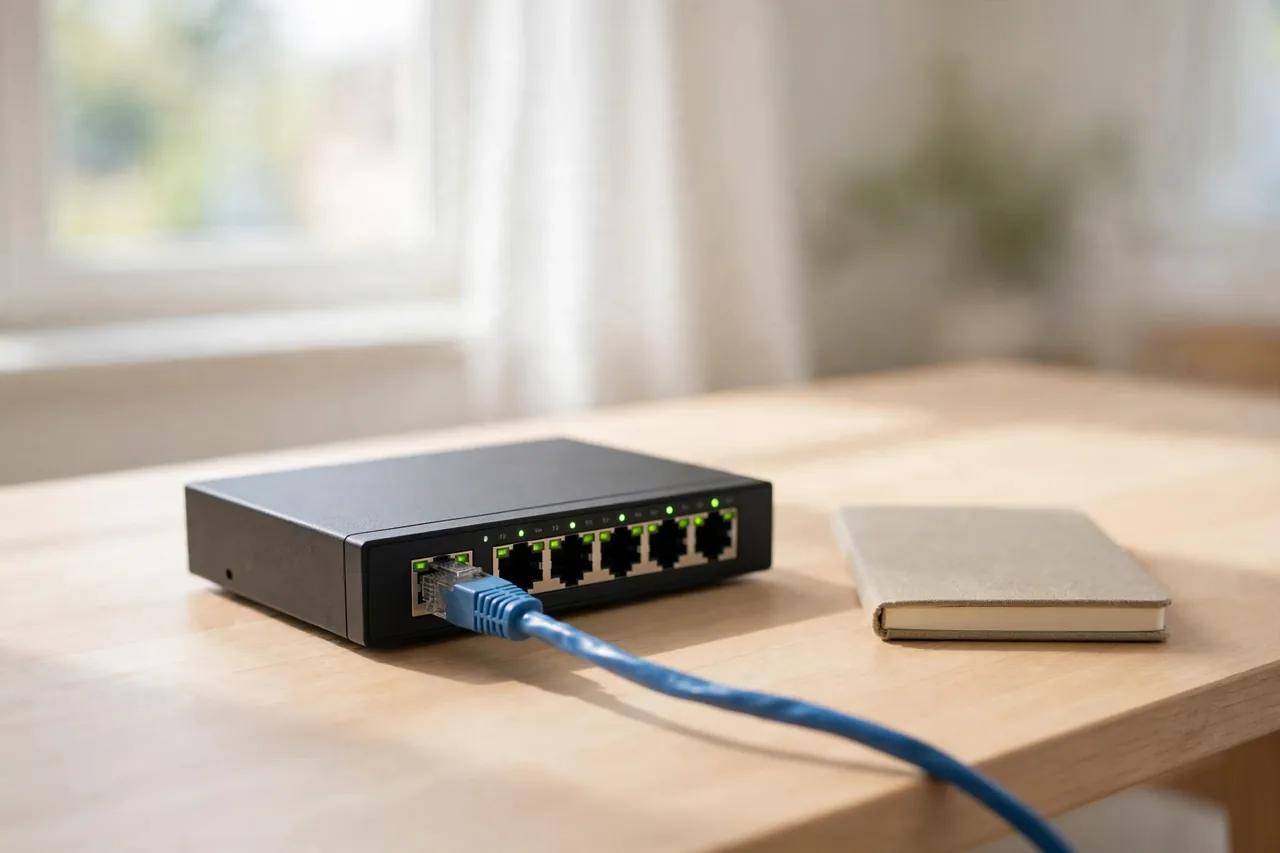
Wired cameras go offline for physical reasons far more often than for software ones, so start with the cable. Inspect the Ethernet cable at both ends for damage, water, or animal bites. Outdoor connectors corrode, so unplug the cable, look for green or white crust on the pins, and plug it back in firmly.
Swap the parts one at a time to find the fault. Plug the camera’s cable into a different port on the switch or recorder. Swap the patch cable for a short cable you know works. Swap the power adapter for a matching spare. The part that fixes the camera is the part that failed. Ethernet runs are rated for 328 feet (100 meters), so a run longer than that can also drop out.
Check the PoE power budget too. A switch can power only so many cameras at once, and a camera that draws more at night, when its infrared lights turn on, can push the total over the limit. Add up each camera’s maximum draw, including night lights, and keep the total under the switch’s total budget, not just the per-port limit. If a camera drops offline right after you add a new one, the budget is the likely cause.
Step 6: Check the Network Settings
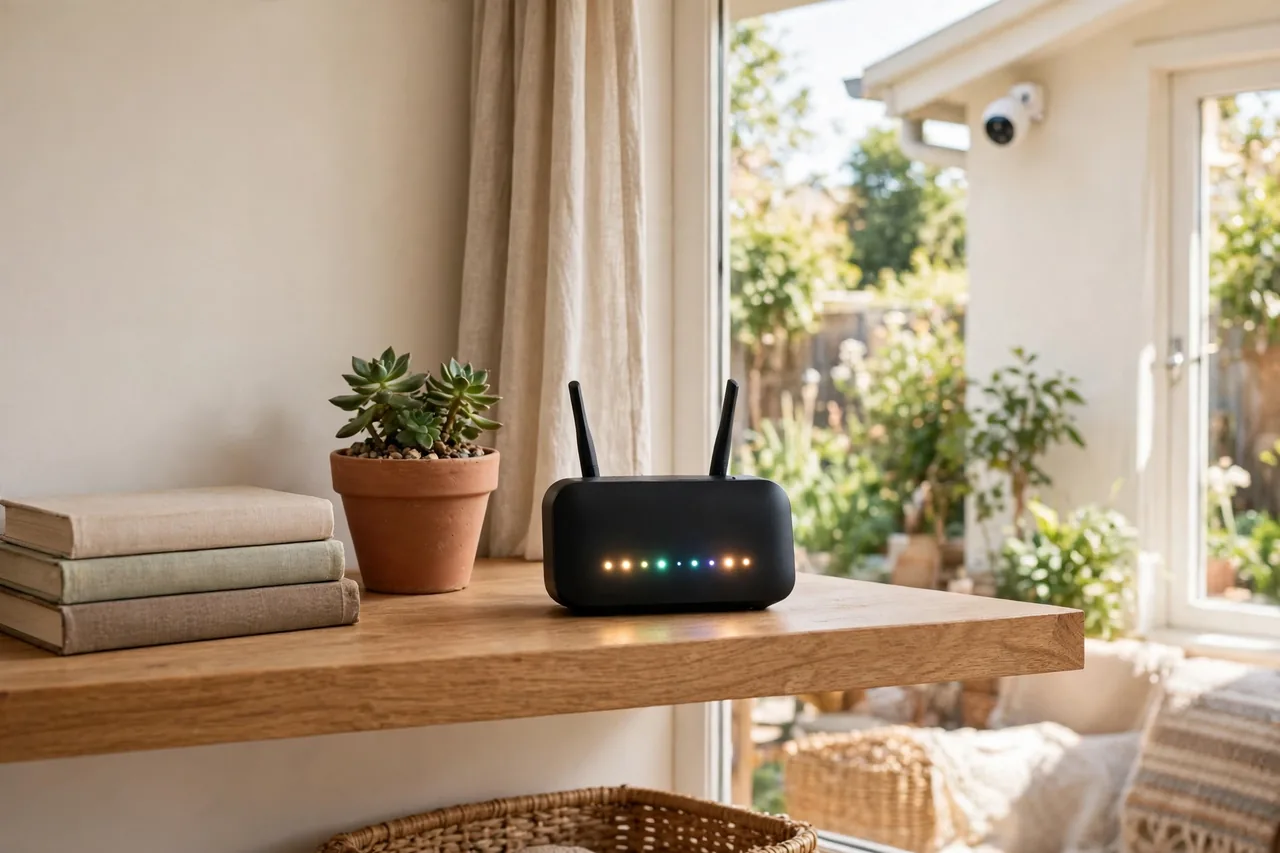
A camera that worked yesterday and went offline today often lost its network settings. The most common triggers are a changed Wi-Fi name or password, a router restart that gave the camera a new IP address, or a DHCP pool that ran out of addresses.
If you changed your Wi-Fi password, every Wi-Fi camera needs the new password, one by one, in its app. If you changed the router, the cameras may sit at IP addresses the new router does not expect. Open the router’s admin page and look at the client list: if the camera is missing, it never connected. If it appears with an odd address, give it a fresh address or set a reserved address for it, then re-add it on the recorder.
An IP address conflict also looks like an offline camera. Two devices with the same address fight over it, and the camera loses. A restart usually clears it, but a reserved address in the router stops it from coming back. Check for MAC address filtering and parental controls too, because a filter can block a camera silently after a router update.
Step 7: Update Firmware and the App
Old firmware causes offline problems that look like hardware faults. Makers release updates that fix connection bugs, router compatibility, and security issues. Open the camera app and check for a firmware update, and update the app itself from your phone’s app store.
Update only when the camera is reachable. If the camera is fully offline, you cannot push an update to it, so fix the connection first. After an update, give the camera a few minutes to reboot and reconnect. If the camera went offline right after an update, restart the camera and the router once more before you try anything else.
Also sign out of the app and sign back in. An expired login or a stale session can show a camera as offline when the camera itself is fine. Clearing the app cache on Android can help too. These two-minute checks fix more cases than most people expect.
Step 8: Check for a Service Outage
If every camera went offline at once and your internet works, the maker’s cloud service may be down. Check the maker’s service status page, or search for the brand name plus “outage” to see whether other owners report the same problem. A cloud outage is not something you can fix, and resetting your cameras during one can make things worse.
Note what still works during an outage. Some cameras keep recording to a local microSD card or a recorder while the cloud is down, so your footage may be safe even when the app says offline. Our security camera with SD card guide and our footage retention guide explain which systems keep recording without the cloud.
Step 9: Factory Reset — The Last Resort
Reset the camera only after the steps above have failed. A factory reset wipes the Wi-Fi settings, the detection zones, and the recording schedule, so you will set the camera up again from scratch. Save any important footage first, because a reset can also wipe local clips on some models.
Find the reset button on the camera, usually a small pinhole. Hold it for the time the manual states, often 10 seconds, until the camera beeps or its light changes. Then add the camera to the app as if it were new. If the camera comes back online after a reset but drops again within days, the cause is probably the signal, the power, or the router, not the camera settings.
Why Does My Camera Keep Going Offline and Coming Back?
A camera that drops and reconnects on its own has an unstable link, not a dead camera. The four usual causes are a weak Wi-Fi signal that fades when the network gets busy, an overloaded router, an IP address conflict, or a loose cable that moves in the wind.
Watch when it happens. Drops in the evening point to Wi-Fi congestion or night-vision power draw on a PoE switch. Drops in rain point to water in a connector. Drops after a new device joins the house point to an address conflict or a full DHCP pool. The pattern tells you where to look, so note the times for a few days before you change anything.
A solar or battery camera that drops in winter usually has a low battery, not a network fault. Short days and cold weather cut charging, so the camera may go offline overnight and come back after a sunny morning. Our battery operated security camera guide explains winter battery behavior in detail.
How to Stop It Happening Again
Prevention is mostly setup done once. Give each camera a reserved IP address in the router, so its address never changes. Put cameras on the 2.4 GHz band when they sit far from the router, and keep the router firmware updated. Mount cameras where the Wi-Fi signal is strong, and add a mesh node before the signal gets weak, not after the camera starts dropping.
Protect the power. Use a surge protector on the recorder and the switch, and keep outdoor outlets covered. Check outdoor cables once a year for cracks and corrosion, and replace a cable at the first sign of damage. Keep the camera firmware updated, and check the battery level on battery cameras once a month.
Write down what fixed it, so the next dropout takes minutes instead of an afternoon. A short note with the camera name, the cause, and the fix is worth more than any troubleshooting guide when the same camera drops again.
When to Replace the Camera
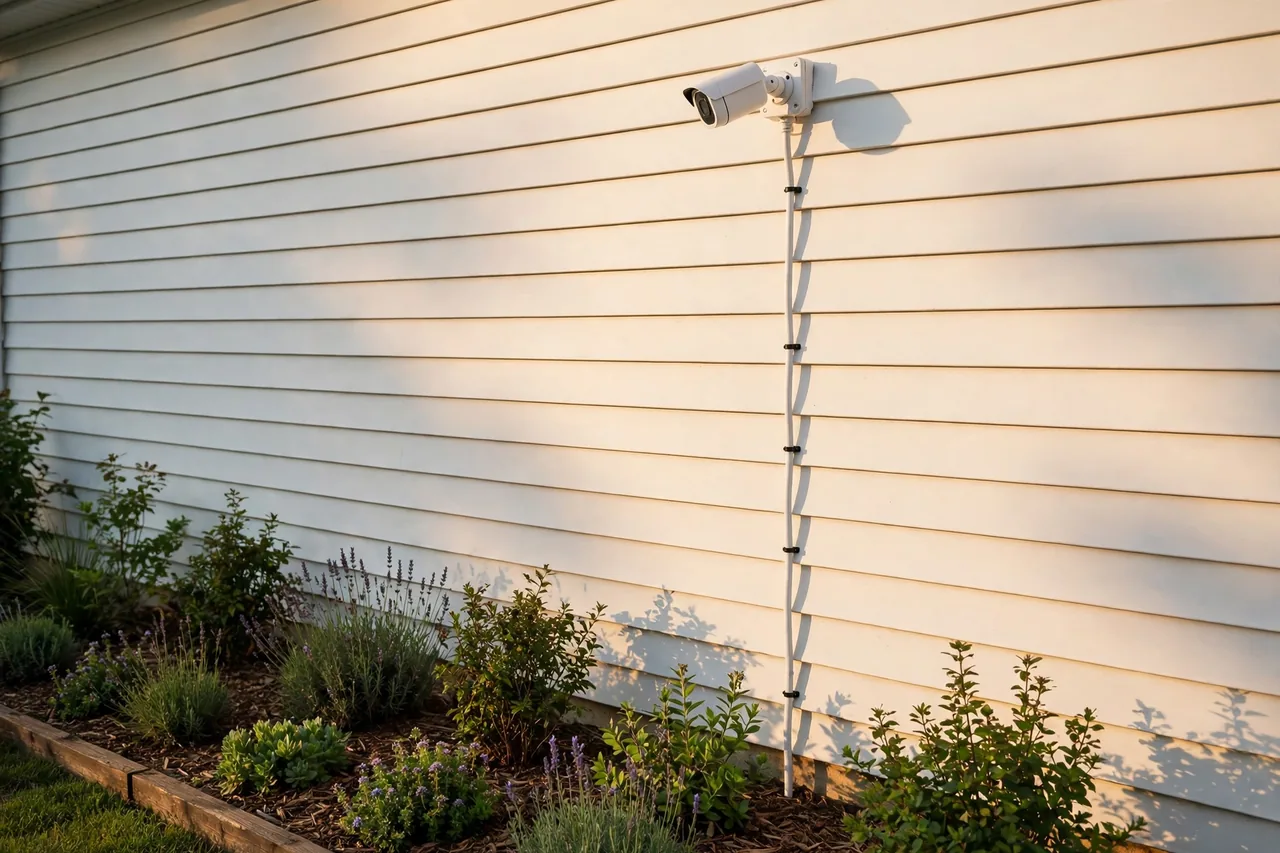
Replace the camera when it stays offline after a known-good cable, a known-good adapter, a strong signal, and a factory reset. Water damage inside the lens, a dead image sensor, and a failed Wi-Fi radio all look like an offline camera, and none of them is worth repairing on a consumer camera.
Check the warranty first. Most cameras carry a one- or two-year warranty, and a camera that dies inside that window should go back to the maker. If the camera is out of warranty and over three years old, a new camera usually costs less than the time you would spend fighting the old one. Our best home security camera system guide compares current replacements with real five-year costs.
Related Guides
For the setup that avoids most offline problems, read our best home security camera system guide and our PoE security camera guide. If your camera drops because the signal is weak, our wireless outdoor camera guide shows how to fix range. For a camera that must work without the internet, see cameras that connect without Wi-Fi and cellular home security systems. For a camera that misses spots even when it is online, read blind-spot guide.
Frequently Asked Questions
Why is my security camera offline?
The most common causes are no power, a weak Wi-Fi signal, a loose or damaged cable, a router problem, or a changed Wi-Fi password. Check whether one camera or all cameras are offline first, because one offline camera points at that camera and all offline points at the router or internet.
How do I get my security camera back online?
Check the power, then restart the camera, the router, and the modem in that order, waiting 2 to 3 minutes for each to boot. Then check the Wi-Fi signal at the camera, the cables, and the network settings. Reset the camera only as a last resort.
Why does my camera keep going offline at night?
Night is when infrared lights turn on and draw more power, which can push a PoE switch over its budget. Night is also when the network gets busy. Check the PoE budget and the Wi-Fi signal at the camera, and look for water in outdoor connectors after rain.
Can a camera record while it shows offline?
Sometimes. Cameras with a microSD card or a local recorder can keep recording while the app cannot reach them, but cloud-only cameras cannot. Check the card or the recorder directly to see whether the footage is there.
Does a factory reset fix an offline camera?
It fixes settings problems, such as a wrong Wi-Fi password or a bad IP address, but it cannot fix no power, a weak signal, or a dead cable. Try the power, restart, signal, and cable checks first, and reset only after they fail.
How do I know if my camera is broken or just offline?
Swap in a known-good cable and adapter, bring the camera close to the router, and reset it. If it still shows no light and no video, the camera itself has likely failed. Check the warranty before you replace it.
Start with the 60-second check, then work the steps in order. Most offline cameras come back with a restart or a power fix, and the ones that do not usually have a weak signal or a bad cable. Write down what fixed yours, so the next dropout takes minutes.