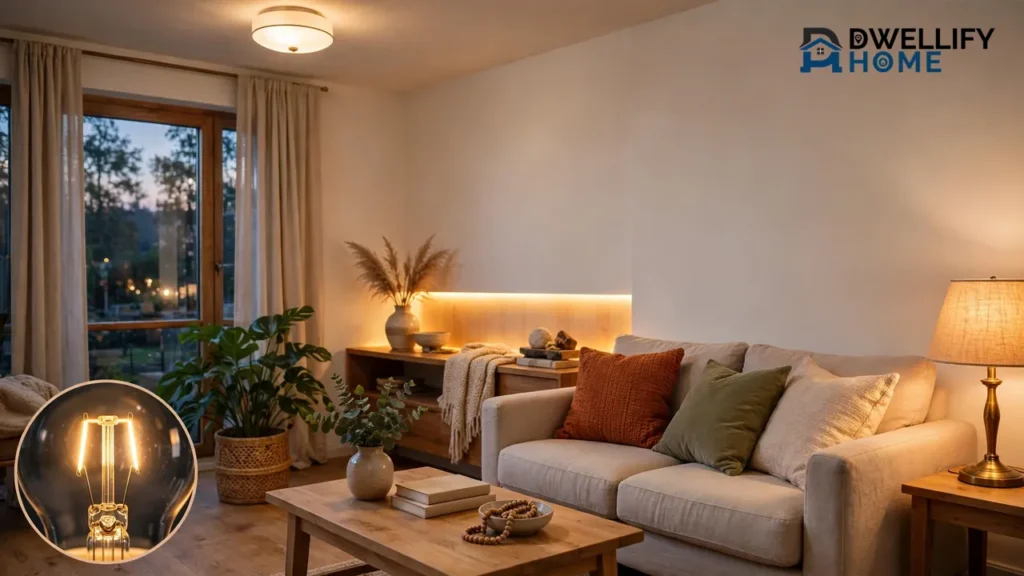
Light automation in a home means your lights turn on, dim, or switch off by themselves based on schedules, sensors, or simple rules you set once — instead of you flipping switches all day. You start with one or two rooms, using smart bulbs or smart switches connected to an app, and you can grow it room by room until the whole house runs on its own.
You do not need to rewire your house or buy everything at once. Most beginners start with a few smart bulbs in lamps, add one voice assistant or app for control, and build from there. This guide explains how the system works, which parts you actually need, and a realistic order to do it in.
What Is Light Automation in a Home?
Light automation is when your home’s lighting follows rules instead of only manual switches. A rule can be as simple as “porch light on at sunset” or “hallway light on when someone walks in, off two minutes later.”
It helps to separate three ideas that often get mixed up:
- Remote control means you tap a phone app or speak a voice command to turn a light on. This is convenient, but you are still the one deciding every time.
- Scheduling means lights follow a clock or the sun. They turn on at dusk, dim at bedtime, or brighten slowly in the morning without you doing anything.
- True automation means lights react to what is happening. Motion sensors, door sensors, daylight, and whether anyone is home become the triggers.
A good setup uses all three, in that order. You start with remote control, add schedules in the first week, and then let sensors handle the boring jobs like hallway and bathroom trips at night.
Every smart light is also an LED. According to the U.S. Department of Energy, lighting accounts for around 15% of an average home’s electricity use, and ENERGY STAR LED bulbs use far less energy than old incandescent bulbs. Automation adds savings on top, because lights stop being left on in empty rooms.
How a Smart Lighting System Actually Works
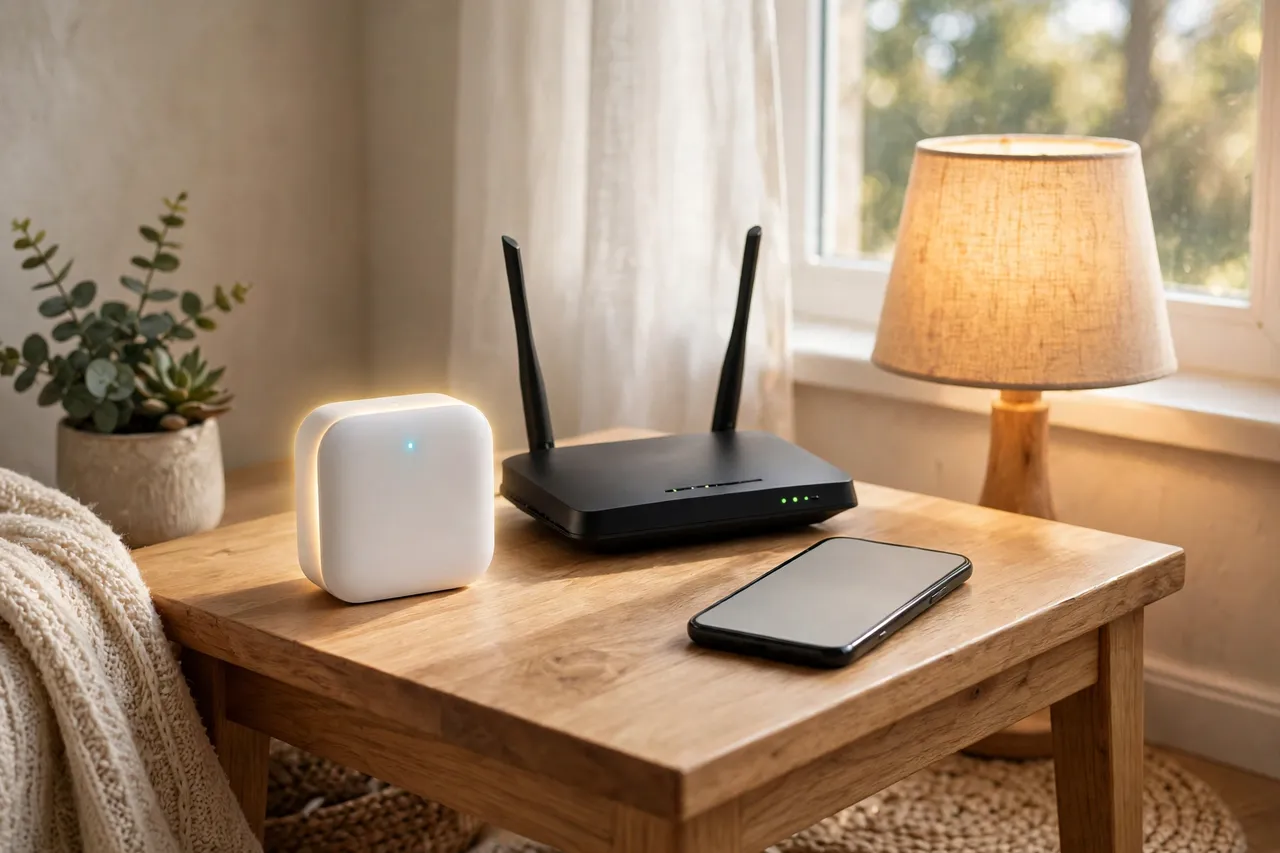
Every system, big or small, has the same four parts. Once you see them, product pages stop looking confusing.
1. The light itself
The smart part can live in three places: inside a smart bulb, inside a smart switch on the wall, or inside a smart plug that a lamp plugs into. Bulbs are the easiest start because you just screw them in. Switches control every bulb on one circuit at once. Plugs only turn a lamp fully on or off — no dimming.
If you want the simplest first step, a lamp with a smart bulb gives you dimming, schedules, and voice control with zero wiring.
2. The controller
The controller is the brain that stores your rules. It can be a phone app, a smart home platform like Amazon Alexa, Google Home, Apple Home, or Samsung SmartThings, or a small hub box. Your scenes and schedules live here, and it tells each light what to do and when.
3. The connection
Lights talk to the controller over a wireless connection: WiFi, Zigbee, Thread, or Bluetooth. This is the part most beginners worry about, and the next section explains it in plain words.
4. The triggers
Triggers are what start a rule. Common ones are a set time, sunset or sunrise, motion in a room, a door opening, your phone arriving home, or a voice command. A rule is always the same shape: when this happens, do that to these lights.
💡 Practical Home Tip: Name every light by room and spot the day you install it — “Kitchen Ceiling,” “Hall Lamp.” Clear names make voice commands and rules work the first time, and you will never remember what “Smart Bulb 3” was a month later.
Hub or No Hub? How Smart Lights Connect, in Plain Words
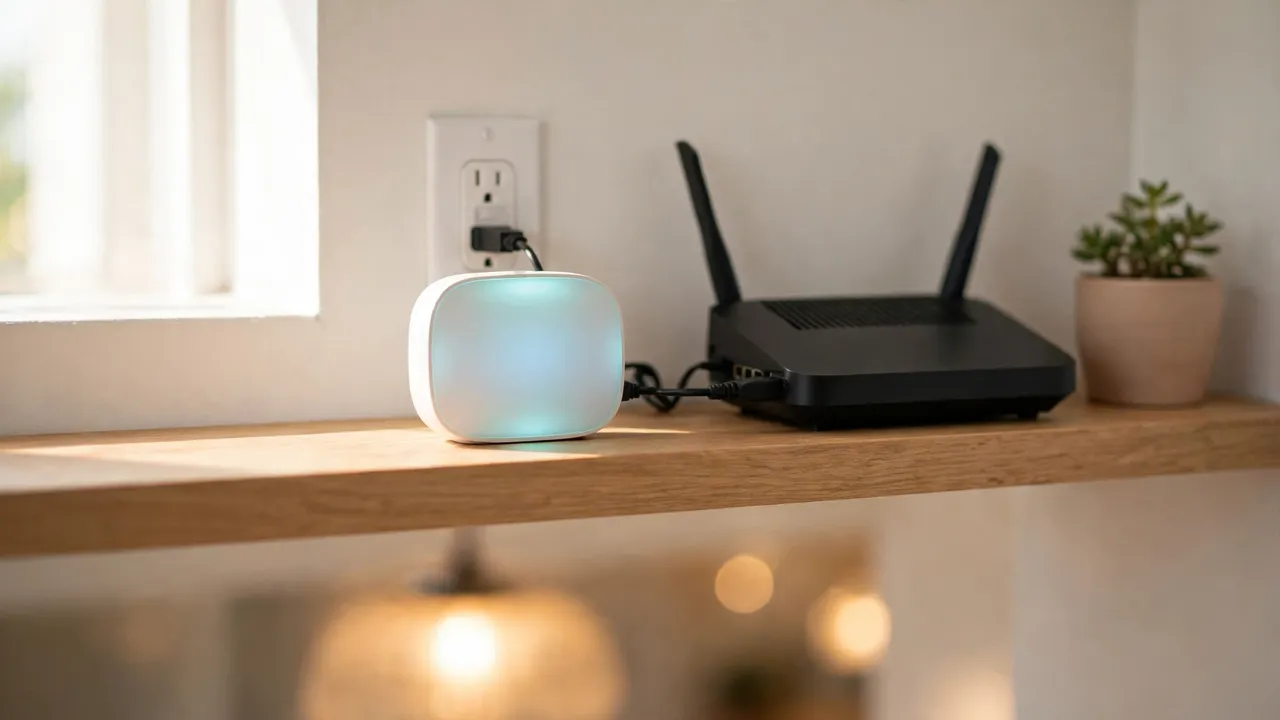
This is the biggest source of confusion for beginners, so here is the short version. A hub is a small box that talks to your lights and connects them to your home network. Some systems need one. Some do not. Neither choice is wrong — they suit different home sizes.
The table below compares the four connections you will see on product boxes.
Smart Light Connections Compared
| Connection | Hub needed? | How it works | Best for |
|---|---|---|---|
| WiFi | No | Each bulb connects straight to your home router | Starting out, a few bulbs, renters |
| Zigbee | Yes, a bridge or hub | Bulbs form a mesh — each one passes signals to the next | Whole-home setups with many lights |
| Thread + Matter | A border router, often already in a smart speaker or display | Low-power mesh like Zigbee, built for the Matter standard | New setups that mix brands |
| Bluetooth | No | Phone talks directly to the bulb, short range only | One room, testing a single bulb |
WiFi bulbs: the no-hub start
WiFi bulbs connect directly to your router, so there is nothing extra to buy. The trade-off is that every bulb is one more device on your WiFi, and most need your router’s 2.4 GHz band. A handful is fine. Thirty bulbs on a weak router can mean slow or dropped connections.
Zigbee: the classic hub system
Zigbee bulbs do not touch your WiFi at all. They form a mesh network through a hub, such as the Philips Hue Bridge. Each plugged-in bulb repeats the signal, so the network gets stronger as you add lights. Rules also run locally on the hub, which is why hub systems often keep working when the internet drops.
Matter and Thread: the shared language
Matter is not a connection. It is a shared language, created by the Connectivity Standards Alliance, that lets devices from different brands work together across Alexa, Google Home, Apple Home, and SmartThings. The Connectivity Standards Alliance maintains the standard and certifies products that carry it.
Matter devices connect over WiFi or over Thread. Thread is a low-power mesh, similar in spirit to Zigbee. Thread devices need a border router to reach the rest of your network — but many homes already own one inside a newer smart speaker or smart display, like a HomePod mini, a Nest Hub, or a recent Echo. If you buy new gear today, the Matter logo is the easiest way to avoid being locked into one brand.
The Four Controls That Make Lighting Feel Automatic
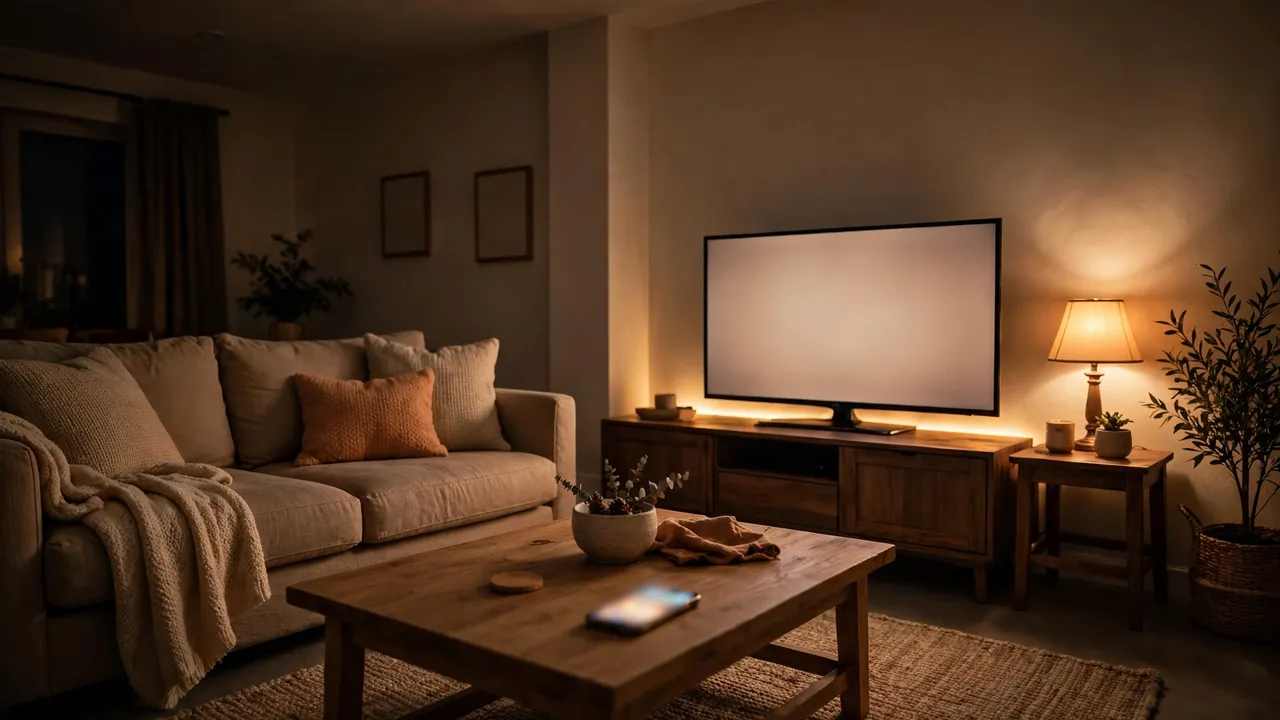
Once lights are connected, four tools do almost all the real work. Learn these, and you know home light automation.
Scenes: one tap, many lights set
A scene is a saved combination: which lights are on, how bright, and what color or white tone. “Movie Night” might dim the living room to 20% and turn the rest off. “Reading” might set one lamp bright and warm. Scenes are saved in the app once and recalled with one tap or one voice command.
Color scenes are where color changing light bulbs earn their keep — holidays, game days, and kids’ rooms. For daily life, most people end up using two or three white-tone scenes far more than rainbow colors.
Schedules and routines: lights that follow your day
Schedules are the highest-value automation for the effort they take. Useful starter schedules include:
- Porch and entry lights on at sunset, off at sunrise — the app knows sunset for your address, so it adjusts all year.
- Bedroom lights that brighten slowly over 15–30 minutes before your alarm, like a gentle sunrise.
- All lights off at a fixed late hour, catching the ones everyone forgot.
- Vacation mode that turns a few lights on and off in the evening so the house looks lived in.
A simple timer switch can handle basic on-and-off schedules for one circuit with no app at all. Full schedules in an app or platform routine are more flexible, because they can change brightness and color, not just power.
Voice control: hands-free, room by room
Link your lighting to Alexa, Google Assistant, or Siri, group lights by room, and plain commands do the rest: “turn off the kitchen lights,” “dim the bedroom to 30%,” or “good night” to run a whole routine. Voice control matters most when your hands are full — cooking, carrying a child, or getting into bed.
Voice only works well when names are simple. Two lights called “Ceiling 1” and “Ceiling 2” will confuse every assistant. “Kitchen Ceiling” and “Kitchen Table” will not.
Occupancy and sensors: lights that react
Motion and occupancy sensors remove the last manual step. A hallway or bathroom light comes on when you walk in and turns itself off a minute or two after you leave. Set night-time sensor lights very dim — around 10% — so a 3 a.m. bathroom trip does not wake you fully.
Geofencing is the phone-based version. Your platform knows when the last phone leaves the house and turns everything off, then turns the entry light on as you arrive. It is the automation people miss most when it stops working.
Where to Start: A Room-by-Room Plan
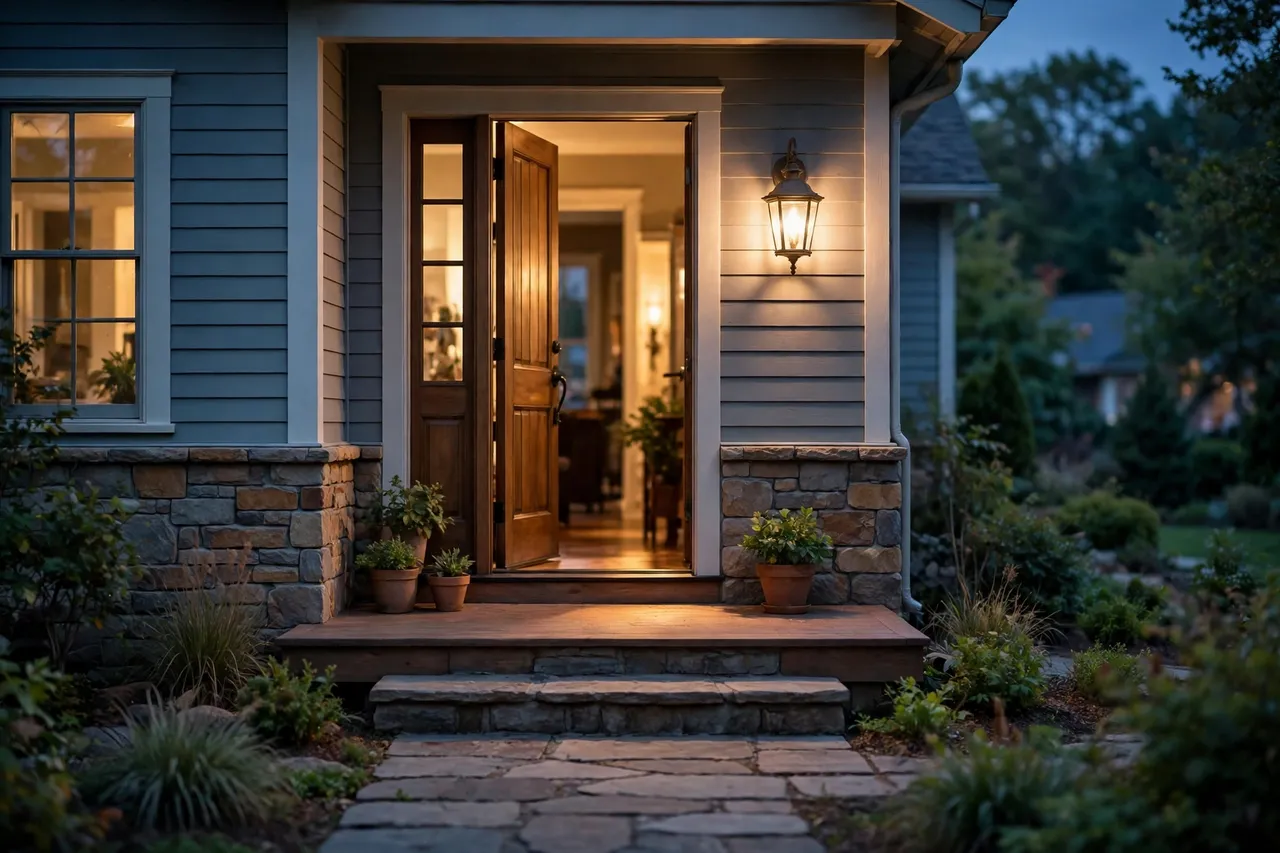
Do not automate the whole house in one weekend. Go in this order, because each step teaches you something the next step needs.
Step 1: Entry and porch (safety first)
Start where automation pays you back immediately. A porch light on a sunset schedule means you never come home to a dark house, and an entry light on a motion sensor or arrival rule welcomes you in. One or two bulbs is a complete first project.
Step 2: Living room (scenes live here)
This is the room for scenes: bright for cleaning and homework, dim and warm for movies. Lamps are easier than ceiling fixtures here, because a lamp with a smart bulb needs no wiring at all. If the room has one ceiling light on one switch used by everyone, a smart switch may serve better than three smart bulbs — the next section explains how to choose.
Step 3: Bedroom (wake-up and wind-down)
Add the sunrise wake-up schedule and a “Good Night” routine that turns everything off from the bed. Tunable white light helps most here: brighter, cooler white in the morning, warm and dim in the evening. If you share the room, keep sensor lights off or extremely dim so a partner’s night trip stays their own.
Step 4: Kitchen and hallway (sensors earn their money)
Under-cabinet and task lighting matter more than ceiling color here — our guide to kitchen lighting covers the layout basics. Hallways are the best sensor rooms in the house: nobody needs to find a switch with full hands, and a dim night path to the bathroom is a genuine safety win. These hallway lighting ideas pair well with a low, warm sensor light for night hours.
Step 5: Bathroom, stairs, and outdoors
Finish with the utility spaces. A bathroom sensor light at low brightness for night, full brightness on the main switch for mornings. Stair lights on sensors prevent the classic missed-step problem. Outdoors, schedules plus motion cover both welcome light and security light with the same fixtures.
Bulbs, Switches, or Plugs: Choosing What to Automate
These three get compared often, and the honest answer is that most finished homes use a mix. This decision table is the fastest way to choose per room.
Bulb vs Switch vs Plug: Which Should You Automate?
| Option | Controls | Dimming and color | Wiring needed | Watch out for |
|---|---|---|---|---|
| Smart bulb | One bulb each | Yes, if the bulb supports it | None — screws in | Wall switch must stay on, or the bulb goes offline |
| Smart switch | Every light on that circuit | Dimming on dimmer models; no color change | Yes — replaces the wall switch | Most models need a neutral wire in the box |
| Smart plug | One lamp | No — on/off only | None — plugs in | Only works for lamps with a physical on switch |
Choose bulbs for lamps and single fixtures, and for any light where you want color. Choose a switch when one wall switch runs several ceiling lights that everyone uses — it keeps normal switch habits working for guests and family. Our separate guide to the remote light switch covers the wireless and battery-powered options for spots where replacing a wired switch is not practical.
One firm rule: never put a smart bulb on a circuit controlled by a dimmer switch unless both are made for each other. A dimmer starves the bulb’s electronics of power, which causes flicker and buzzing and can damage the bulb. Pick one smart layer per circuit — the bulb or the switch, not both.
The same mix-and-match thinking applies beyond lights. A smart plug that works with Google Home can put a plain lamp, a fan, or a coffee maker on the same schedules and routines as your lighting.
Accent Lighting: Where Strips Fit In
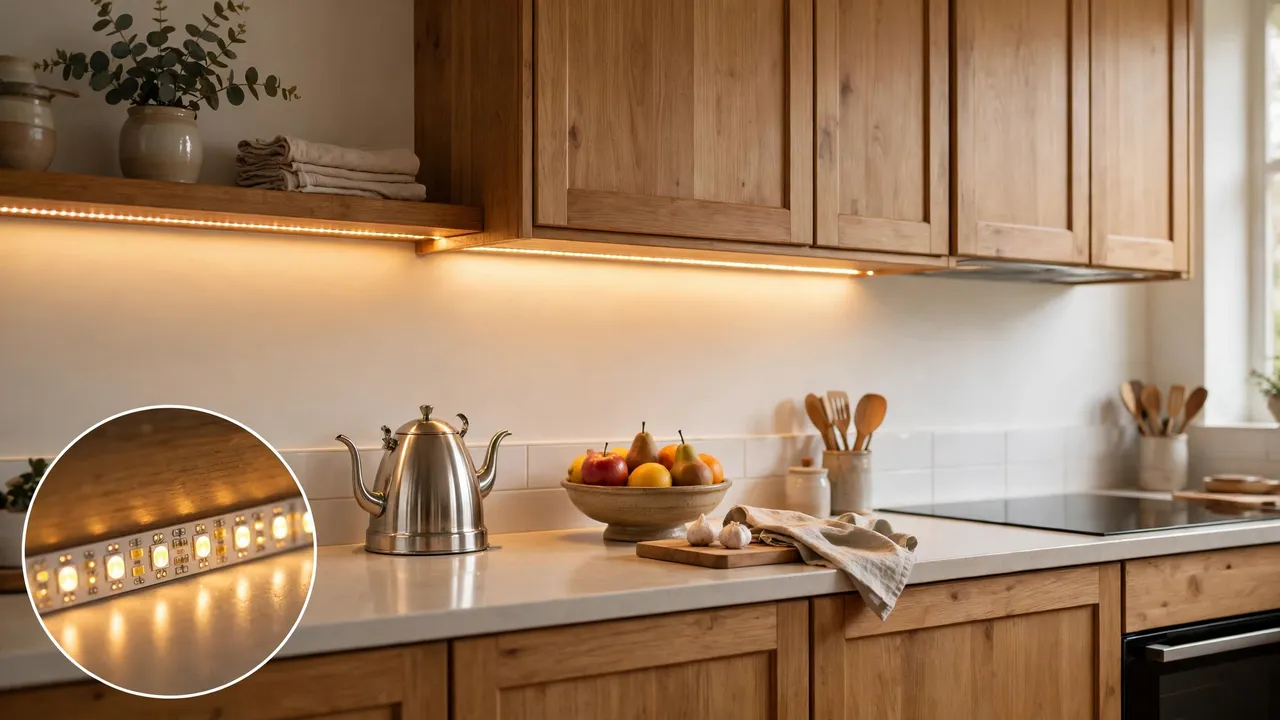
Once the main lights behave, accent light is what makes the house feel designed rather than just automated. An smart LED strip under kitchen cabinets, behind a TV, or along a shelf adds a soft layer that ceiling lights cannot.
Strips follow the same rules as bulbs: they join scenes, run on schedules, and respond to voice. Two starter uses beat all others. Under-cabinet strips on a motion sensor for night-time kitchen trips, and a warm strip behind the TV on your Movie Night scene. Start with one strip in one place before planning a whole outline of the house.
Your Starter Roadmap: One Room to Whole Home
Here is the full plan in order. Most beginners finish steps 1–3 in the first week and the rest over a month or two, buying only what each step needs.
- Pick one platform. Choose Alexa, Google Home, Apple Home, or SmartThings based on the phone and speakers you already own. Every device you buy from now on must work with it — check the box for the platform logo or the Matter logo.
- Fix your WiFi first. Smart lights need a steady 2.4 GHz signal in the rooms where they will live. If your router barely reaches the bedroom, no bulb brand will fix that.
- Automate one room. Entry or living room. Install, name, and group the lights, then live with them for a few days.
- Add two automations only. One sunset schedule and one bedtime all-off routine. Simple rules you trust beat ten clever rules you debug.
- Add voice control. Link the platform to a speaker, test room commands, and rename anything the assistant mishears.
- Expand room by room. Repeat the same pattern in the bedroom, then kitchen and hallway, then bathroom and outdoors. Reuse your scenes and schedules as templates.
- Add sensors last. Once the basics feel boring and reliable, motion and occupancy sensors remove the remaining manual steps.
If you are planning a wider setup beyond lighting, our broader guide to DIY smart home automation shows how lighting fits alongside plugs, sensors, and other devices in one system.
What It Costs and What You Save (Honestly)
There is no honest single price for “automating a home’s lights,” because the range is wide: a few WiFi bulbs in lamps is a small starter purchase, while a hub system with color bulbs in every room is a much bigger one. Any guide that gives you one total without asking how many rooms and fixtures you have is guessing.
What can be stated with sources is the energy side. Smart bulbs are LEDs. Per the U.S. Department of Energy figures cited earlier, lighting is about 15% of a typical home’s electricity use, and LEDs use at least 75% less energy than incandescent bulbs and last up to 25 times longer. Automation adds to that in one specific way: it stops waste. Schedules, dimming, and occupancy sensors mean lights are on only when someone is there to use them.
Be skeptical of any claim that automation alone will cut your bill by a fixed percentage. Your savings depend on how many old bulbs you replace, how often lights were being left on, and your local electricity price. Replace your most-used fixtures first — that is where the payback actually lives.
Common Beginner Mistakes (and the Quick Fix)
- Flipping the wall switch off. A smart bulb with no power is just a bulb. Fix: leave switches on and control by app or voice, use switch guards, or move that circuit to a smart switch instead.
- Buying mixed brands with no shared platform. Three apps for three rooms gets old fast. Fix: pick one platform first and buy devices that list it — or carry the Matter logo.
- Too many WiFi bulbs on a weak router. Lights drop offline randomly. Fix: strengthen WiFi coverage, or move to a mesh system (Zigbee or Thread) as you grow.
- Smart bulb on a dimmer circuit. Flicker, buzz, early failure. Fix: one smart layer per circuit, as covered above.
- Automating everything in week one. A rule misfires at 2 a.m. and the whole project gets blamed. Fix: follow the roadmap order and add one rule at a time.
- Forgetting the people who do not use apps. Guests and grandparents need a switch that works. Fix: smart switches in shared rooms, and keep one simple physical control in every room.
A quick safety note: screwing in bulbs and plugging in lamps is safe DIY work. Replacing wall switches means working inside an electrical box. Turn the power off at the breaker and test that it is off before touching any wire — and if your wiring is old, unlabeled, or has no neutral wire, hire a licensed electrician instead of guessing. That is a normal, sensible call, not a failure.
Related Guides
- Color Changing Light Bulbs: What They Can Actually Do
- Remote Light Switch Options for Any Room
- Smart LED Strips: Where They Work Best
- Getting Started with a Lamp and a Smart Bulb
- Timer Switches for Simple Light Schedules
- DIY Smart Home Automation: The Bigger Picture
Frequently Asked Questions
Do I need a hub for smart lighting?
Only some systems need one. WiFi bulbs connect straight to your router with no hub, which suits a few bulbs in one or two rooms. Zigbee systems use a hub or bridge, and Thread devices use a border router — often already built into a newer smart speaker or display. As you pass ten or more lights, a hub-based mesh is usually more reliable and keeps local rules running if the internet drops.
What’s the difference between smart bulbs and smart switches?
A smart bulb puts the smarts in the bulb: it screws into any fixture, can dim and often change color, but it stops responding if someone turns the wall switch off. A smart switch puts the smarts in the wall: it controls every bulb on that circuit at once and works with normal switch habits, but it cannot change colors and usually needs wiring work and a neutral wire.
Will smart bulbs work if my internet goes down?
It depends on the system. Hub-based Zigbee and Thread setups run scenes and schedules locally, so most automations keep working without internet; you just lose remote access from outside the home. WiFi bulbs that depend on a cloud service may stop responding to app and voice commands until the connection returns, though the wall switch will still turn the light itself on and off.
Do smart lights really save money on electricity?
Partly, and the honest split matters. Most savings come from the LED itself — the U.S. Department of Energy says LEDs use at least 75% less energy than incandescent bulbs. Automation adds savings by cutting waste: schedules, dimming, and occupancy sensors keep lights off in empty rooms. Your actual savings depend on how many fixtures you convert and how your household used lights before.
Can I control my smart bulbs when I’m away from home?
Yes, with almost every system. As long as the lights are connected through an app, hub, or platform account and your home internet is up, you can turn lights on or off, change scenes, and check status from anywhere. This is what makes vacation mode and “did I leave the kitchen light on?” checks possible.
Can I use a smart bulb with a dimmer switch?
No — this is one of the most common and damaging mistakes. A smart bulb needs full, steady power for its electronics. A dimmer switch varies the power on the circuit, which causes flickering and buzzing and can damage both the bulb and the switch. Use either a smart bulb on a normal on/off switch, or a smart dimmer with plain dimmable bulbs — never stack the two.
The Bottom Line
Light automation for a home is not one big purchase. It is a small system — lights, one controller, a connection, and simple rules — that you grow room by room. Start at the entry, learn scenes and schedules in the living room, then let sensors finish the job in the halls and bathroom.
Your next step is deliberately small: pick your platform tonight, then automate exactly one room this week using the roadmap above. When that room feels effortless, the rest of the house is just repetition.