A security camera with an SD card records video straight onto a small memory card inside the camera, so you can keep footage at home with no monthly cloud fee. The card stores your clips on the device itself, and the camera keeps recording even when your Wi-Fi drops. You only need to pick the right card, set the camera to loop recording, and check the footage in the app when you need it.
This guide shows you how SD card cameras work, how much footage each card size holds, how to choose an endurance card that will not wear out in months, and when an SD card beats cloud storage or an NVR. If you are still choosing the camera itself, start with our guide to wireless security cameras for outdoors before you buy a card.
How a Security Camera With SD Card Works
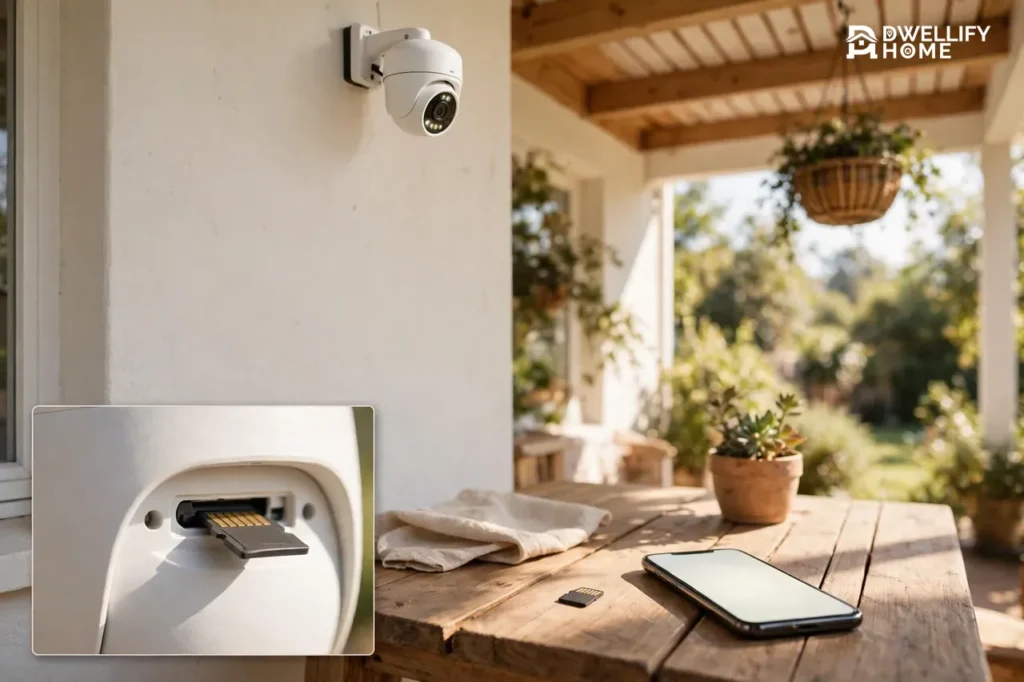
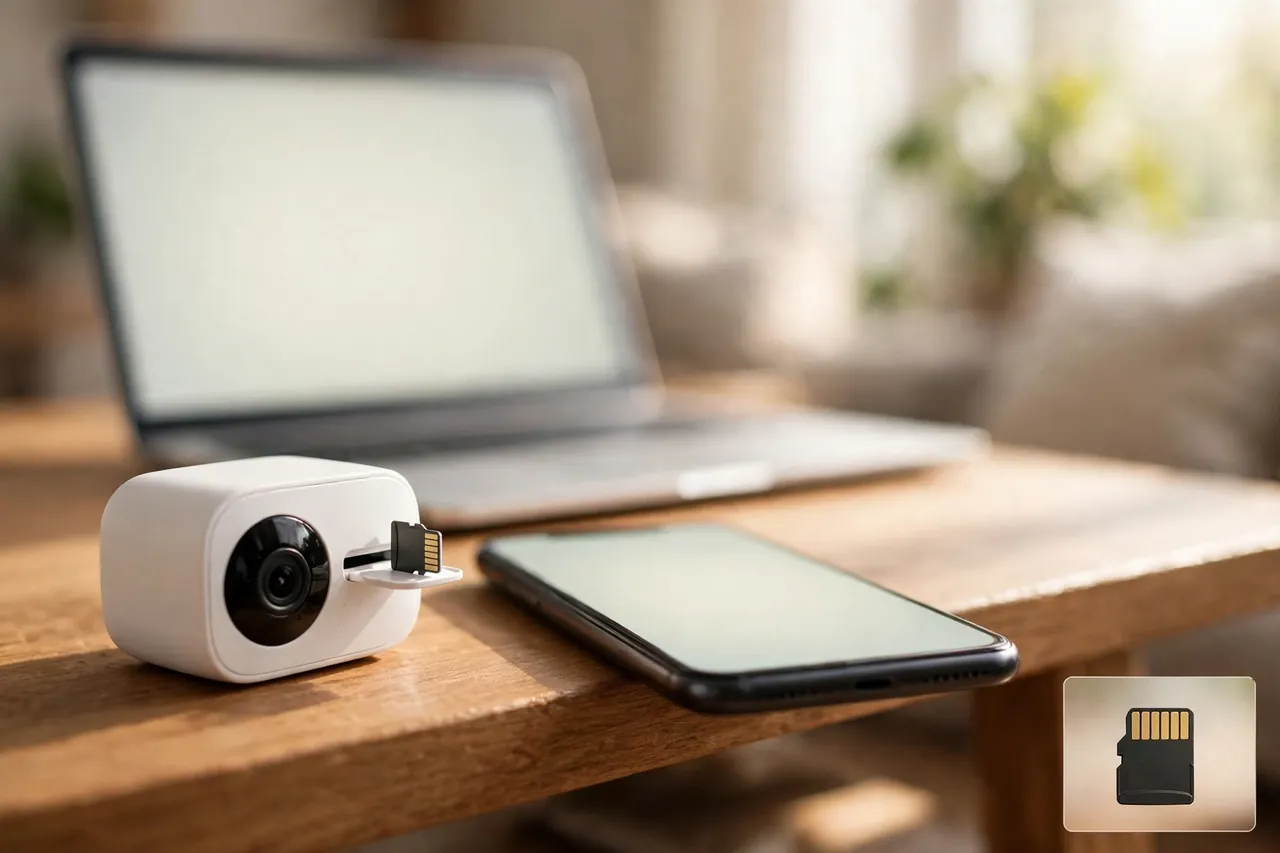
A security camera with an SD card works like a small recorder built into the camera. The lens captures video, the camera compresses it, and the card saves it as files you can play back later. Most home cameras use a microSD card, the tiny card about the size of a fingernail, which slides into a slot on the camera body.
Local storage like this is different from cloud storage in one simple way. With cloud storage, the camera uploads every clip to a server owned by the camera company, and you usually pay a monthly fee to keep it there. With an SD card, the video never has to leave your home. Reolink explains in its SD card guide for security cameras that cloud plans typically cost $3 to $10 per camera per month, while a high-endurance microSD card is a one-time purchase that stores weeks of footage with no recurring cost.
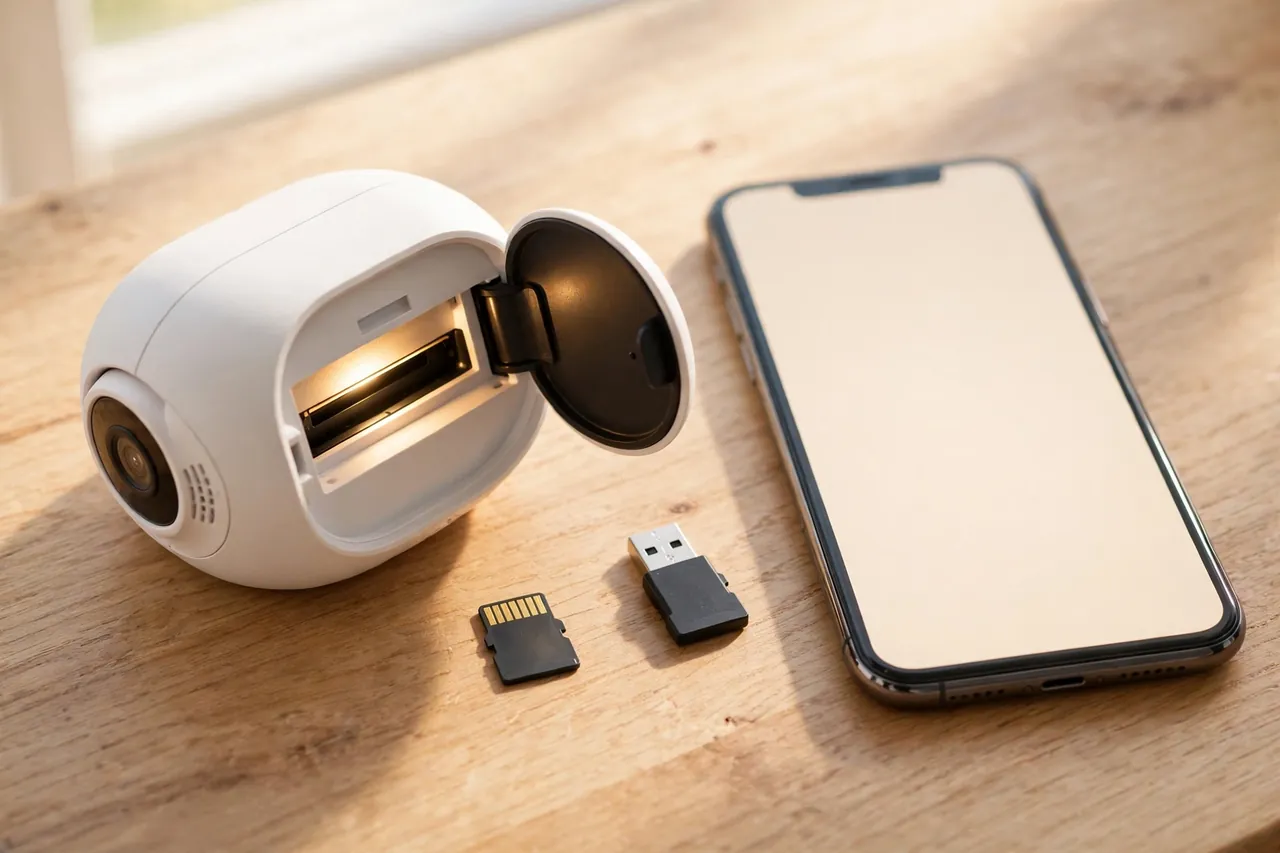
You can watch saved footage in two ways. Most people open the camera app and tap Playback to scroll back through the timeline. You can also take the card out, slide it into a computer with a card reader, and copy the video files straight to your computer. That second way comes in handy when you want to save one important clip forever, because nothing on the card is safe once loop recording erases it.
How Much Footage Can an SD Card Hold?
How much footage an SD card holds depends on three things: the size of the card, the video quality, and whether the camera records all day or only when it sees motion. A bigger card holds more, a sharper picture fills the card faster, and motion-only recording stretches the same card many times further than recording around the clock.
The numbers below come from two published sources, and they agree with each other. Anker tested a 32GB card with H.265 compression, the newer format most cameras now use, and Reolink published a full storage table from its own camera testing. Treat every figure as an example for your setup, not a promise, because bitrate, scene movement, and compression settings change the real result. Your camera app or manual gives the exact number for your model.
Continuous recording: how many hours each card holds
Continuous recording means the camera writes video 24 hours a day, every day. This table uses Reolink’s published storage figures for a 128GB card, recording on the main stream only.
| Video quality | Typical bitrate | Hours on a 128GB card |
|---|---|---|
| 1080p Full HD | 2,048 kbps | About 146 hours (6 days) |
| 2K | 4,096 kbps | About 73 hours (3 days) |
| 4K Ultra HD | 8,192 kbps | About 36 hours (1.5 days) |
| 1080p, low bitrate | 1,024 kbps | About 291 hours (12 days) |
As the table shows, doubling the picture quality roughly halves the recording time. A 4K camera writes about four times as much data as a 1080p camera at a low bitrate, so it fills the same card four times faster.
Motion-only recording: the same card lasts far longer
Motion-only recording changes the picture completely. The camera writes video only when it detects movement, so a quiet camera may record for just a few minutes a day. Anker’s guide to how much video a 32GB card holds gives these examples with H.265 compression and motion recording for about 10% of each day, or roughly 2.4 hours of clips per day.
| Video quality | Continuous on 32GB | Motion-only on 32GB |
|---|---|---|
| 720p HD | About 36–71 hours | About 15–30 days |
| 1080p Full HD | About 18–36 hours | About 7–15 days |
| 2K | About 12–18 hours | About 5–7 days |
| 4K Ultra HD | About 6–12 hours | About 2.5–5 days |
A busy driveway fills a card much faster than a quiet back gate. Anker notes that a camera triggered only 5% of the day could last roughly twice as long as the table shows, while a busy spot recording 20% of the day could cut the time in half. So before you buy, think about how busy the spot is, not just the card size.
Which card size fits your camera
Reolink’s guide matches card size to camera type, and it is a good starting point for any brand. For continuous recording, it suggests 64GB to 128GB for a 1080p camera, 128GB to 256GB for a 2K camera, and 256GB to 512GB for a 4K camera. For motion-triggered recording, it suggests 32GB to 64GB for 1080p, 64GB to 128GB for 2K, and 128GB to 256GB for 4K.
For most homes, 128GB is the sweet spot. It holds several days of continuous 1080p footage or weeks of motion clips, and it costs little more than a 64GB card. Step up to 256GB if you run a 4K camera around the clock or you want a full week of history before the oldest footage disappears. Always check your camera’s manual for its maximum card size first, because a card bigger than the limit may not work at all.
What Is Loop Recording?
Loop recording is the setting that keeps an SD card camera running forever without you touching it. When the card fills up, the camera deletes the oldest footage and records over it, so the newest video always has room. You never run out of space, but you also never keep footage longer than the card’s window.
Think of the card as a shelf that holds only the last few days. A 128GB card in a 1080p camera holds about six days of continuous video, so on day seven, day one is gone. If something happened on Monday and you only check on Sunday, that clip may already be erased. That is why the card size matters so much: a bigger card gives you a longer window to notice a problem and save the clip.
Most cameras let you protect the clips that matter. When you spot something important in the app, export it or download it to your phone right away. Some cameras also let you lock a clip so loop recording skips it, but a locked clip still eats space, so clear old locks now and then. A good habit is to check the playback timeline once a week and save anything you may need later.
How to Choose the Right SD Card for a Security Camera
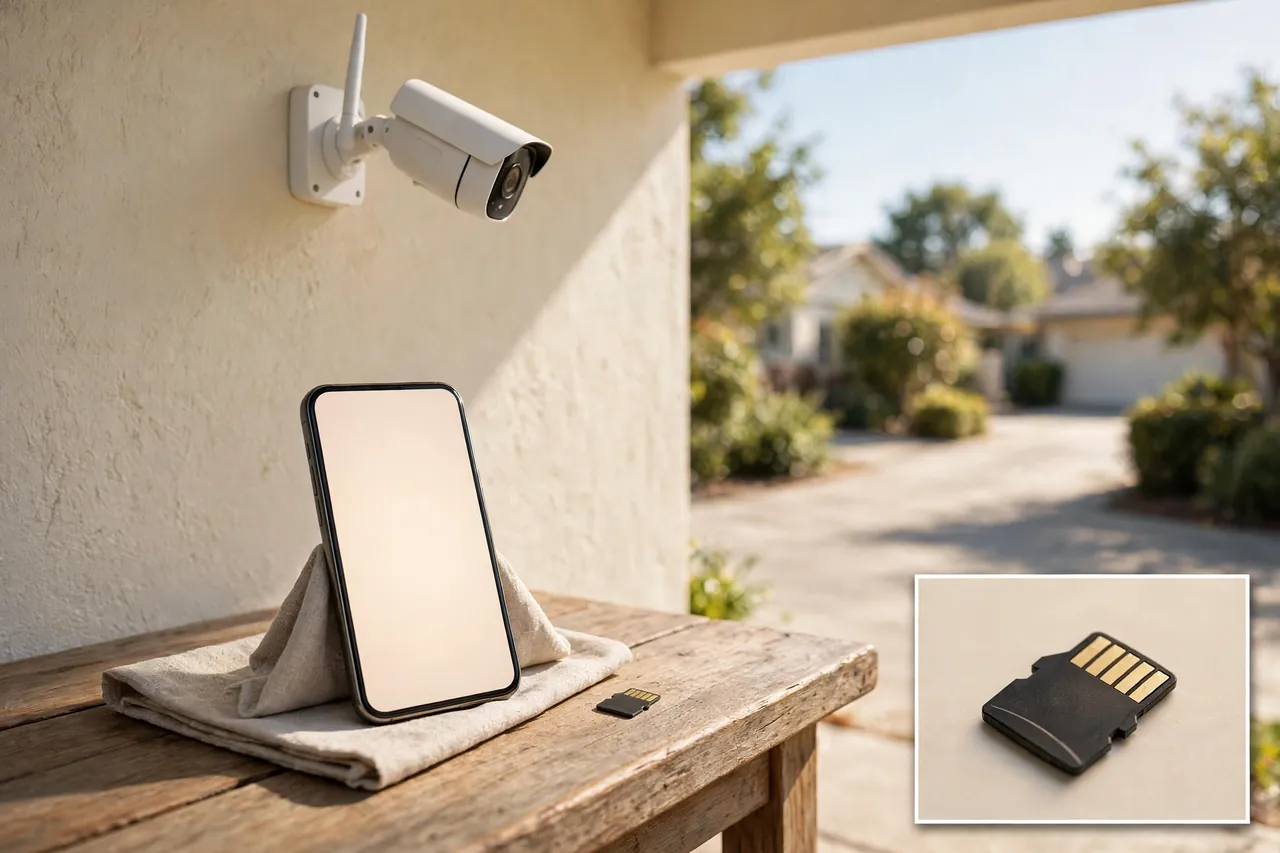
Choosing an SD card for a security camera comes down to three things: capacity, speed class, and endurance. Get all three right and the card will record quietly for years. Get one wrong and you may lose footage right when you need it.
Capacity: buy for the window you want
Capacity is the size printed on the card, such as 64GB, 128GB, or 256GB. Pick it from how far back you want to look, not from the biggest number on the shelf. Ask yourself one question: if something happens while I am away for a week, will the clip still be there when I get back? For a 1080p camera on motion recording, 128GB usually covers that week easily. For a 4K camera recording all day, you need 256GB or more to hold even a few days.
Check the camera’s maximum first. Many cameras top out at 128GB or 256GB, and a few newer models accept 512GB. CCTV Camera World notes that most IP cameras support microSD cards up to 256GB, with a few supporting up to 512GB. A card above the limit can fail to mount, or worse, it can seem fine for weeks and then drop recordings without warning.
Speed class: match the card to your video quality
Speed class tells you the slowest speed the card can write at without stopping. For video, the number that matters is the minimum sustained write speed, not the big read speed on the front of the box. Reolink’s guide gives a simple rule: V10 or UHS-1 cards write at least 10 MB/s and suit 1080p continuous recording, while V30 or UHS-3 cards write at least 30 MB/s and suit 2K and 4K continuous recording.
A slow card in a 4K camera causes dropped frames and broken clips, and you often discover the damage only when you try to watch the footage. For any camera recording in 2K or 4K, V30 is the minimum worth buying. For 1080p, V10 works, but V30 costs only a little more and leaves room to upgrade the camera later.
Endurance: the choice most buyers get wrong
Endurance is the most important difference between a normal SD card and one made for a security camera. A normal card, like the ones in phones and cameras, is built for short bursts of writing followed by long rests. A security camera does the opposite: it writes all day, fills the card, erases it, and starts again, day after day, inside a warm camera housing.
High-endurance cards are built for exactly that workload, and makers publish a rated number of recording hours for them. SanDisk rates its MAX Endurance card for up to 120,000 hours of continuous recording, Samsung rates its PRO Endurance card with a wear-out warranty of 5 years for 32GB to 128GB cards and 14 years for 256GB and 512GB cards, and Kingston rates its High-Endurance card for up to 20,000 hours. SanDisk’s High Endurance card is rated for up to 10,000 hours of Full HD recording. Reolink notes that users commonly report standard cards failing within 3 to 6 months in cameras that record all day, so the small extra cost of an endurance card is cheap insurance.
When you shop, look for the words “high endurance” or “endurance” in the card name, not just the brand. A SanDisk Ultra, for example, is a fine card for a phone, but it carries no continuous-recording rating and will wear out far sooner in a camera. Buy the card from a trusted seller too, because fake cards with false capacity labels are common online, and a fake card fails exactly when you need it most.
| Card | Best for | Endurance rating | Speed class |
|---|---|---|---|
| SanDisk MAX Endurance | 24/7 recording, outdoor cameras | Up to 120,000 hours | V30 / UHS-3 |
| Samsung PRO Endurance | Long life, high-resolution cameras | 5–14 years by size | V30 / UHS-3 |
| Kingston High-Endurance | Budget 1080p and 2K setups | Up to 20,000 hours | V30 / UHS-1 |
| SanDisk High Endurance | Full HD around-the-clock recording | Up to 10,000 hours | V30 / UHS-3 |
These ratings come from the makers’ own published specs, as collected in Reolink’s SD card guide, and they were current when checked on November 6, 2026. Confirm the rating on the product page before you buy, because makers update their lines often.
How to Set Up an SD Card in a Security Camera
Setting up an SD card takes about ten minutes, and most of the work happens in the camera app. The steps below follow the pattern most brands use, including Reolink, and the menu names may differ slightly on your camera.
- Power off the camera if the manual tells you to. Some cameras want the power off before you open the card slot, and some do not. Check the manual first so you do not damage the slot.
- Find the card slot and slide the microSD card in. The slot often sits under a rubber cover or behind the lens housing on outdoor cameras. Push the card in gently until it clicks, with the contacts facing the way the manual shows.
- Format the card inside the camera, not on your computer. Open the app, go to the camera settings, then Storage, and tap Format. Formatting on a computer can set a file system your camera cannot read, which causes failed recordings. Formatting erases everything on the card, so use a new card or copy old files off first.
- Turn on recording and pick a mode. In the recording or storage settings, choose continuous recording if you want every minute saved, or motion-triggered recording if you want a longer history and fewer clips to search through. Battery cameras usually record on motion only, because recording all day would drain the battery fast.
- Turn on loop recording, also called overwrite. This is the setting that deletes the oldest footage when the card fills up. Without it, the camera stops recording when the card is full, which is the last thing you want.
- Test it before you walk away. Wave at the camera, wait a minute, then open Playback in the app and check that the clip is there. If the app says no card found or shows zero space, take the card out, push it back in firmly, and format it again in the camera.
If your camera also offers cloud backup, you can run both at once: the card saves everything locally, and the cloud keeps a copy of motion clips off site. That hybrid setup costs a monthly fee, but it protects you if someone steals the camera itself. For help placing the camera itself, see our guide to wiring outdoor security cameras.
SD Card vs Cloud vs NVR Storage
An SD card is one of three ways to store security camera footage, and each one fits a different home. The other two are cloud storage, which uploads clips to the camera company’s servers, and an NVR, a network video recorder, which is a separate box with a hard drive that collects video from several cameras at once. A DVR does a similar job for older analog cameras, and our guide to security camera DVR systems explains that side in detail.
There is no single best choice for every home. The right one depends on how many cameras you have, how long you need to keep footage, and what should happen if a camera is stolen or your internet goes down. The table below lays out the trade-offs side by side so you can decide in a minute.
| Storage type | Monthly cost | How much it holds | Works without internet? | Main risk |
|---|---|---|---|---|
| SD card in the camera | None | Days to a few weeks per camera | Yes | Footage goes with a stolen camera |
| Cloud storage | About $3–$10 per camera | Weeks to months, by plan | No | Stops if Wi-Fi or the subscription lapses |
| NVR with hard drive | None after setup | Weeks to months for many cameras | Yes | One box holds everything, so guard it well |
An SD card wins on simplicity and cost. You buy one card per camera, there is no box to wire up, and there is no monthly bill. It suits one to three cameras, renters, and homes where the internet is unreliable. Its weakness is physical: the footage sits inside the camera, so a thief who takes the camera takes the evidence too, and a single card holds only a few days of continuous video.
Cloud storage wins on safety and remote access. Your clips live on servers far from your home, so a stolen camera or a house fire cannot erase them, and you can watch them from anywhere. The cost adds up, though: at $3 to $10 per camera per month, four cameras can cost $144 to $480 a year, every year. It also needs a steady upload connection, and it stops the moment your internet drops.
An NVR wins when you have many cameras and want weeks of continuous recording. Parade reports that ADT’s Streaming Video Recorder holds 1TB of storage, supports up to eight cameras, and can record continuously for up to 30 days, though the real time depends on camera count and resolution. A recorder like that costs more up front and needs a safe spot inside the house, but it keeps every camera’s footage in one place and keeps recording with no internet at all.
Many homes end up with a mix: SD cards in each camera for local backup, plus cloud or an NVR for the cameras that matter most. If you can only afford one layer of protection, pick the one that matches your biggest worry. If theft of the camera itself worries you most, add cloud backup. If monthly fees worry you most, stick with SD cards and save important clips by hand.
Do SD Card Security Cameras Work Without Wi-Fi?
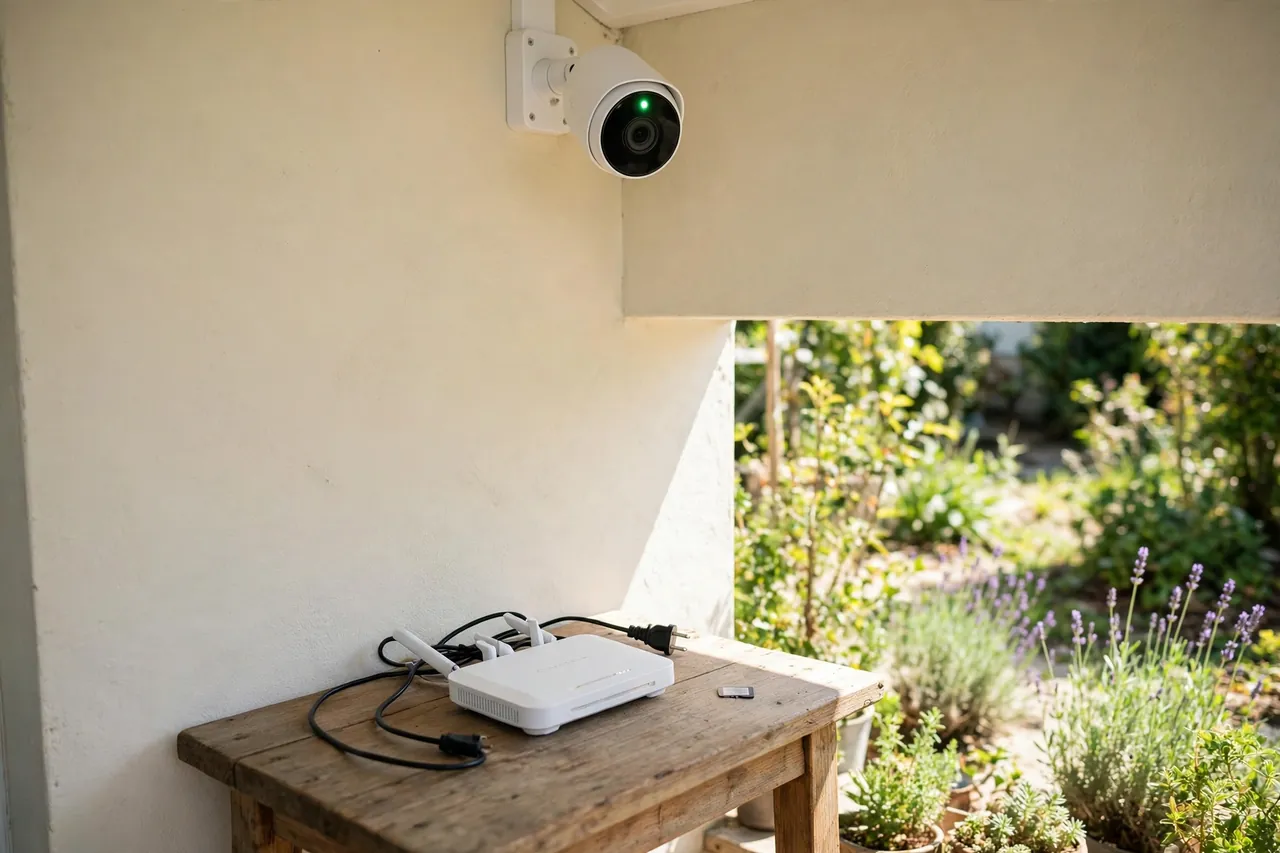
Yes, a security camera with an SD card can keep recording with no Wi-Fi and no internet at all. The camera writes video straight to the card inside it, so it does not need a network to save footage. CCTV Camera World confirms that cameras with local storage record and store video entirely offline, and an internet connection is only needed for remote viewing, app alerts, and cloud backup.
That said, you do lose some features while the connection is down. You cannot watch the live feed from your phone, you will not get motion alerts, and cloud clips will not upload until the connection comes back. Reolink’s own support guidance, quoted in its guide to cameras without internet, says the footage itself is never at risk during an outage; only live viewing, remote access, and push notifications pause.
Some cameras need internet once, during first setup, to activate the device or create an account, so set the camera up on your home Wi-Fi first, then move it to its final spot. Battery cameras deserve a note here too: while offline they usually record motion clips only, not continuous video, because recording around the clock would drain the battery. If you need a camera that truly runs alone, read our guide to battery-operated security cameras and check whether your model supports continuous recording on battery power.
What Can Go Wrong With SD Card Storage?
SD card storage is simple, but a few problems come up again and again. Most of them have a quick fix, and knowing them in advance saves you from finding out your camera stopped recording weeks ago.
The camera says no card found
First, check that the card is pushed in all the way until it clicks, and that it is the right way round. Next, check the size and type against the manual: a camera that only supports SDHC cards tops out at 32GB, and a 64GB or larger SDXC card will not register at all. If the card still does not show up, format it in the camera through the app settings, and if that fails, try a different known-good card to find out whether the card or the slot is at fault.
The camera stops recording after a few months
This is the classic sign of a worn-out standard card. A normal card is not rated for constant rewriting, and it often fails quietly after a few months in a camera that records all day. Replace it with a high-endurance card, format it in the camera, and set a reminder to check the playback timeline every month. Some camera apps show the card’s health or remaining space in the storage settings, so glance at it whenever you open the app.
Footage looks broken or clips go missing
Broken clips usually point to a card that is too slow for the video quality, or a card that was formatted on a computer instead of in the camera. Drop the resolution one step, or fit a V30 card, and reformat the card in the camera. If the problem stays, the card may be a fake with less real capacity than its label claims, so buy a replacement from a trusted seller.
The camera is stolen and the footage goes with it
This is the one problem no card can fix, because the only copy of the video sits inside the camera. If your front door camera is easy to reach, mount it high and out of easy grabbing range, and consider cloud backup or an NVR for that one camera at least. For a full view of your options, see our guide to the best home security systems with cameras, and our explainer on closed-circuit cameras, which covers how wired camera systems keep footage off the camera itself.
Who Should (and Should Not) Choose SD Card Storage?
SD card storage fits most homes, but not every home. It is the right pick if you have one to three cameras, you hate monthly fees, your internet is unreliable, or you want footage that stays in your house and under your control. It is also the right pick for renters, because you can take the camera and the card with you when you move, and for cabins, garages, and sheds where Wi-Fi may not reach.
It is the wrong pick on its own if you run four or more cameras around the clock, if you need to keep footage for a month or longer, or if the camera guards something a thief would want to steal along with the evidence. In those cases, pair the card with an NVR or a cloud plan so at least one copy lives away from the camera. And whatever you choose, remember that sharp video matters as much as storage: a blurry clip that you kept for a month is still a blurry clip, so our guide to high-resolution security cameras can help you pick the picture quality before you pick the card.
If you only remember three things, make them these. Buy a high-endurance card, not a standard one. Match the card size and speed to your camera’s resolution and recording mode. And save any clip that matters the same day you see it, because loop recording will erase it sooner than you think.
Related Guides
If you are building out a camera setup, these guides from Dwellify Home cover the next decisions in order. Learn how wired power changes what a camera can record in our guide to PoE security cameras, compare cord-free placement in our guide to wireless security cameras for outdoors, and see how local recording fits a bigger system in our guide to security camera DVR systems.
Frequently Asked Questions
Do MicroSD Cards Work in Security Cameras?
Yes, as long as the camera has a microSD card slot and the card meets the camera’s supported standards. Check the camera’s manual for its maximum supported capacity and whether it needs SDHC or SDXC cards. Most current cameras accept SDXC cards up to 128GB, 256GB, or 512GB, but the limit varies by model.
What Happens When an SD Card Is Full on a Security Camera?
Most security cameras use loop recording, so when the card is full, the camera deletes the oldest footage and records over it. Recording keeps going with no action from you. Some cameras also let you set a recording schedule, so only certain hours are saved, which stretches how far back your footage goes.
Can You Use Any SD Card for a Security Camera?
Not safely. Most cameras accept any microSD card that fits, but only high-endurance cards are built for the constant writing a security camera produces. A standard card will wear out far faster in a camera that records around the clock, and it can fail without warning, so buy a card with an endurance rating.
Do I Need to Format the SD Card Before Using It in My Security Camera?
Yes, but format it inside the camera, not on a computer. Formatting on a computer can set a file system your camera cannot read, which causes errors or failed recordings. Use the Format option in the camera app’s storage settings, and remember that formatting erases everything on the card.
How long can a 128GB SD card record in a security camera?
It depends on video quality and recording mode. At 1080p, a 128GB card holds about 146 hours, or six days, of continuous recording, and about 36 hours at 4K, based on Reolink’s published storage table. With motion-only recording, the same card can stretch to weeks, because it writes video only when something moves.
Do You Need WiFi for a Security Camera System?
No, you do not need Wi-Fi or internet for a camera to record to an SD card, a DVR, or an NVR. The camera saves footage locally on its own. You only need a connection for remote viewing on your phone, instant alerts, and cloud backup. Without it, you review footage by opening the app on your home network or by taking the card out and reading it on a computer.
An SD card camera gives you home security without a monthly bill and without depending on your internet. Pick a high-endurance card that fits your camera, set loop recording, and check your playback once in a while. Your next step is simple: check your camera’s manual for its maximum card size, order the right endurance card, and set it up this weekend.